GAPS - User Guide
6.5.11.2 Managing Waypoints
Waypoint Files
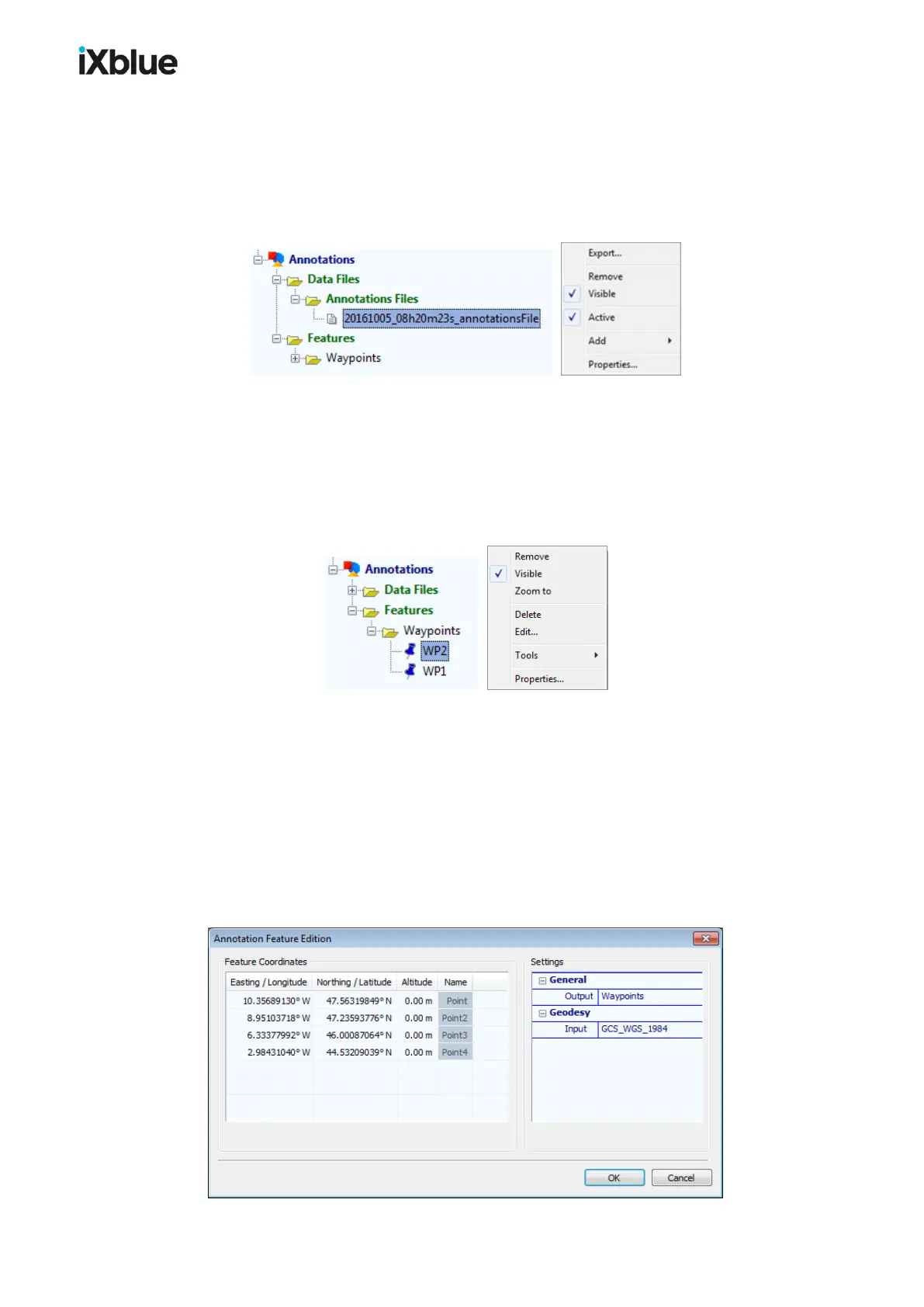
When a waypoint is created, it is added to a KML file. If no KML file exists at the time of the
creation, then a KML file is automatically created, inserted under the Annotations / Data
Files / Annotation files directory and set by default to Active. You can edit the file properties
by right clicking on the event file in the Project view panel:
If you do not want the next created waypoint to be written in the same file, unselect Active in
the pop-up menu. At the creation of the next waypoint, a new KML file is created.
If you remove a waypoint data file, all the waypoints written in the data file are also removed
from the Project view panel.
Waypoint
Edition
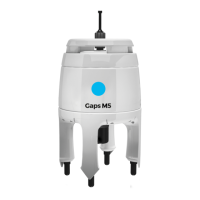
You can perform a few operations on a waypoint. In the Project view panel, under
Annotations > Features, if you right click on one waypoint, a pop-up menu opens:
From the waypoint pop-up menu you have access to the following items:
● Remove: The mark does not appear anymore in DELPH RoadMap.
● Visible: Hide or show the waypoint.
● Zoom to: Set the view of the main graphic display to focus on the waypoint.
● Delete: Waypoint is deleted from the KML file and from the application.
● Edit: Change the coordinates, altitude and name as well as the geodesy
● Properties: Edit the same parameters during the waypoint creation.
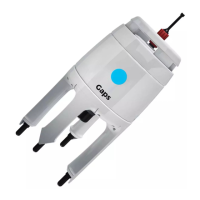
Global Edition
In the Project view, Right click on the Waypoints folder to open the edition window. In this
window, you may edit the coordinates, altitude and geodesy of all the existing waypoints.
122 MU-GAPS-AN-005-H - November 2019


 To Next Page