GAPS - User Guide
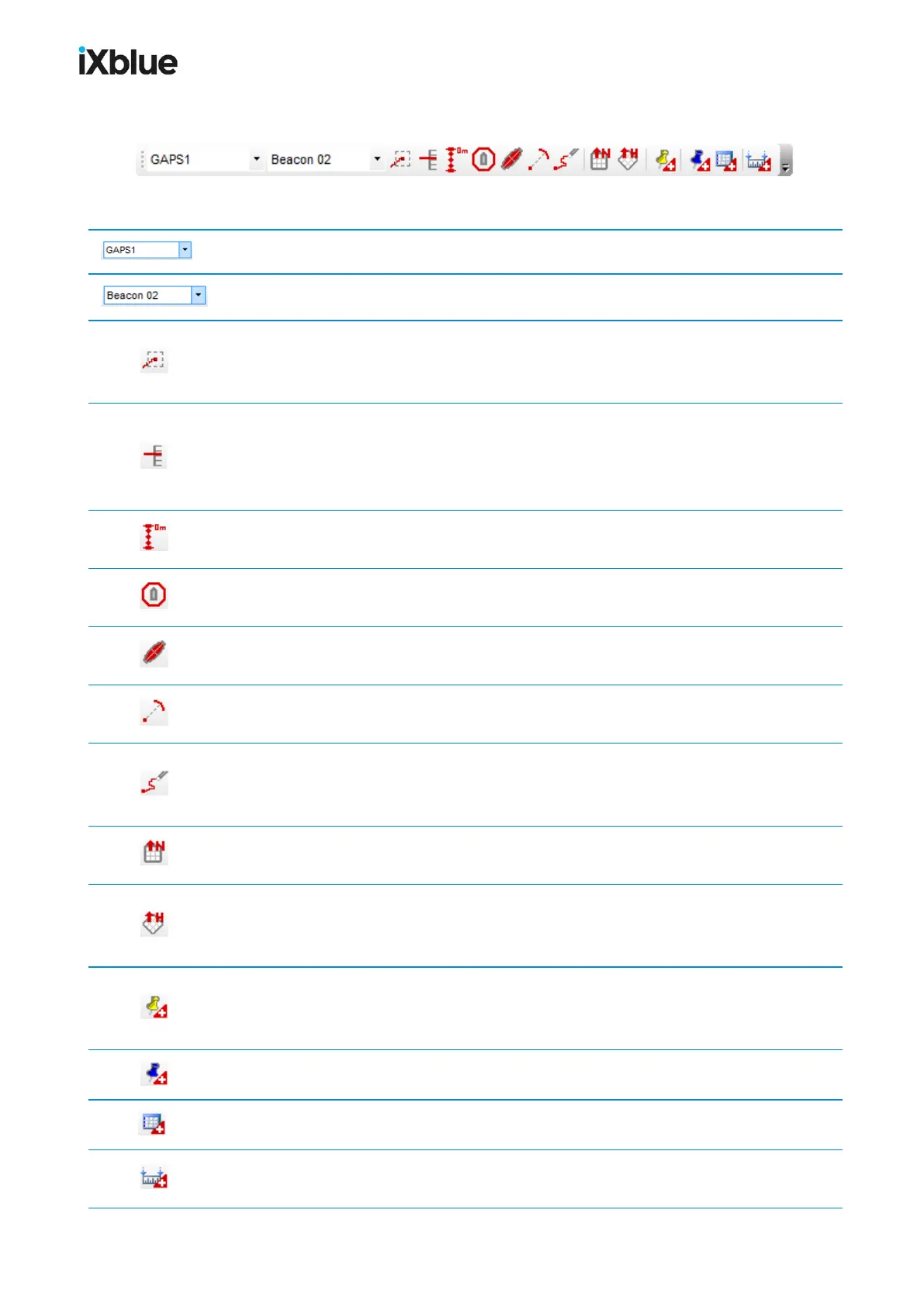
6.2.2.3 Mobile Toolbar
Figure 43 - Mobile toolbar
Choice of an equipment. Maybe All equipment or any single device.
Choice of a mobile from the equipment above.
Enable or disable automatic tracking of the selected mobile. Centers the map on the
current position of the selected position source and the centering is updated as the position
changes. Only in real time mode.
Show or hide the mobile on the immersion panel . The immersion of the different
sources of position are gathered in the immersion panel so their evolutions are compared one
to the other, you can choose with this button which source of position to display in the
immersion panel. Only in real time mode.
Show or hide the vertical axis. A vertical axis is displayed at the current position of the
selected position source. Only in real time mode and in 3D view.
Show or hide the range circle. This tool draws a circle at a certain distance from the
mobile. The distance is editable in the mobile Properties. Only in real time mode.
Show or hide the uncertainty ellipse around the selected mobile in the 3D view. Only in
real time mode.
Show or hide the LBL range of the selected mobile towards the system mobile (if
available) in the 3D view. Only in real time mode.
Clear the track history for the selected mobile. Removes all displayed past positions of the
selected position source. The track keeps being displayed starting at the position where you
have clicked on the button. Only in real time mode.
Switch to a 2D north up display mode. Switches the current view to a view which is seen
from above and in which the North is oriented to the top.
Switch to a 2D heading up display mode. Switches the current view to a heading-
oriented (computed course over ground of the selected position source) view which is seen
from above. Only in real time mode.
Create an event. Keeps track of a particular event and display a sign in the geographic view
at the location of the selected position source. All related information is recorded in a KML
data file. Only in real time mode.
Create a waypoint. Waypoints creation in the main display by a double click.
Open the waypoint editing tool
Add a measurement. Creation of a measurement between two elements (mobiles or
annotation items).
96 MU-GAPS-AN-005-H - November 2019


 To Next Page