GAPS - User Guide
5. In Points tab, select the Width and Style in the corresponding scrolling lists. Click on the
arrow in front of Color to open the Select Color… window. Click OK.
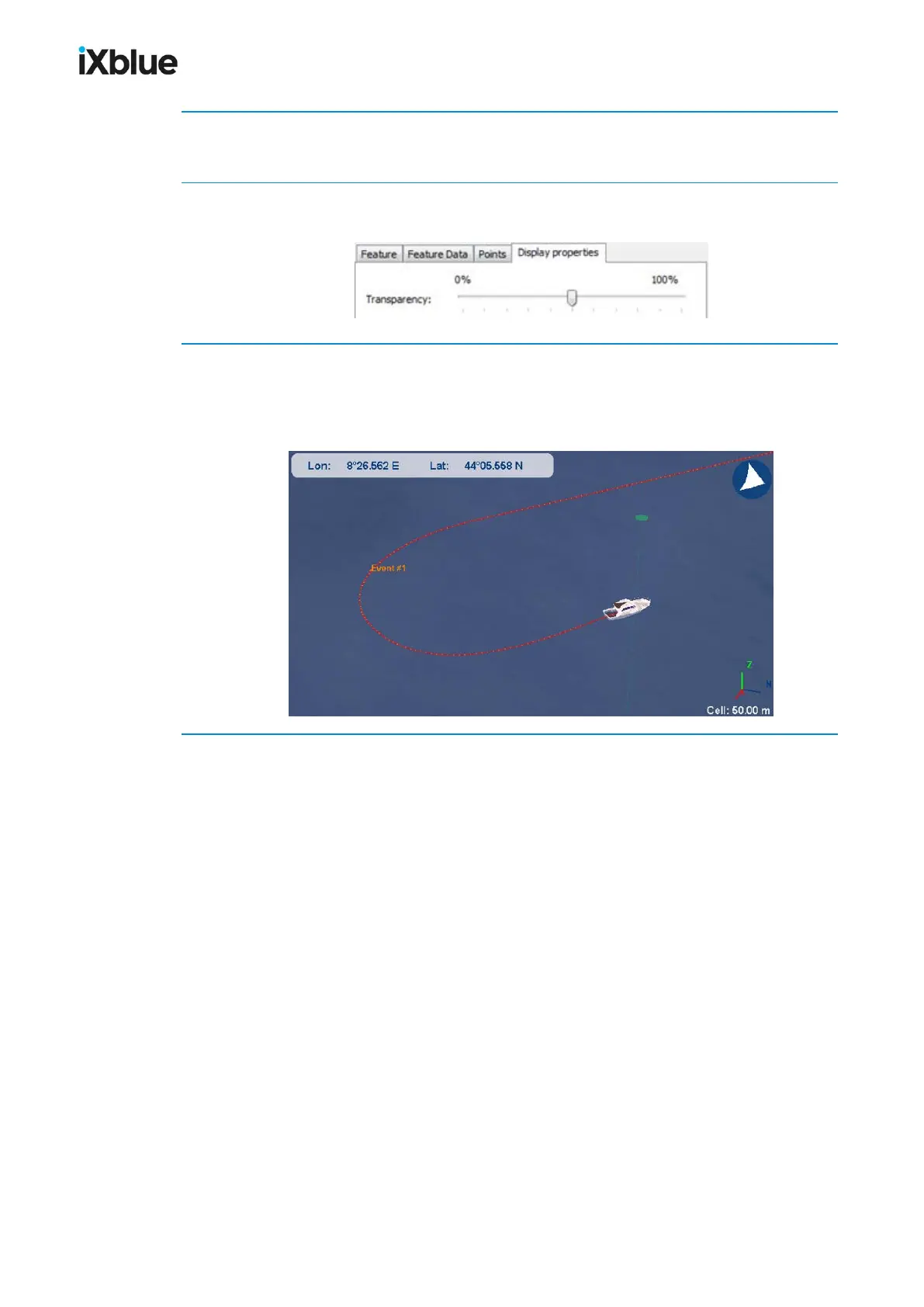
6. In Display properties tab, move the cursor along the Transparency scale to choose a value
between 0 and 100%.
7. Click OK to validate the creation of the event mark.
The event mark is created and displayed on the position track. A data file and an event are
added to the Annotations folder in the Project view panel. The event can look like this on the
display:
118 MU-GAPS-AN-005-H - November 2019


 To Next Page