GAPS - User Guide
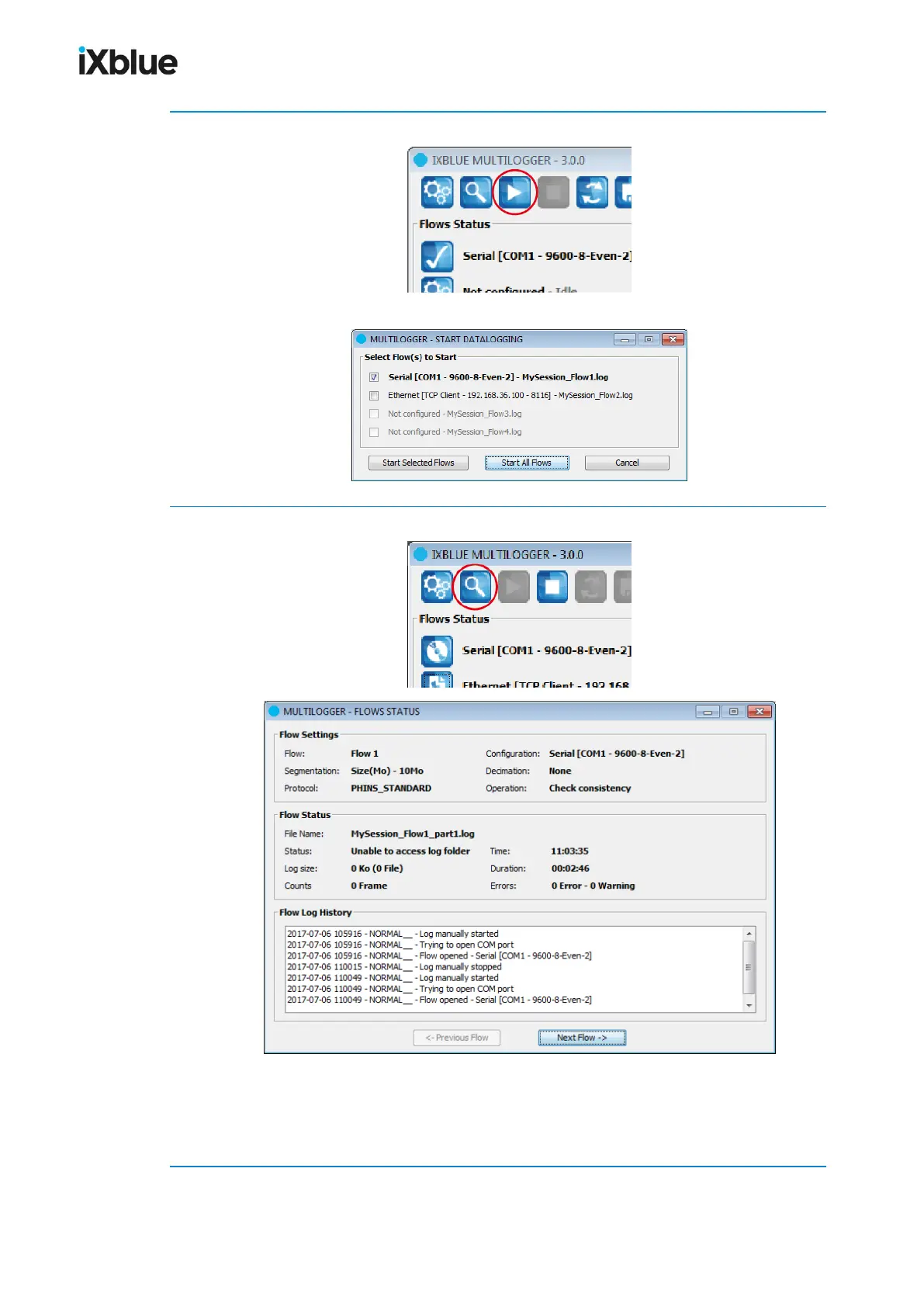
4. Once configured, click on the Start button.
A window asks you which flow(s) you want to start.
5. Click on the flow view button.
Check the Settings, Status and Flow Log History.
Three status give you the quality of the message: NORMAL,WARNING,ERROR. You can
easily see if one data stream carries erroneous data.
Navigate from one flow to another with the Previous flow and Next flow buttons.
MU-GAPS-AN-005-H - November 2019 153


 To Next Page