NET Series
Software Operation
LEIGHTRONIX, INC. Firmware Ver. 1.00.42/Software Ver. 1.0.2.6 Page 113
2010-07-09
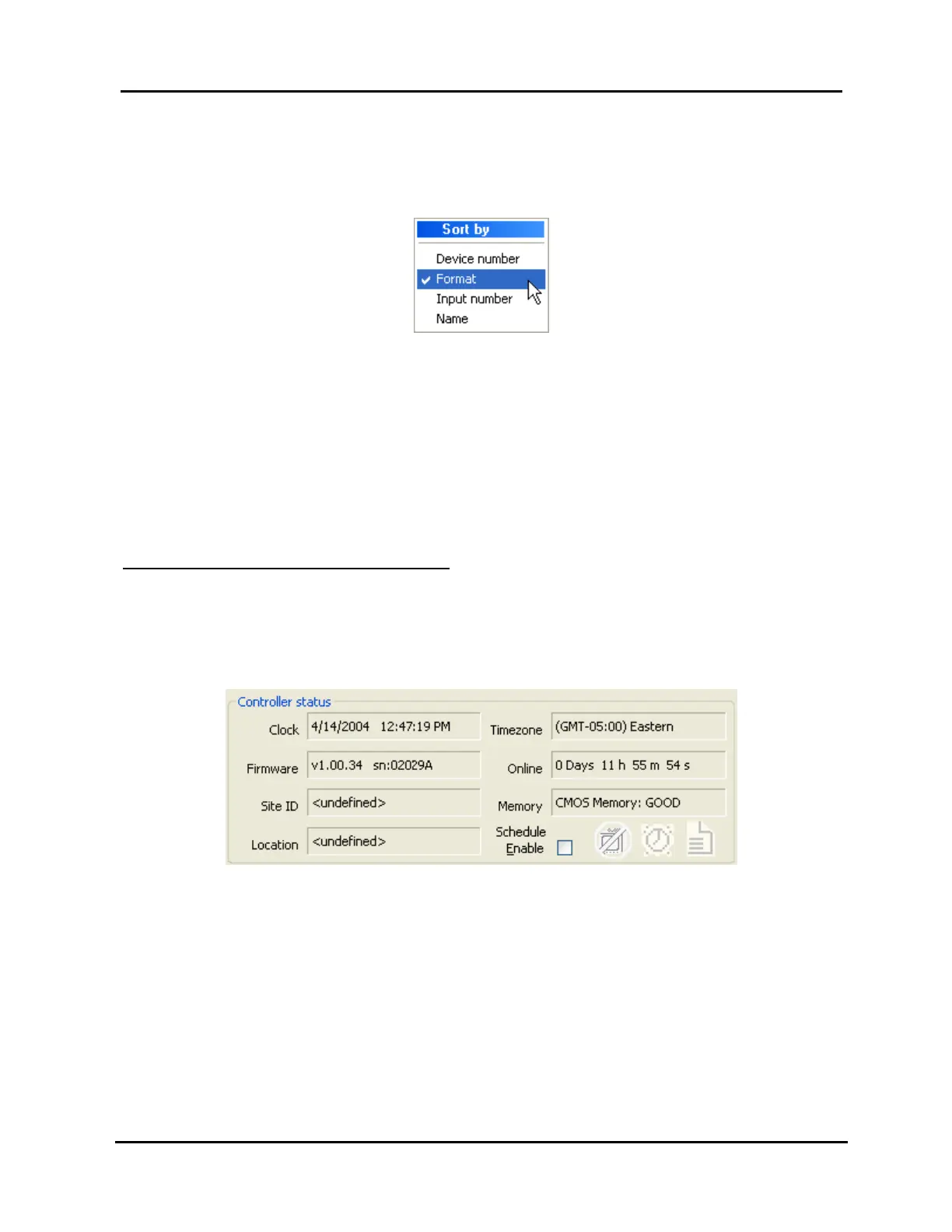
2. If desired, sort the device icon order of appearance by right-clicking in the “Device”
column and selecting one of the sorting filters in the popup menu that appears (see
Illustration 77, Control Panel Device Sorting Menu).
Illustration 77, Control Panel Device Sorting Menu
3. Perform one of the following:
View Controller status (see page 113).
Enable/disable schedule (see page 114).
Control devices and view device statuses (see page 114).
Perform a forced switch and view switcher status (see page 117).
4. When finished, click “OK” to close the control panel window.
VIEWING STATUS OF CONTROLLER
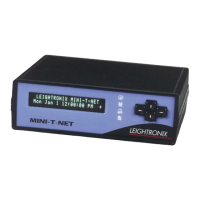
When the Controller is selected in the control panel window’s “Device” list, the
“Controller status” section shows the following Controller status items (see Illustration
78, Control Panel: Controller Status Display):
Illustration 78, Control Panel: Controller Status Display
Controller clock and time zone
Firmware version and serial number
“Online”: Controller time since last boot
Site ID and location
Memory status
Schedule Enable (see “Disabling/Re-Enabling Schedule” on page 114)
Status LEDs: correspond to the Controller’s front panel LEDs (see “LEDs” on
page 14, for a list of the status LED descriptions)


 To Next Page