NET Series
Controller Installation and Configuration
Page 32 Firmware Ver. 1.00.42/Software Ver. 1.0.2.6 LEIGHTRONIX, INC.
2010-07-09
IP ADDRESS CONFIGURATION STEPS CORRESPONDING SCREEN DISPLAYS
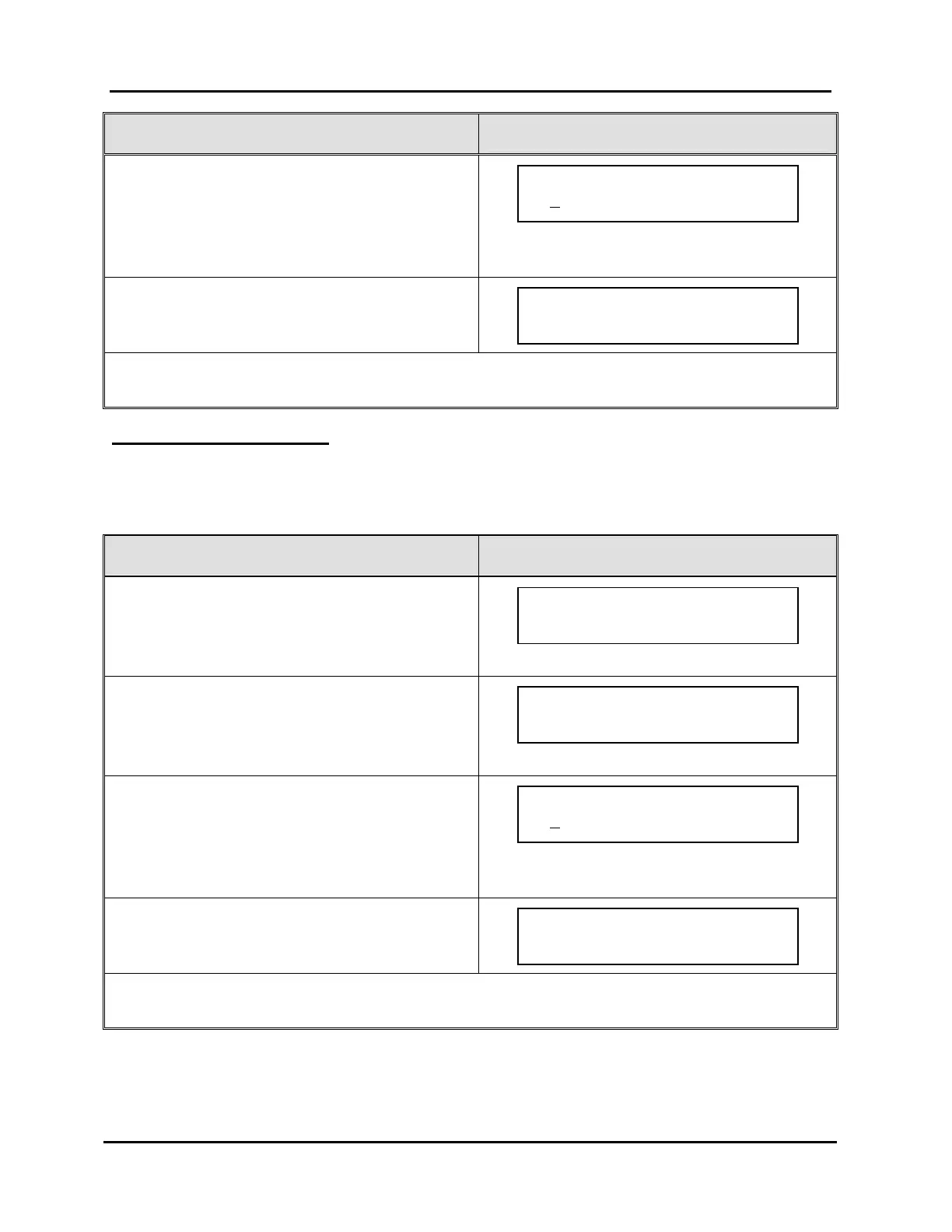
5. Press “→” or “←” to position the underscore
under the editable fields and press “↑” or “↓” to
edit the values.
6. Press “→” to enter next screen.
7. Either press “→” again to save your changes or
“←” to abort changes.
NOTE: Unit must be rebooted to apply any TCP/IP address changes (simultaneously press
“↓” and “→” and then press “↑”). Refer to “Rebooting Controller,” on page 126.
EDITING SUBNET MASK
Obtain subnet mask address from your support personnel or network administrator.
See Table 8, Editing Subnet Mask from Front Panel, for editing instructions.
Table 8, Editing Subnet Mask from Front Panel
SUBNET MASK CONFIGURATION STEPS CORRESPONDING SCREEN DISPLAYS
1. From the “MAIN MENU” screen, press “↑” or “↓”
to proceed to “TCP/IP Configuration.”
2. Press “→” to select “TCP/IP Configuration.”
3. Press “↑” or “↓” to proceed to “Edit Subnet
Mask.”
4. Press “→” to select “Edit Subnet Mask.”
5. Press “→” or “←” to position the underscore
under the editable fields and press “↑” or “↓” to
edit the values.
6. Press “→” to enter next screen.
7. Either press “→” again to save your changes or
“←” to abort changes.
NOTE: Unit must be rebooted to apply any TCP/IP address changes (simultaneously press
“↓” and “→” and then press “↑”). Refer to “Rebooting Controller,” on page 126.
Press ~ to confirm
Subnet Mask.
Enter new Subnet Mask
255
.255.255. 0 ~
IP CONFIG MENU Use `/ˆ
Edit Subnet Mask ~
MAIN MENU Use `/ˆ
TCP/IP Configuration ~
Press ~ to confirm
IP address.
Enter new IP address
0
. 0. 0. 0


 To Next Page