NET Series
Software Operation
LEIGHTRONIX, INC. Firmware Ver. 1.00.42/Software Ver. 1.0.2.6 Page 85
2010-07-09
“Control” tab of the “Resources” window, no image has been loaded. Also, the playlist
will not have labeled tabs on its left side.
If an unsaved image is open in WinNET when another image is loaded, a box appears
asking if you want to discard the changes in the unsaved image. Clicking “No” aborts
the load, allowing you to save. Clicking “Yes” loads the new image and overwrites the
unsaved image.
The following steps describe the four ways to load an image into WinNET:
Create a new image.
A new image does not contain any control, device, library, or switch properties.
Also, a new image’s playlist does not contain any events.
1. If an image is already loaded, unload it (see “Unloading Controller Images,”
on page 87).
2. Click your Controller icon in the “Control” tab of the “Resources” window.
The selected Controller will then become the only icon in the window, and
property fields will appear in the “Properties” window. See “Configuring
Controller Properties,” on page 67, for a description of each NET Series
Controller’s properties.
Open an image file.
An image file contains a Controller type and any data that was entered and
saved in the playlist and control, device, library, and switch properties windows.
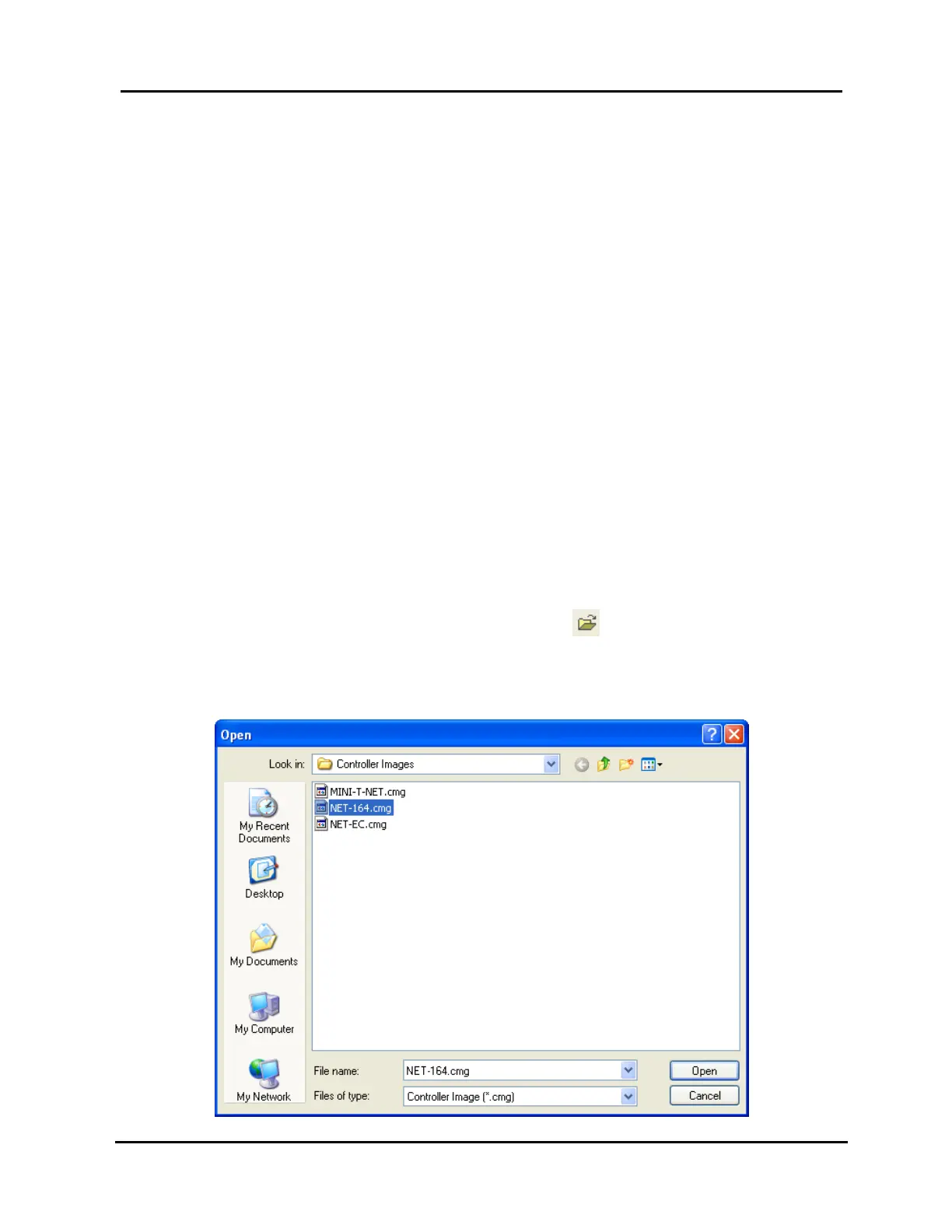
1. Select “Open” in the “File” menu or click the icon on the main toolbar to
open the file selection dialog box shown in Illustration 56, Open Image File
Window.
Illustration 56, Open Image File Window


 To Next Page