NET Series
Software Operation
Page 114 Firmware Ver. 1.00.42/Software Ver. 1.0.2.6 LEIGHTRONIX, INC.
2010-07-09
DISABLING/RE-ENABLING SCHEDULE
If you have sent a Controller image with scheduled event actions to your Controller,
you may disable the schedule from the control panel window by clicking on the
“Schedule Enable” box (the displayed checkmark will disappear; see Illustration 78,
Control Panel: Controller Status Display). To re-enable the schedule, click the
“Schedule Enable” box (the checkmark will reappear).
CONTROLLING DEVICES AND VIEWING DEVICE STATUSES
VCRs
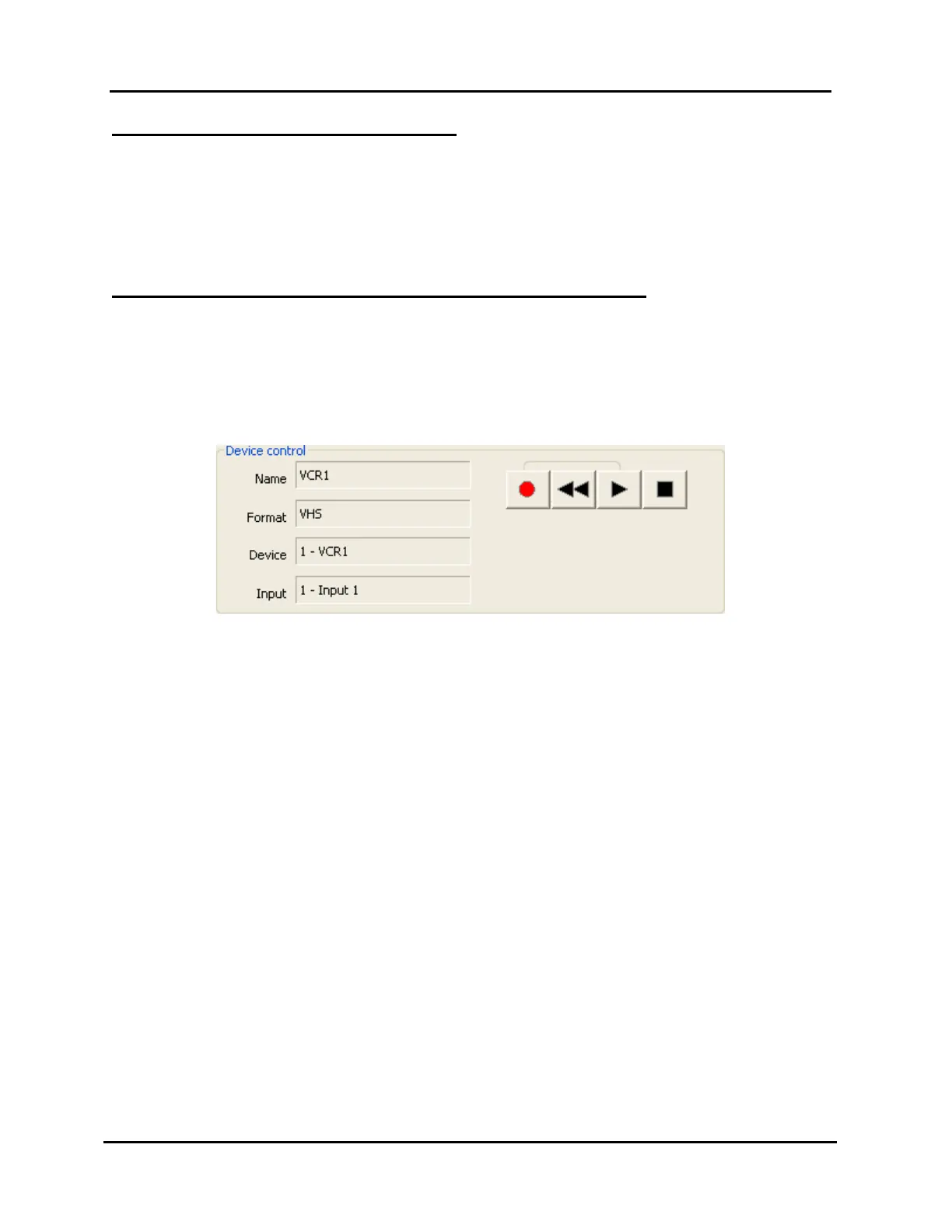
When a VCR is selected in the control panel window’s “Device” list, the “Device
control” section shown in Illustration 79, Control Panel: VCR Device Control, is
displayed.
Illustration 79, Control Panel: VCR Device Control
Device status: the left side of the section displays the name, format, device
number, and input number given to the device in the loaded image. The
“Device” number is the PRO-BUS address set via switches on the PRO-BUS
interface.
Control options: on the right side of the section (from left to right) are the
record, rewind, play, and stop buttons for controlling the VCR.
1. To rewind, play, or stop, click the corresponding button.
2. To record, click the record button and then click the play button.


 To Next Page