NET Series
Software Installation and Configuration
LEIGHTRONIX, INC. Firmware Ver. 1.00.42/Software Ver. 1.0.2.6 Page 51
2010-07-09
SETTING USER ACCOUNT RIGHTS (INCLUDING WINNET PASSWORD
CHANGES)
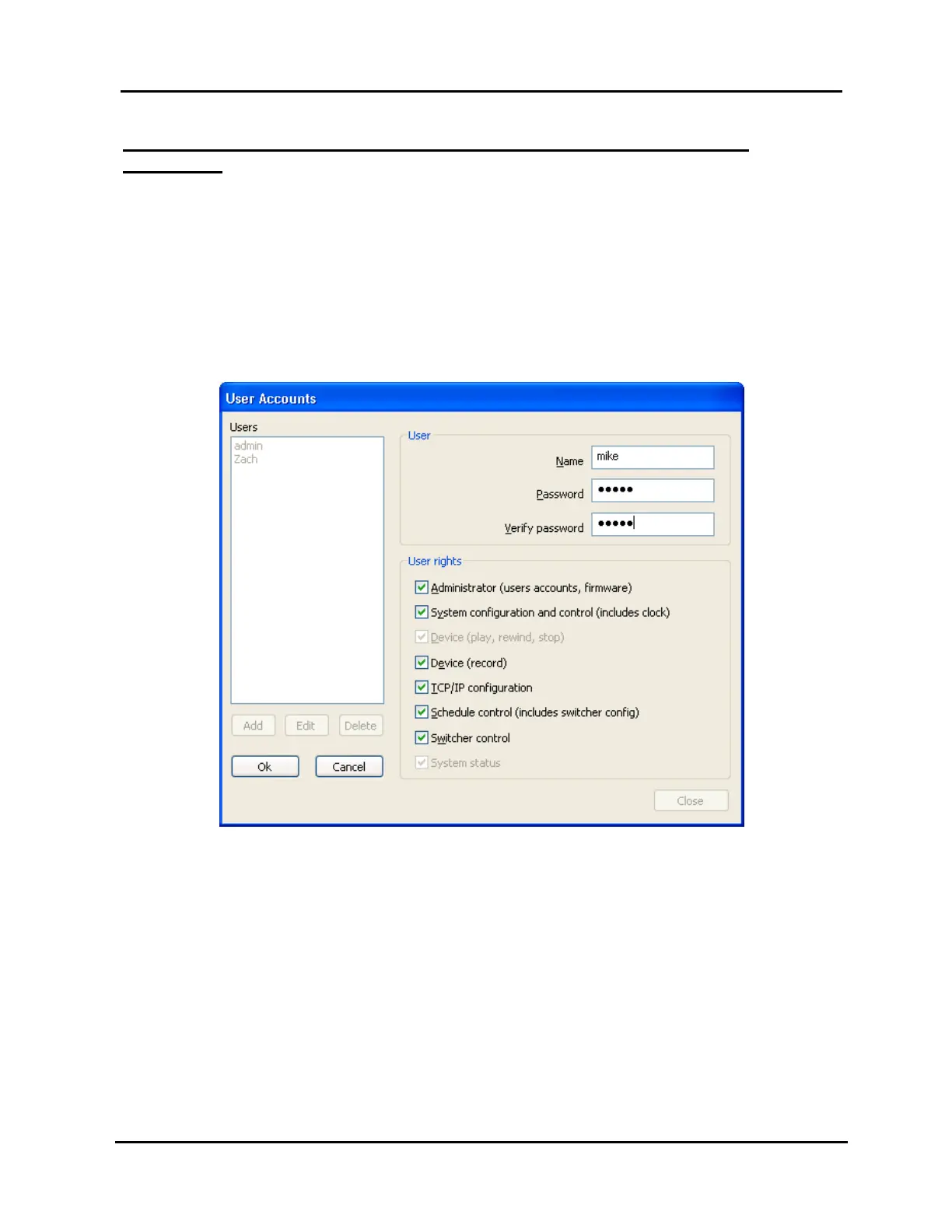
1. Select “User accounts” in the “Tools” menu to open the “User Accounts” window
(see Illustration 27).
This menu item will only become enabled for users with account
administration access.
NOTES:
If you have not already logged in, the WinNET login prompt will
appear and must be completed before the “User Accounts” window
will appear.
Illustration 27, “User Accounts” Window
2. User rights are described in Table 13, User Rights, and apply only to the WinNET
software program. All functions controllable from the Controller’s front panel are
only restricted by the front panel password. User rights may be configured as
follows:
Add user
1. Click “Add.”
2. Enter new username and password.
3. Check user rights you want the user to be able to access.
4. Click “Ok” to send the new user settings to the Controller or “Cancel” to
abort the addition.



 To Next Page