NET Series
Software Operation
Page 80 Firmware Ver. 1.00.42/Software Ver. 1.0.2.6 LEIGHTRONIX, INC.
2010-07-09
a. Enter the username and password given to you by the NET Series Controller
administrator. If the username and password have not been changed from the
factory defaults, enter the following:
NET SERIES FACTORY-DEFAULT USERNAME AND PASSWORD
“User” field: “admin”
“Password” field: “default”
NOTE: Logins are case sensitive. To change passwords, see “Setting User
Account Rights (Including WinNET Password Changes),” on page 51.
b. Click “OK” to complete login or “Cancel” to abort. Once you are logged in, you
will not be prompted the next time a remote connection is attempted. The login
status appears in the lower right on the status bar.
3. To switch between user accounts, select “Login user” in the “File” menu. Click
“OK” to log in with a new user account or “Cancel” to stay with the current user
account.
DISPLAYING WINNET VERSION NUMBER
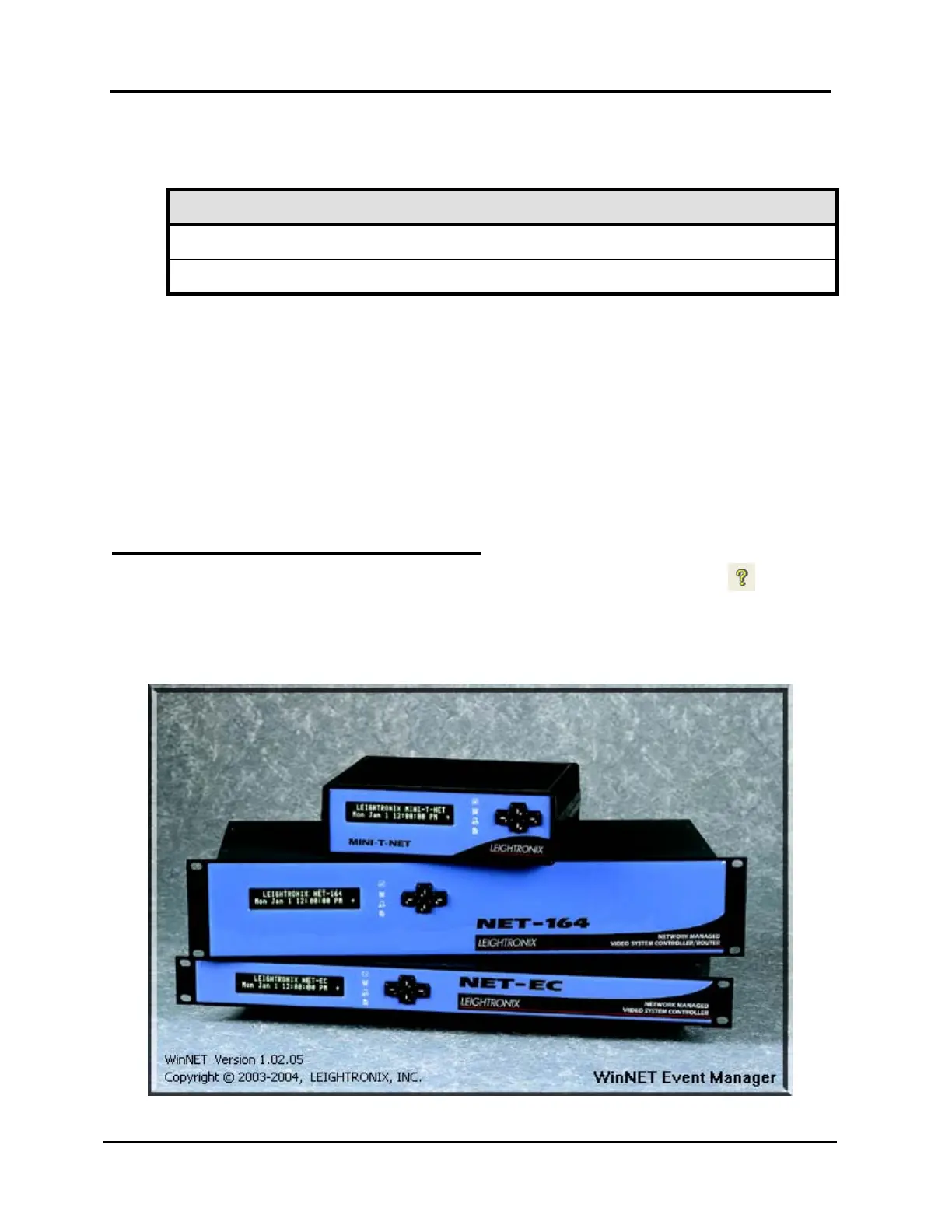
Select “About WinNET” in the “Help” menu or clicking its main toolbar icon to open
a window with the WinNET version number (see Illustration 51). Click on the window
to close it.
Illustration 51, About WinNET Window


 To Next Page