NET Series
Controller Installation and Configuration
Page 28 Firmware Ver. 1.00.42/Software Ver. 1.0.2.6 LEIGHTRONIX, INC.
2010-07-09
CLOCK SETUP STEPS
CORRESPONDING SCREEN DISPLAYS
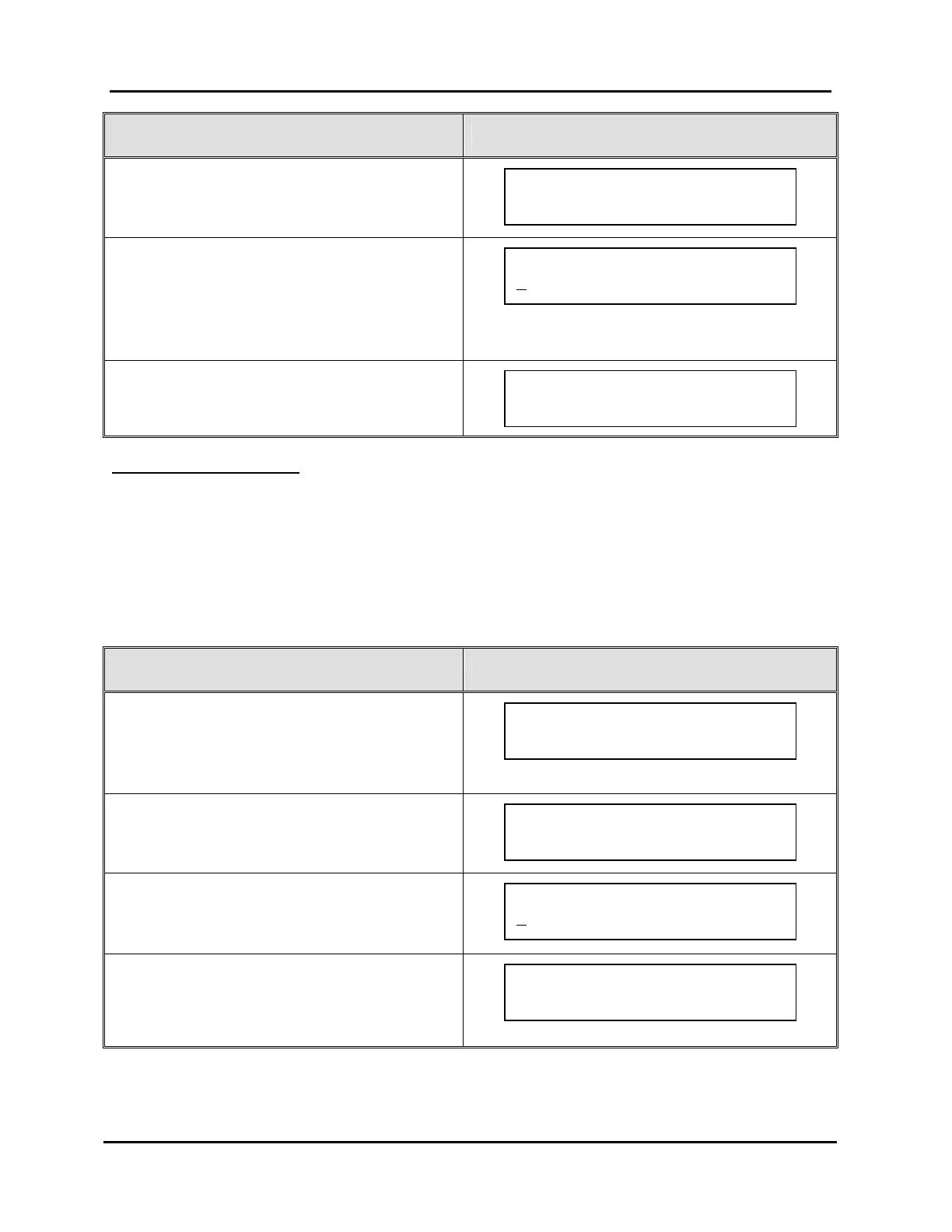
3. Press “↑” or “↓” to proceed to “Set Clock.”
4. Press “→” to select “Set Clock.”
5. Press “→” or “←” to position the underscore
under the editable fields and press “↑” or “↓” to
edit the values.
6. Press “→” to enter next screen.
7. Either press “→” again to save your changes
or “←” to abort changes.
SETTING TIME ZONE
Use to set the NET Series Controller’s time zone to any of the North American time
zones (see Table 3, Configuring Controller’s Time Zone from Front Panel).
NOTE: The Controller’s time zone may also be set from WinNET (see “Configuring
Site Information and Clock, Updating Firmware, and Rebooting Controller,”
on page 54).
Table 3, Configuring Controller’s Time Zone from Front Panel
TIME ZONE SETUP STEPS CORRESPONDING SCREEN DISPLAYS
1. From the “MAIN MENU” screen, press “↑” or
“↓” to proceed to “Setup.”
2. Press “→” to select “Setup.”
3. Press “↑” or “↓” to proceed to “Set Time Zone.”
4. Press “→” to select “Set Time Zone.”
5. Press “↑↓” to change time zone.
6. Press “→” to enter next screen.
7. Either press “→” again to save your changes
or “←” to abort changes.
Press ~ to set time zone.
Eastern (EST5EDT)
Set time zone
E
astern (EST5EDT)
SETUP MENU Use `/ˆ
Set Time Zone
~
MAIN MENU Use `/ˆ
Setup
~
Set clock to Thursday
2
004 Feb 19 9:20:26 AM
Press ~ to set clock.
2004 Feb 19 9:20:26 AM
SETUP MENU Use `/ˆ
Set Clock
~


 To Next Page