NET Series
Software Installation and Configuration
LEIGHTRONIX, INC. Firmware Ver. 1.00.42/Software Ver. 1.0.2.6 Page 45
2010-07-09
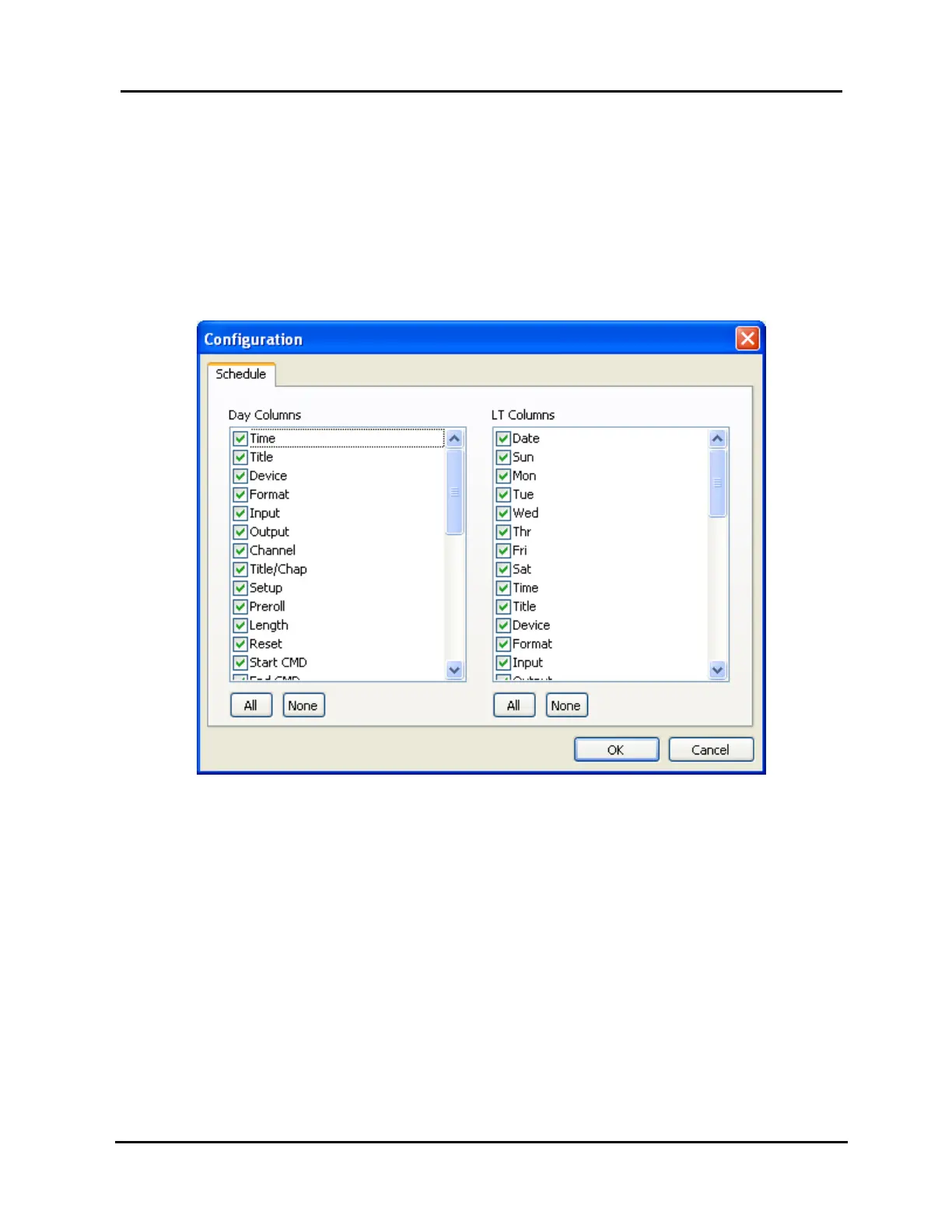
To hide/display playlist columns, click on “Schedule Columns” in the “View”
menu or the “Schedule” tab in the “Configuration” window under “Options”
in the “Tools” menu (see “Setting WinNET Viewing and Communication
Options,” on page 63). In the “Schedule” tab of the “Configuration” menu
that appears (see Illustration 19, Schedule Columns “Configuration”
Menu), note that the “Day Columns” listing corresponds to the columns in
the playlist day tabs and the “LT Columns” listing corresponds to the
columns in the playlist WinNET-LT tab. Perform the following steps:
Illustration 19, Schedule Columns “Configuration” Menu
1. Click on the desired combination of the following:
Checked column heading if you want to hide the corresponding
column on the playlist or on an unchecked item if you want to
display it
“All” button to display all of the columns for the corresponding
playlist tabs
“None” button to remove all columns from corresponding playlist
tabs
2. When all selections have been made, click “OK” to displays changes
on playlist or “Cancel” to abort changes.
Moving Windows
The “Resources” and “Properties” windows may be moved to any location on
the main window by clicking on the windows’ title bars and dragging the
windows to the desired position on the main window. To re-dock the windows


 To Next Page