105
C
ONFIGURING SOFTKEYS SPEED DIAL KEY
NOTE:
1. Line functionality can only be programmed on the top softkeys.
2. The Line 1 and Line 2 softkeys are autoconfigured in the 6940 SIP IP Phone because there are no
Line 1 and Line 2 hard keys. The default value for top softkeys 1 and 2 are set to Line 1 and Line 2.
You can set a softkey to act as a line/call appearance key on the 6940 SIP IP phone.
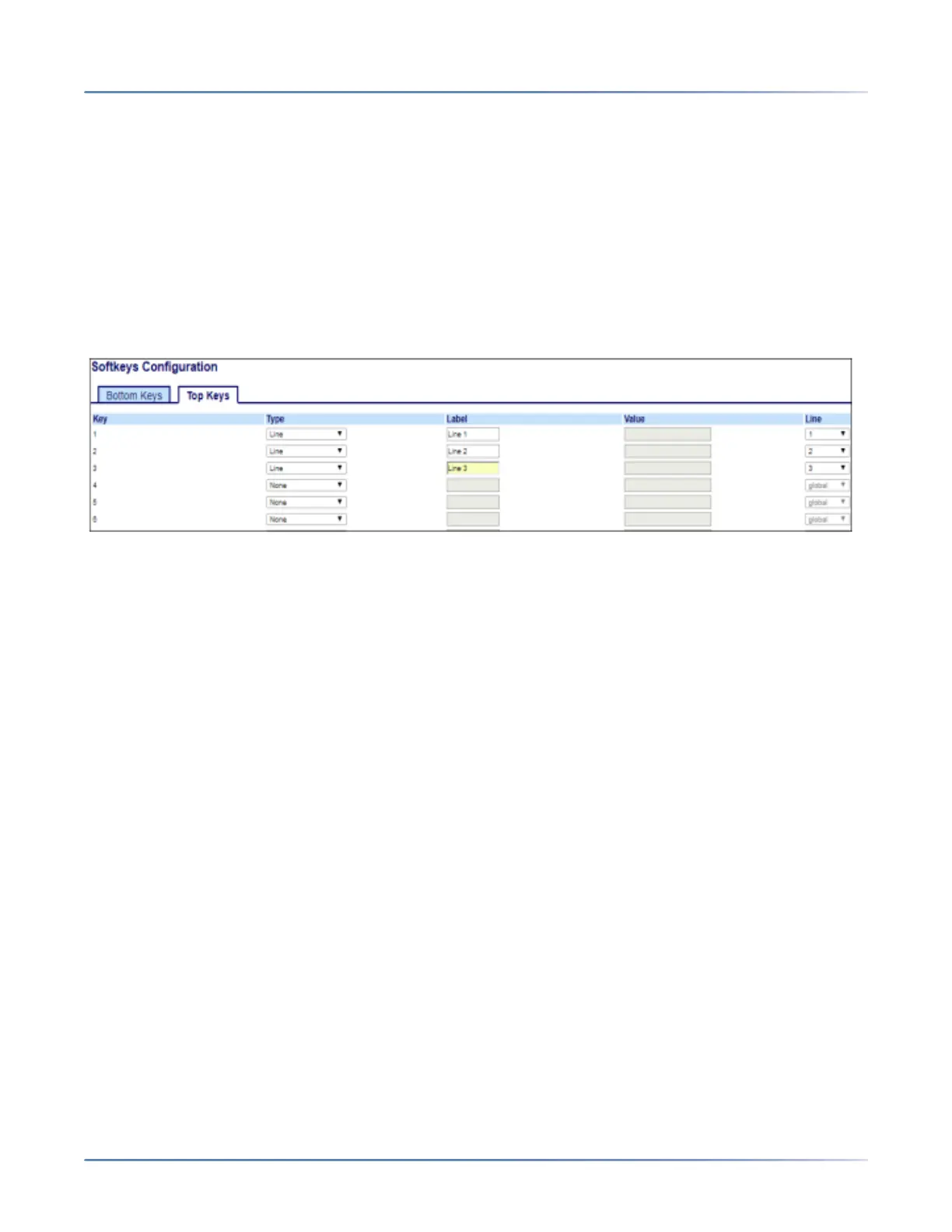
Configuring a Line Key Using the Mitel Web UI
1. Click on Operation > Softkeys and XML.orClick on Operation > Expansion Module <N>.
Softkeys
2. Select from Key 1 through Key 48 on the top keys.
3. In the Type field, select Line to apply to the key.
4. In the Label field, enter a label to apply to this key.
5. In the Line field, select a line to apply to this key. Valid values are 1through 24.
Expansion Module Keys
6. Select from Key 1 through Key 84(M695).
7. In the Line field, select a line to apply to this key. Valid values are 1through 24.
8. Click Save Settings.
Blinking Softkey Icon Support for Line Keys
The 6940 SIP phone provides blinking softkey icons for the Line keys in regular and in shared mode. The
phones display fast blink for ringing state and slow blink for hold state.
The color of the softkey icon changes to yellow for ringing and yellow hold icon for hold state.
Speed Dial Key
The normal function of the speed dial option allows you to dial a number quickly by pressing a key config-
ured for speed dialing. You can program the keys on the 6940 to speed dial outside numbers, dial directly
to another person’s line or extension, or quickly access features such as Caller ID (*69) and voicemail.



 To Next Page