225
PCL
INK CONFIGURE THE MITEL 6940 IP PHONE
PCLink
NOTE: The 6940w IP Phone supports PCLink.
NOTE: The 6940w IP Phone has built in support for Bluetooth 5.2.
PCLink enables Mitel 6940 IP Phone to be used as the audio device for PC or MAC video collaboration
with all the supported video collaboration applications, for both Windows 10 and MAC operating systems,
through the IP Phone's Bluetooth interface.
You can configure the PCLink feature with any of the video collaboration applications by using the
following steps:
1. Configure the Mitel 6940 IP Phone
2. Pair the Mitel 6940 IP Phone with Windows or MAC
3. Configure Collaboration Applications
Configure the Mitel 6940 IP Phone
To use PCLink on the Mitel 6940 IP Phone, you must program the Mobile/PC Line feature.
NOTE: Check if Mobile Line key is programmed on your phone by looking for the Connect softkey on the
home screen of your phone. If yes, ignore the below procedure.
To program a Mobile Line key:
NOTE: If your phone is configured to MiVoice Connect or MiCloud Connect use the procedure given below
to program the Mobile Line key. If you your phone is configured to other call mangers, you must program
the Mobile Line key using the Web UI.
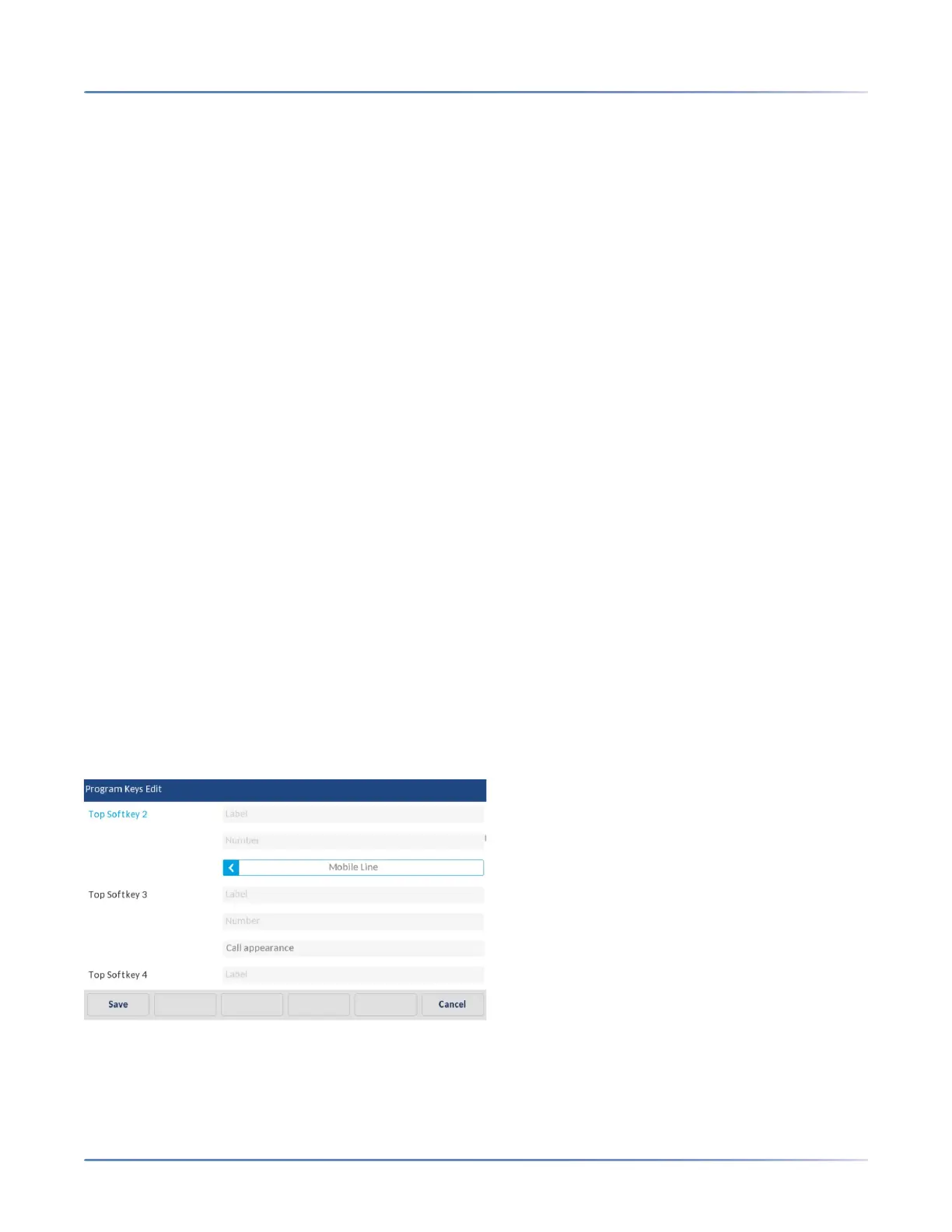
1. Press Settings, enter your Voicemail password and navigate to Program Keys > Program Keys
Edit > Top Softkeys.
NOTE: If you do not see the Program Keys option contact your system administrator.
2. Press Select choose Mobile Line instead of Call Appearance.
3. With Mobile Line highlighted, press the Save softkey.
NOTE:
• You can program only one Mobile Line key.



 To Next Page