212
M
OBILELINK SYNCING MOBILE CALL HISTORY
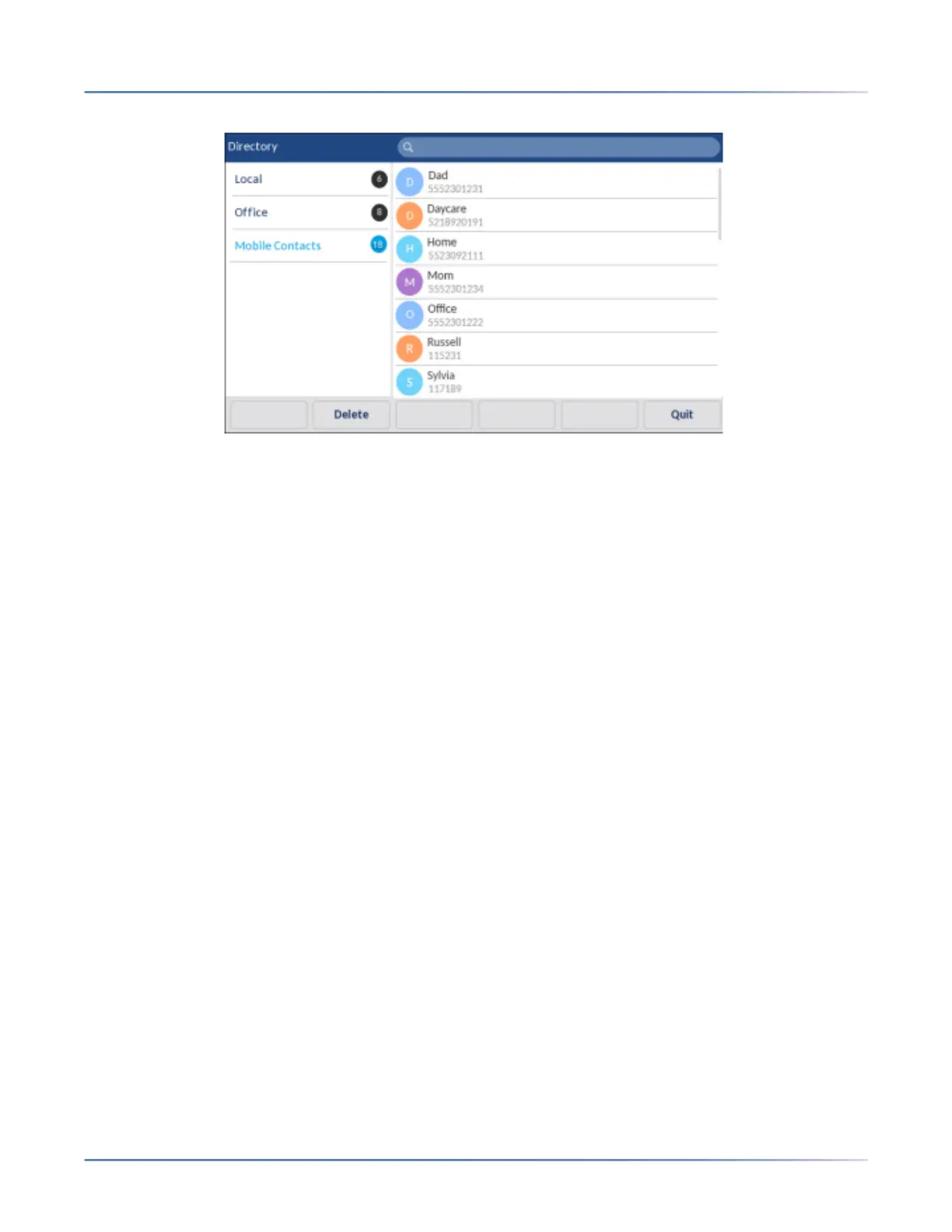
3. Tap the Mobile contacts folder.
Tap the Update softkey.The Mitel 6940 IP phone attempts to re-synchronize and update your mobile
contacts.
NOTE:
a. You may need to acknowledge the request on your mobile phone.
b. If the update fails, a failed to retrieve contacts message displays on screen. Tap Retry to attempt
to update again, or Cancelto cancel the attempt.
c. Some mobile phones will only sync contacts stored on the phone’s flash memory. Contacts
stored on the phone’s SIM card may not sync with the Mitel 6940 IP phone.
d. Mobile contacts are cleared from the Directory application when the phone’s firmware has been
upgraded. If your mobile device is configured to allow for automatic re-synchronization, the Mitel
6940 SIP IP phone will synchronize the contacts again the next time your mobile device connects
to your IP phone. If your mobile device is not configure for automatic re-synchronization, you
must manually synchronize your mobile contacts.
e. For more information on the Directory application, see Directory
Syncing mobile call history
When pairing and connecting a mobile phone for the first time, the Mitel MiVoice 6940 IP phone automat-
ically syncs your mobile call history to the Call History application. Your mobile phone call history is
displayed in the My Mobile and Missed folders. The My Mobile folder displays your mobile phone call
history (missed, outgoing, and received calls) with icons. The Missed folder displays only your mobile
phone missed calls without icons. Up to 1000 call history entries are displayed in the My Mobile folder,
in the order latest to oldest.
The call history details displayed are name (if available), number (if available), time, and date. The call
duration details are not displayed.



 To Next Page