115
C
ONFIGURING SOFTKEYS BLF/LIST KEY
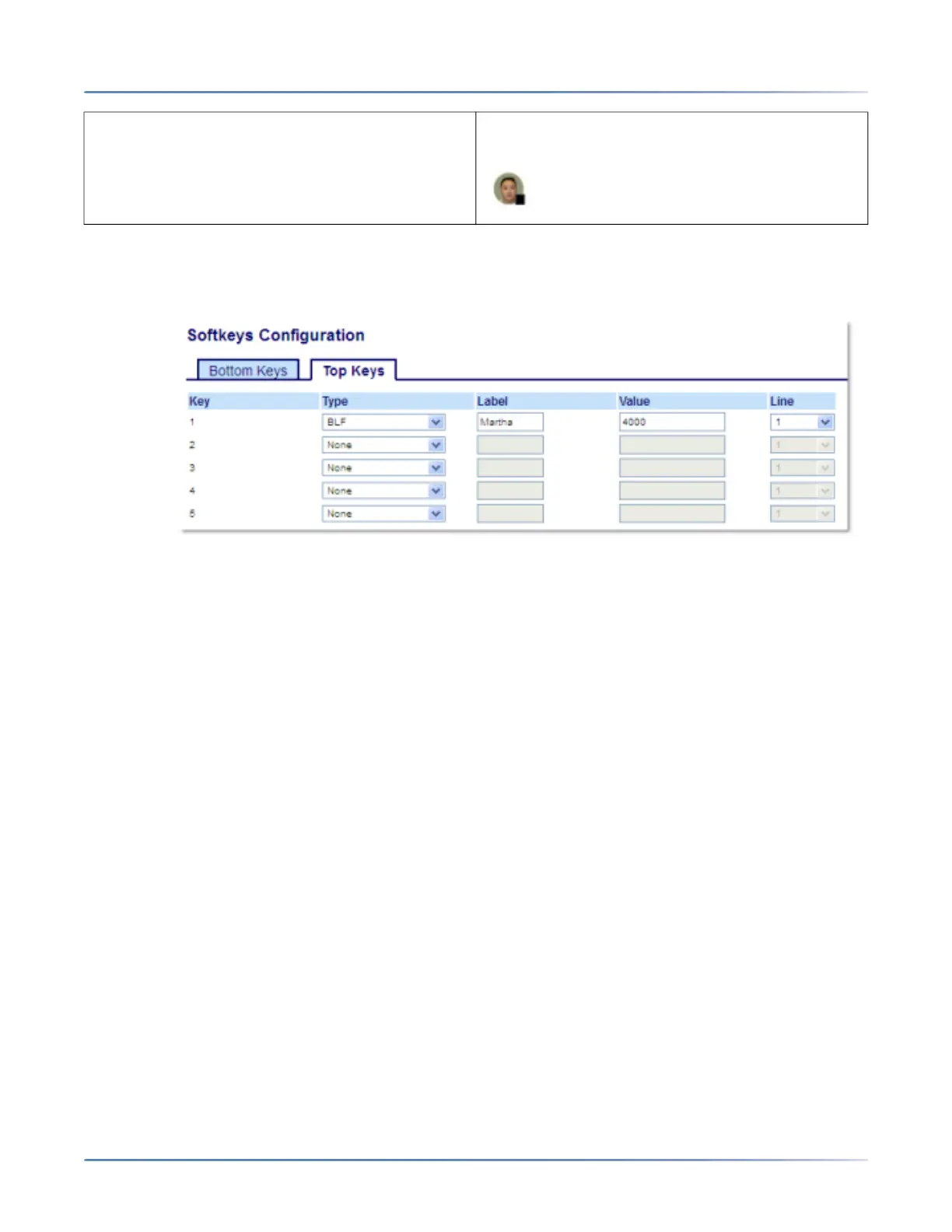
Configuring a BLF Key Using the Mitel Web UI
1. Click on Operation > Softkeys and XML.orClick on Operation > Expansion Module <N>.
Softkeys
2. Select from Key 1 through Key 48 on the Top keys.
3. In the Type field, select BLFto apply to the key.
4. In the Label field, enter a label to apply to this key.
5. In the Value field, enter the phone number or extension you want to monitor.
6. In the Line field, select a line for which to apply this key. Valid values are:
– global
– 1 through 24
Expansion Module Keys
7. Select from Key 1 through Key 84(M695).
8. In the Value field, enter the phone number or extension you want to monitor.
9. In the Line field, select a line for which to apply this key. Valid values are:
– global
– 1 through 24
10. ClickSave Settings.
BLF/List Key
BLF/List Key Notes: 1.BLF/List functionality can only be programmed on the top softkeys.2.BLF/List in
Not Monitored
BLF State Softkey Icon



 To Next Page