122
C
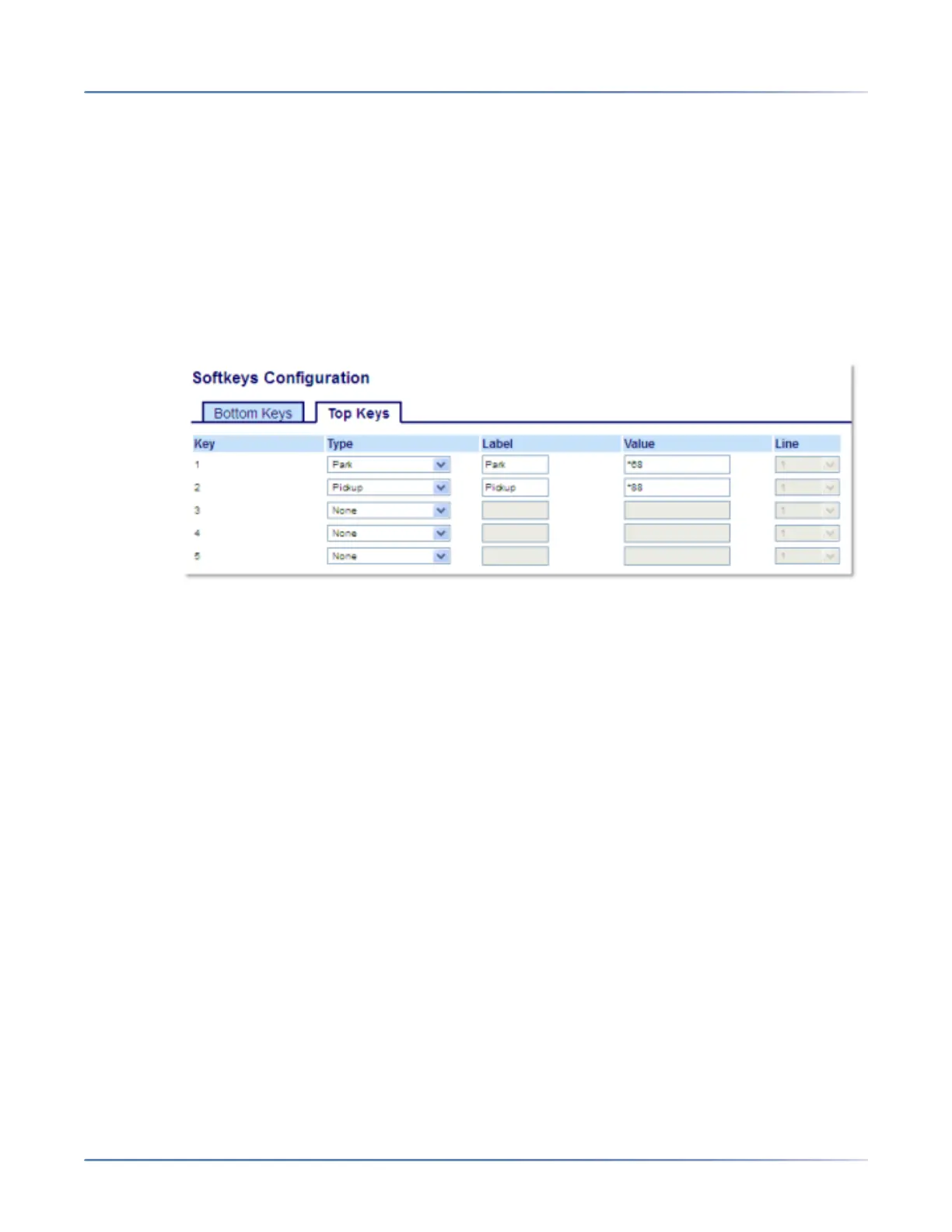
ONFIGURING SOFTKEYS PARK/PICKUP KEYS
• After the call is parked, you can press the Pickup key, followed by the applicable value to pickup the
call
Administrators can configure thePark and Pickup keys for any line using the configuration files or the
Mitel Web UI.
Users can make changes to customize the label of the ParkandPickup keys using the Web UI.
Configuring Park/Pickup Keys Using the Mitel Web UI
1. Click on Operation > Softkeys and XML.orClick on Operation > Expansion Module <N>.
Softkeys
2. Select from Key 1 through Key 48 on the Top keys.orSelect from Key 1 through Key 30 on the Bottom
keys.
3. In the Type field, select Park.
4. In the Label field, enter a label for the Park softkey.
NOTE: The Value and Line fields are configured by the Administrator.
5. In the state fields, check (enable) or uncheck (disable) the Connected state for this softkey.
6. Select from Key 1 through Key 48.
7. In the Type field, selectPickup
8. In the Label field, enter a label for the Pickup softkey.
NOTE: The Value and Line fields are configured by the Administrator.
9. In the state fields, check (enable) or uncheck (disable) the states you want to apply to this softkey.
10. Click Save Settings.
11. Click on Reset, then click Restart to restart the IP phone and apply the changes.
Expansion Module Keys
12. Select from Key 1 through Key 84(M695).
13. In the Type field, select Park.
14. In the Value field, enter the appropriate value for accessing specific services from the server.



 To Next Page