231
PCL
INK UNDERSTANDING IP PHONE CALL BEHAVIOR WITH PCLINK
Understanding IP Phone Call Behavior with PCLink
The following summarizes the behavior of the Mitel 6940 IP Phone under various call states:
• General Usability
• When the IP Phone is Idle or Ringing
• When the IP Phone is on an active VoIP Call
• When the IP Phone is in a DND or Locked State
• Auto Answer
• Auto-lock and Unlock on Mobile Proximity
General Usability
• The user can mute or unmute the PCLink audio on the phone by pressing the phone's Mute hard key.
NOTE: This mute is local to the phone and will not be reflected within the PC application mute state.
• The volume control buttons on the phone operate independently of the volume controls on the PC.
• If the user is on a PCLink session on the Mitel 6940 IP Phone (that is, has started a PC application that
has the Mitel 6940 IP Phone set as the audio device and is using hands free) while there is an incoming
call on the Mitel 6940 IP Phone, the IP Line key flashes and displays the Caller ID of the caller. The
following is the behavior associated with answering the incoming IP Phone call:
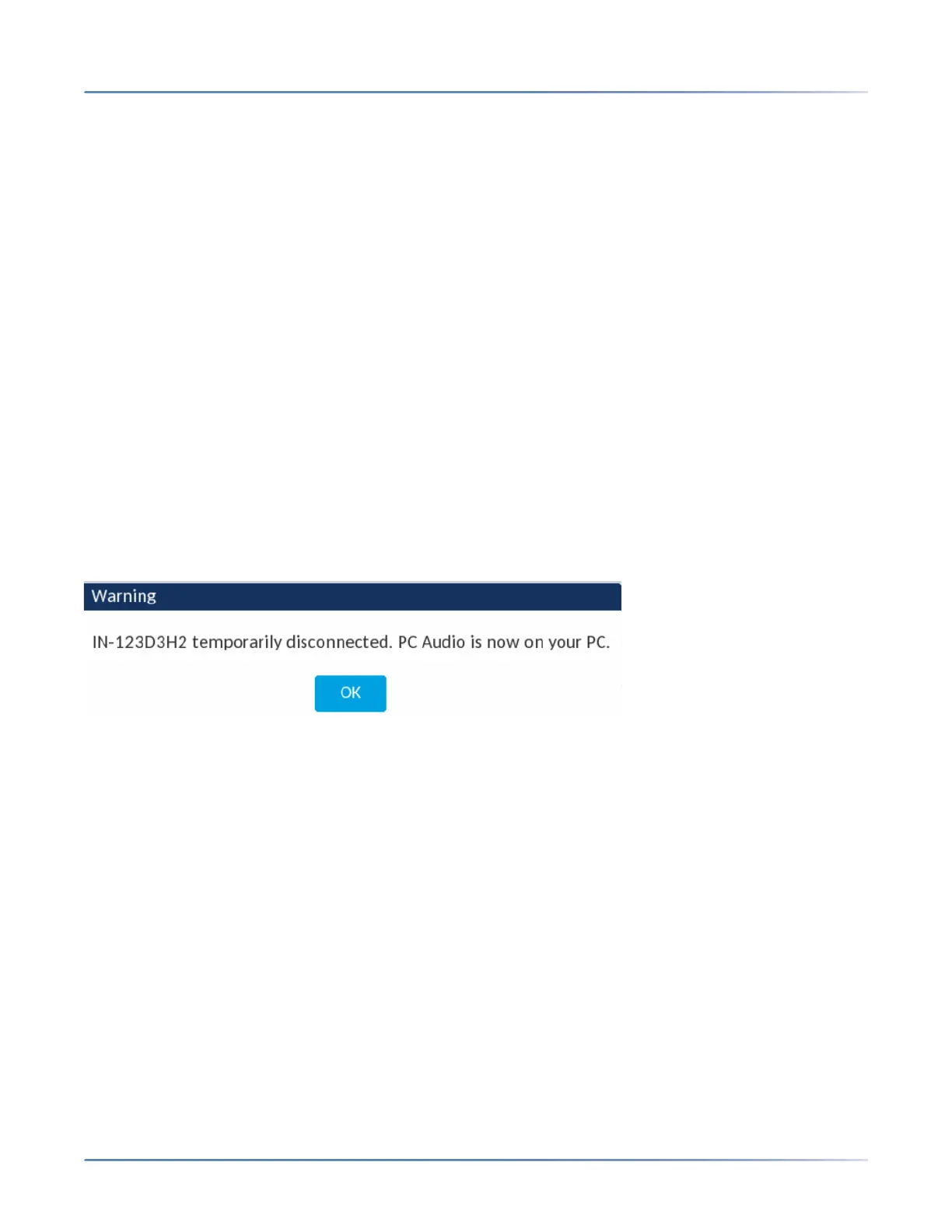
– If the user presses the IP line key to answer the call, a pop-up dialog appears indicating that the PC
is temporarily disconnected and the audio is now on your PC. We recommend that you mute your
meeting application on the PC before answering the IP call.
– When the user hangs up the IP call, the 6940 IP Phone will re-establish the connection with the PC
after a couple of seconds.
– To use the handset to answer an IP call, the user must first tap the flashing IP Line key and then lift
the handset from its cradle.
– If the user terminates the IP call by going back on-hook on the handset, the 6940 IP Phone will
re-establish the connection with the PC after a couple of seconds.
When the IP Phone is Idle or Ringing
• If the user starts a PCLink session (that is, the user starts a PC application that has the phone set as
the audio device) while the IP Phone is idle or ringing, then PC audio becomes active on the selected
device.
When the IP Phone is on an active VoIP Call
• If the user starts a PCLink session (that is, the user starts a PC application that has the phone set as
the audio device) while on an IP call on the phone, the Mobile/PC Line key changes to show Connect
and a pop-up dialog appears indicating that the PC is temporarily disconnected and the audio is now
on your PC.
– If the user hangs up the IP call at some point after initiating the PCLink audio, the IP Phone auto-
matically connects with the PC.



 To Next Page