201
DND
AND CALL FORWARD CONFIGURING DND MODES USING THE IP PHONE UI
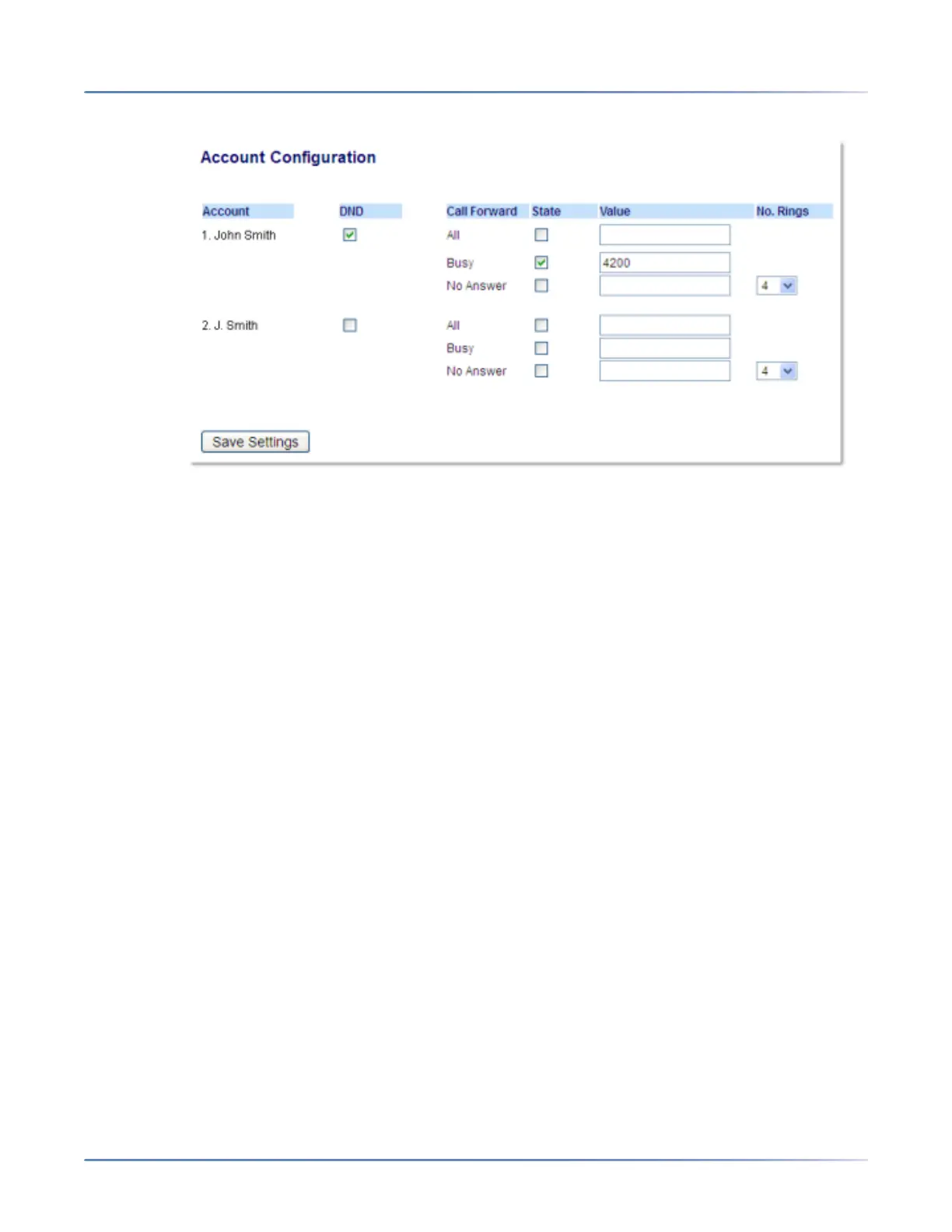
4. Click on Basic Settings > Account Configuration.
5. For each account, enable DND by placing a check mark in the box. Disable DND by unchecking the
box.
NOTE:
a. If you selected Account or Custom mode in Step 2, you can enable/disable each account or all
accounts as applicable. If you selected Phone mode, the first account allows you to change the
DND status for all accounts.
b. Number and name of accounts that display to this screen are dependent on the number and
name of accounts configured on the phone. Only your Administrator can create accounts for your
phone. Contact your Administrator for more information.
6. Click Save Settings. The changes takes affect immediately without a reboot.
Configuring DND Modes Using the IP Phone UI
After you add a DND key to your phone, you can toggle the DND state using this key on the phone. Use
the following procedure to enable/disable DND on the IP phone.
The following procedures assume you have already configured a DND key AND assumes there are
multiple accounts configured on the phone.
DND in Account Mode
1. From the Home screen swipe left to move to theLine Selection screen.
2. Press the desired account.
3. Swipe right to go back to the Homescreen
4. With the account in focus on the Home screen, press the DNDsoftkey to toggle DND on or off for the
account.



 To Next Page