142
C
ONFIGURING SOFTKEYS EMPTY KEY
Click on Operation > Expansion Module <N>.
Softkeys
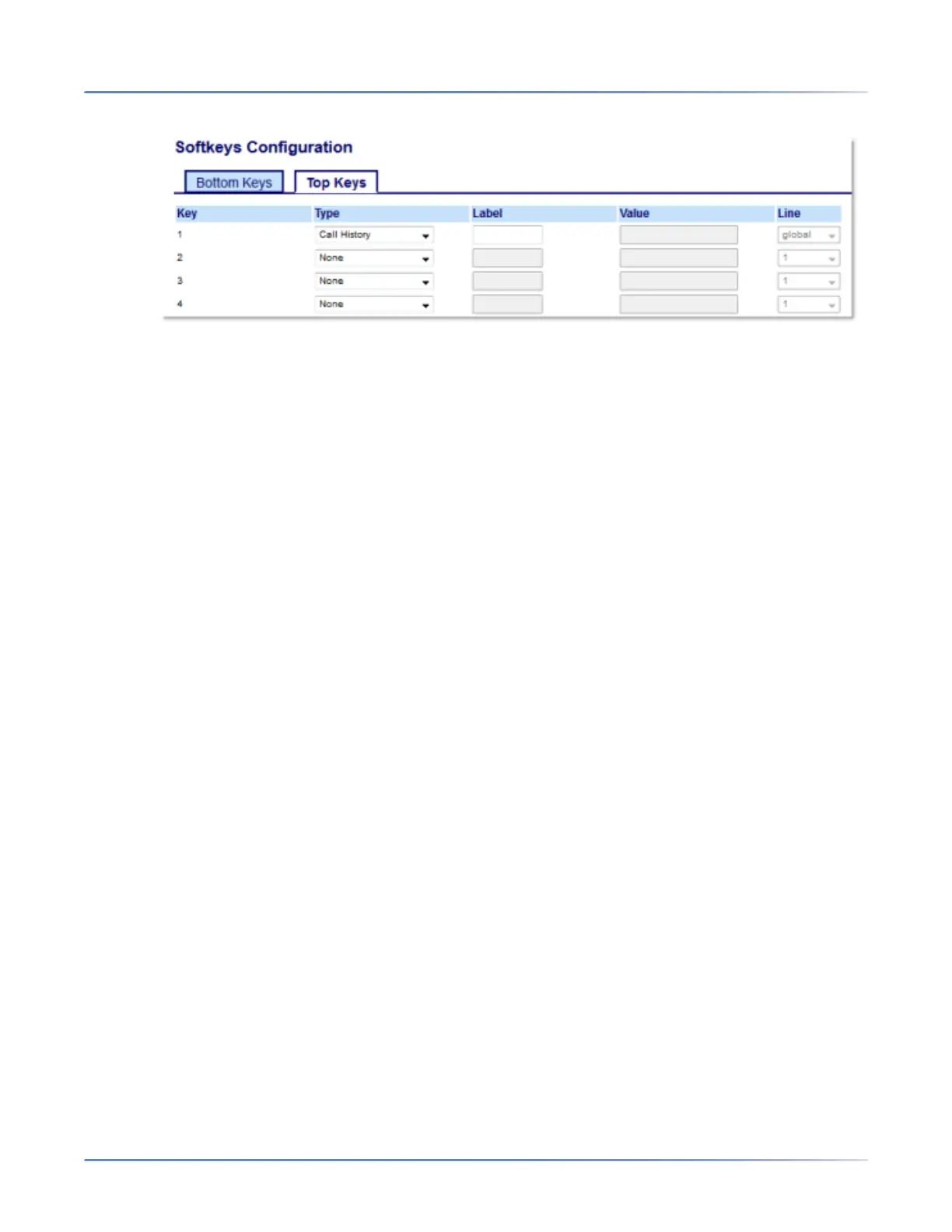
2. Select from Key 1 through Key 48 on the Top keys.orSelect from Key 1 through Key 30 on the Bottom
keys.
3. In the Type field, select Call History.
4. In the Label field, enter a label to display on the phone for the key (default is "Call History").
5. Click Save Settings.
Expansion Module Keys
6. Select from Key 1 through Key 84(M695).
7. In the Type field, select Call History.
8. In the Label field, enter a label to display on the phone for the key (default is "Call History").
9. Click Save Settings.
Empty Key
You can set a softkey to force a blank entry on the IP phone display for a specific key. You do this by
setting the softkey to Empty. The keys are added in order (from key 1 to Key 30 [bottom] or Key 48 [top])
after any hard-coded keys have been added. If a particular key is not defined, it is ignored.



 To Next Page