136
C
ONFIGURING SOFTKEYS INTERCOM KEY
NOTE: For more information about transferring calls, see “Transferring Calls” on page 153.
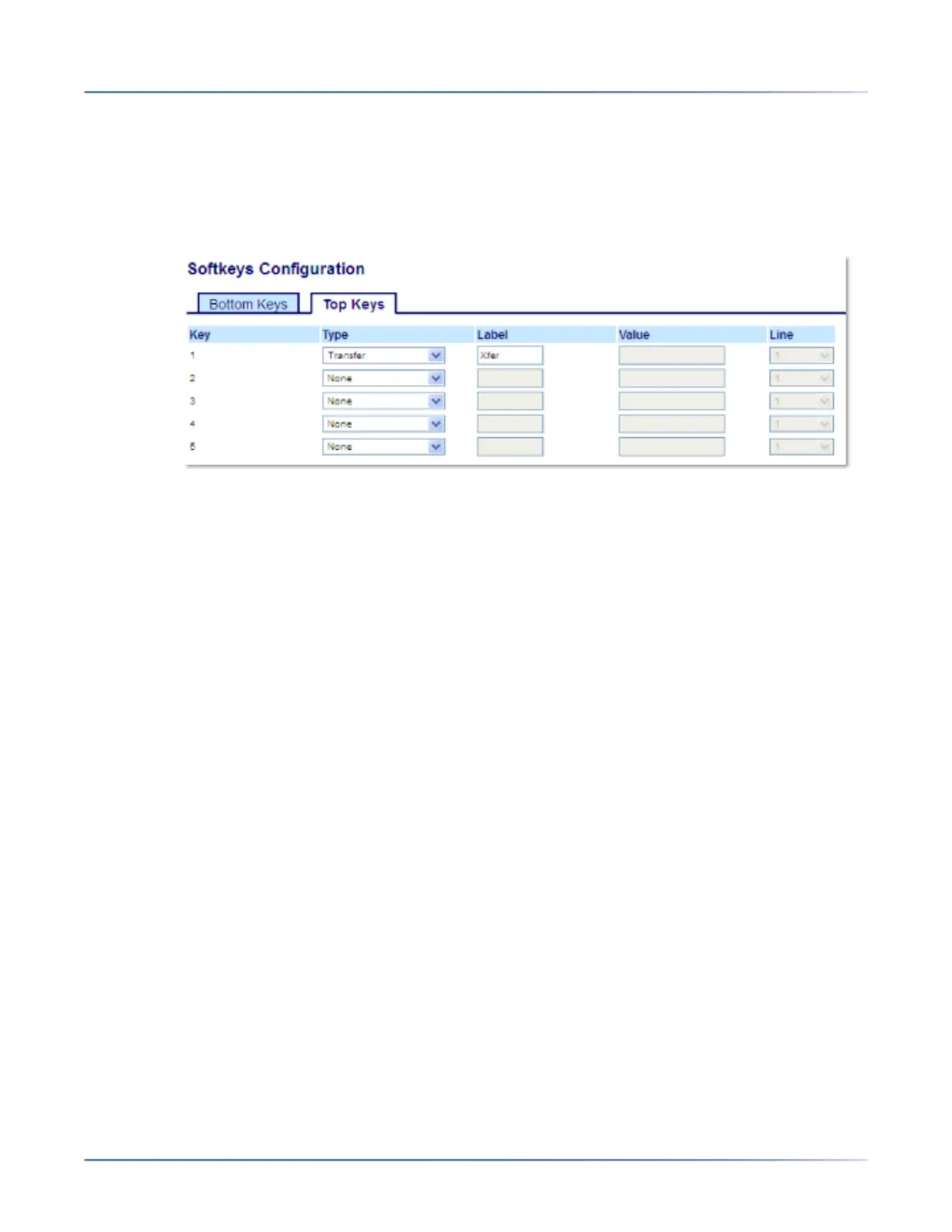
Configuring a Transfer Key Using the Mitel Web UI
1. Click on Operation > Softkeys and XML.orClick on Operation > Expansion Module <N>.
Softkeys
2. Select from Key 1 through Key 48 on the Top keys.orSelect from Key 1 through Key 30 on the Bottom
keys.
3. In the Type field, selectTransfer.
4. In the Label field, enter a label to apply to this key.
5. In the state fields, check (enable) or uncheck (disable) the states you want to apply to this softkey.
Expansion Module Keys
6. Select from Key 1 through Key 84(M695).
7. In the Type field, selectTransfer.
8. Click Save Settings.
Intercom Key
You can use the Intercom key to automatically connect with a remote extension for outgoing calls, and
to answer an incoming intercom call.
NOTE: For more information about the Intercom feature, see “Using Intercom Functionality” on page 142.



 To Next Page