125
C
ONFIGURING SOFTKEYS BLF/XFER
• BLF/Xfer and Blind Transfer Calls: When the focused line is in the connected state, pressing the
BLF/Xfer key transfers the call to the extension unconditionally, disregarding the status of the moni-
tored extension.
If transferring a call to an extension fails, a message Transfer Faileddisplays on the phone, and you can
reconnect the call (get the call back) by pressing the line key again.
• BLF/Xfer and Call Forward: When the focused line is in the ringing state, pressing the BLF/Xfer key
forwards the call to the extension unconditionally, disregarding the status of the monitored extension.
• BLF/Xfer and Speed Dial: When the focused line and the monitored extension are idle, pressing the
BLF/Xferkey causes the phone to go offhook and dial the number of the extension.
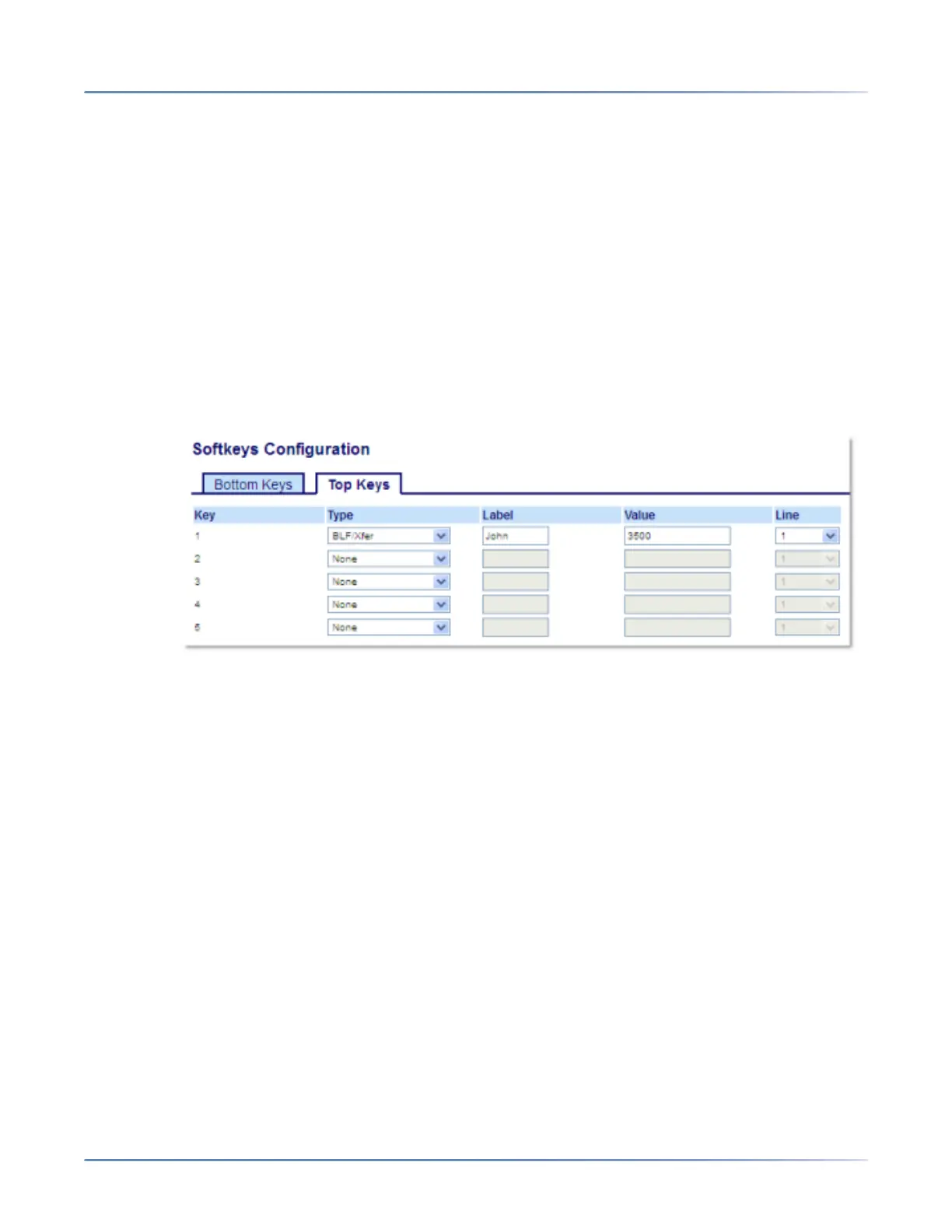
Configuring a BLF/Xfer Key Using the Mitel Web UI
1. Click on Operation > Softkeys and XML.orClick on Operation > Expansion Module <N>.
Softkeys
2. Select from Key 1 through Key 48 on the Top keys.
3. In the Type field, select BLF/Xfer.
4. In the Value field, enter the monitored extension or the extension to transfer calls to (for example,
3500).
5. In the Line field, select the line for which you want to use the key functionality.Valid values are:
– global
– 1 through 24
Expansion Module Keys
6. Select from Key 1 through Key 84(M695).
7. In the Type field, select BLF/Xfer.
8. In the Value field, enter the monitored extension or the extension to transfer calls to (for example,
3500).
9. In the Line field, select the line for which you want to use the key functionality.Valid values are:
– global
– 1 through 24



 To Next Page