116
C
ONFIGURING SOFTKEYS BLF/LIST KEY
NOTE:
1. BLF/List functionality can only be programmed on the top softkeys.
2. BLF/List indicators can also be viewed through the Directory, Received Callers, and Outgoing Redial
Lists.
This feature allows the IP phone to subscribe to a list of monitored users defined through the supporting
Mitel call manager web portal.
In addition to monitoring the idle and busy state, the BLF/List feature also supports the ringing and held
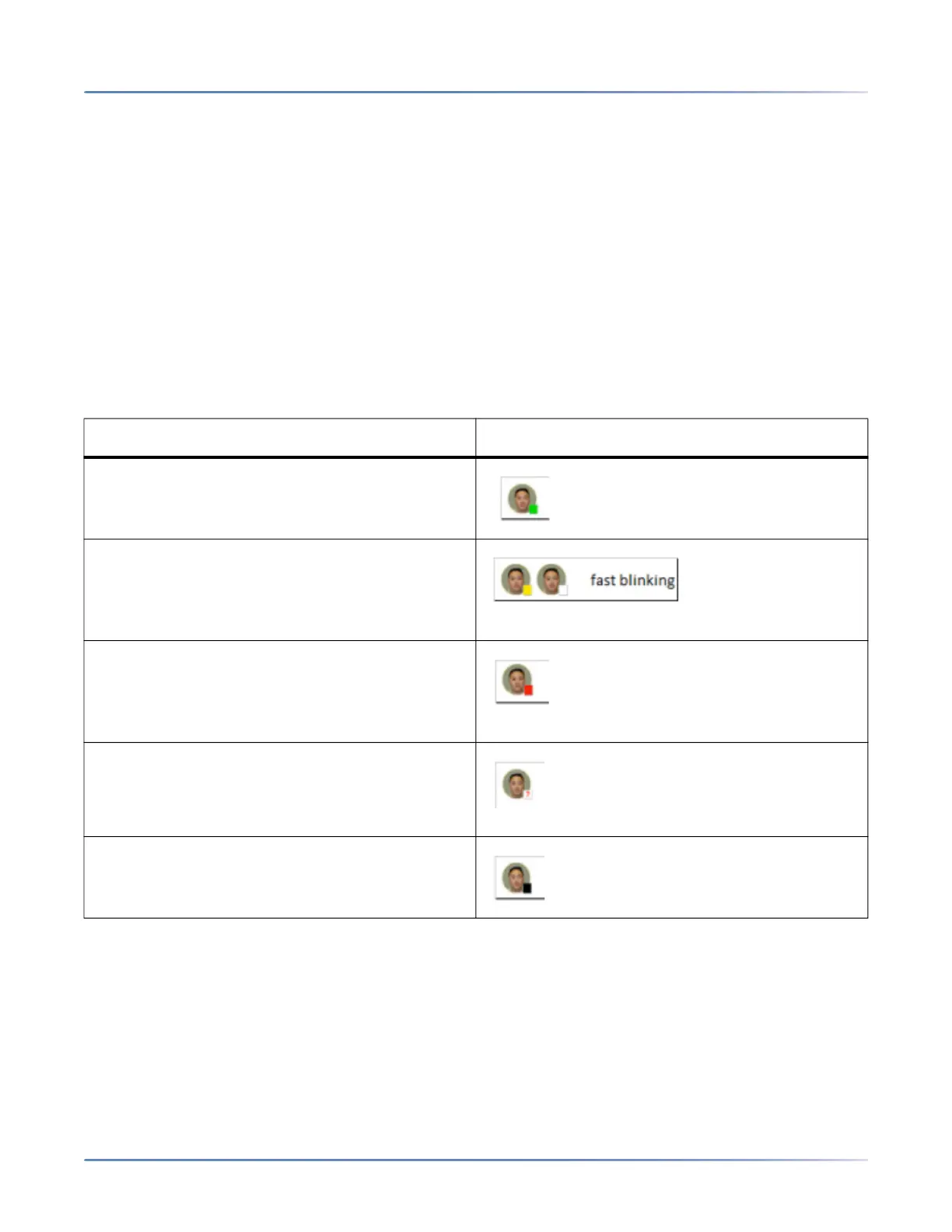
state. When the monitored user is idle, the corresponding softkey is green. When the monitored user’s
phone is ringing, the corresponding softkey turns yellow. When the monitored user on an active call or is
attempting to make a call, the corresponding softkey turns red. Finally, when the monitored user’s call is
on hold, the corresponding softkey displays the BLF/List hold icon.
NOTE: You can use a BLF/List-configured key to automatically dial out to the configured extension.
The following table provides the BLF/List states on the phone and the corresponding icons.
Configuring a BLF/List Key Using the Mitel Web UI
If you set a key to use BLF/List, you must also enter a BLF List URI at Operation > Softkeys and XML >
Services. The BLF List URIis the name of the BLF list defined on the Busy Lamp field page for a particular
user. For example, sip:9@192.168.104.13. The value of the BLF List URI parameter must match the list
name configured. Otherwise, no values display on the 6940 screen and the feature is disabled.
1. Click on Operation > Softkeys and XML.orClick on Operation > Expansion Module
<N>.
BLF/List State Softkey Icon
Idle
Ringing
Connected
Unknown
Not monitored



 To Next Page