213
M
OBILELINK SYNCING MOBILE CALL HISTORY
Automatic update of your mobile phone call history is not supported. For example, if a user receives a call
on the mobile phone, the call record is not automatically updated in the Call History application. The call
record is updated the next time when the mobile phone connects to the 6940 IP phone or by a manual
update.
NOTE:
1. You may need to acknowledge the request for Contact sharing on your mobile phone.
2. If the update fails, a failed to retrieve contacts message displays on screen. Tap Retry to attempt to
update again, or Cancel to cancel the attempt.
3. Picture avatar is not supported for mobile phone call history.
4. If you pair a second mobile phone with your 6940 IP phone, the 6940 IP phone automatically syncs
the mobile call history of the second mobile phone to the Call History application. To re-sync the
mobile call history of your first (or an already paired) mobile phone to the Call History application,
connect the mobile phone to your 6940 IP phone.
5. The Call History application stores and displays the mobile phone call history even when the paired
mobile phone is not connected to your 6940 IP phone.
6. The mobile phone call history is lost when the mobile phone is unpaired or your 6940 IP phone resets.
7. Mobile phone call history is supported for Hot Desk users. When a Hot Desk user logs in, the mobile
phone call history of the Hot Desk user’s paired mobile phone is displayed. When the Hot Desk user
logs out, the mobile phone call history of mobile phone paired with the registered extension is
displayed.
8. Mobile phone call history is cleared from the Call History application when the Bluetooth connectivity
is lost. The mobile phone call history is resynced when the Bluetooth connectivity is reestablished.
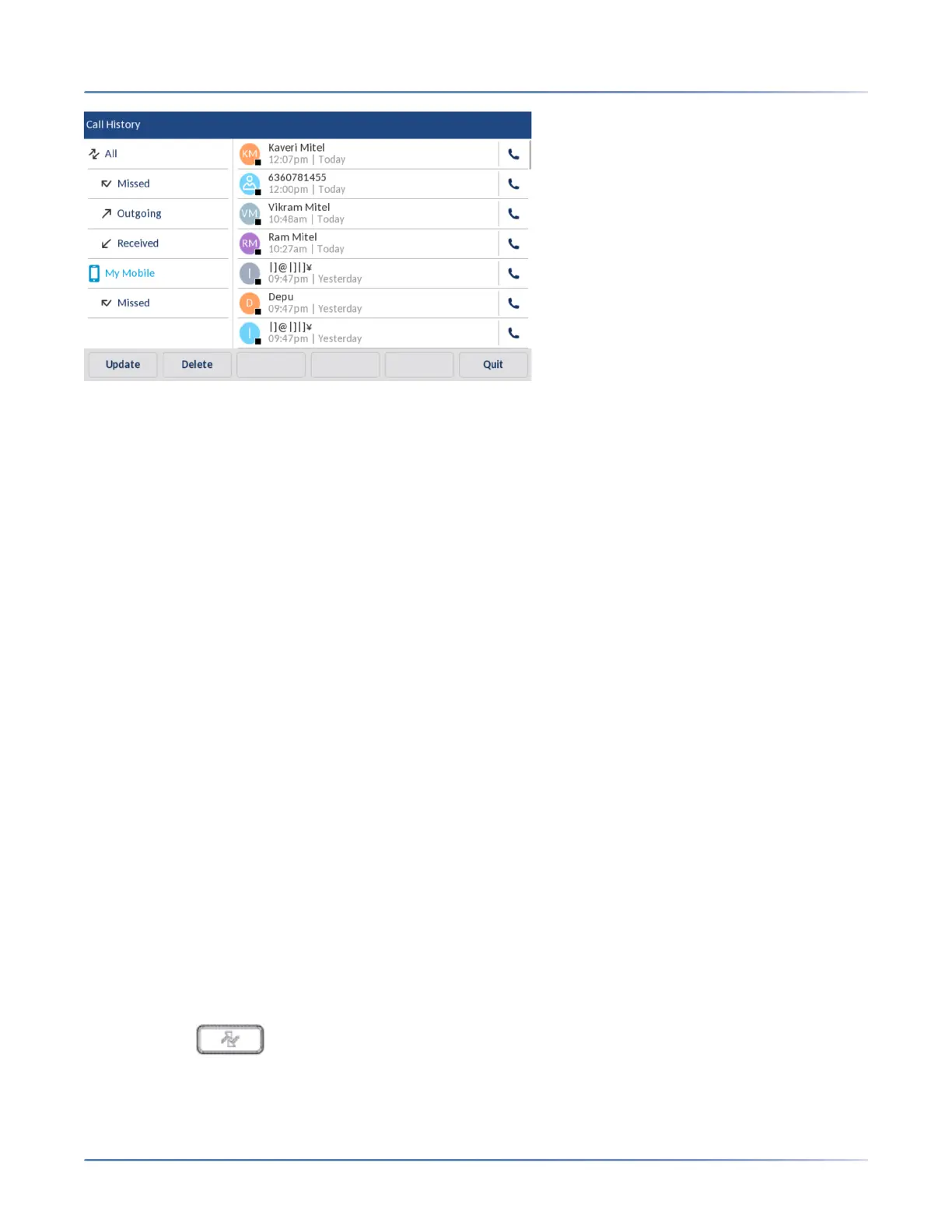
Viewing mobile call history
To view your mobile phone call history:
1. Ensure that you have paired your mobile phone with your 6940 IP phone. See Pairing a Bluetooth
device.
2. Press the ( Call History) key.
3. Tap My Mobile.



 To Next Page