ITC Operating mode
5.7 Operating ITC
ITC V3, ITC V3 PRO
Operating Instructions, 03/2024, A5E42761061-AF
119
5.7.2 Operating the taskbar
5.7.2.1 Structure and functions of the taskbar
If the taskbar is configured accordingly in the desktop settings, the taskbar will be displayed
after the device is switched on. See also section "The "Desktop" submenu (Page 105)".
The operator cannot change the position of the taskbar on the touch screen, but the
administrator can do so in the desktop settings.
Functions
The following functions can be called from the taskbar.
Start menu
• Web browser: opens the integrated Web browser, which displays the device information
as the homepage by default, see also section "The "Information" submenu (Page 86)". The
web browser supports HTML, XML, CSS, JavaScript and Java so that you can establish any
type of connection to the Intranet/Internet.
• Screen brightness: adjusts the screen brightness of the background lighting. Two buttons
"+" and "-" are displayed on the right for this purpose.
• Clean screen: You use this function to disable the touch screen for input for a period of 15
seconds, for example, if the screen is being cleaned, see section "Cleaning the device
(Page 165)".
• USB devices: see section "Use USB memory devices (Page 125)".
• Restart: reboots the device.
When the "Restart" menu command is hidden, select "Permit restart", see section "The
"Passwords" submenu (Page 102)".
• Configuration: central configuration settings of the device.
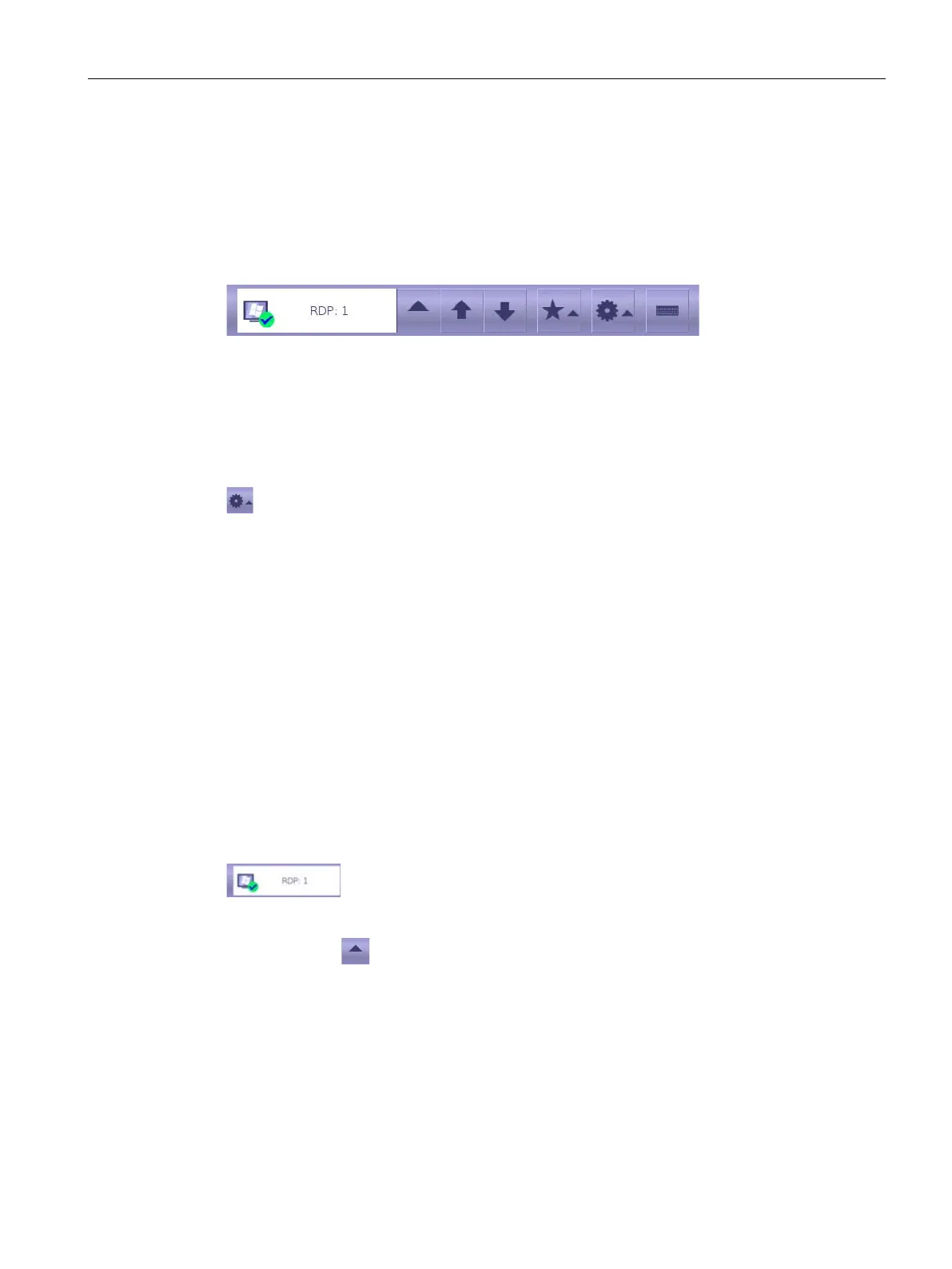
Connection list, shows the client-server connection that is currently
displayed
If you touch the icon, a list of started client-server connections is displayed. Use the
"Favorites" icon to start a client-server connection. The icons have the following meaning:
• Green check mark: Client-server connection is running.
• Red X: Client-server is interrupted, see section "Interrupting and restoring a connection
(Page 82)".



 To Next Page