Calibration
6.3
Figure 6.3 Calibrating the Equipment
NOTE
After downloading the values to the CD600 Plus, the Download button will be disabled, which means the
default values were downloaded to the controller.
f) In front of the CD600 Plus, select the analog input using the <LP> key.
g) For each analog input, repeat these steps for the AI1 execution:
i. Apply 0V or 0mA with the voltage/current generator for the AI1.
ii. Read the indicated value for AI1 in the front display of the CD600 Plus.
NOTE
Press <DSP> in front of the CD600 Plus to view the input values.
iii. On the Calibration dialog box , double click on the field to be changed, that corresponds to
0V and type the AI1 value read on the display.
iv. Press Enter on the keyboard and the new value will be edited. Repeat these steps for 1V or
4mA, 3V or 12mA, 5V or 20mA.
h) To select another input, connect the voltage/current generator to the desired input and repeat
the steps from i to iv to calibrate all inputs.
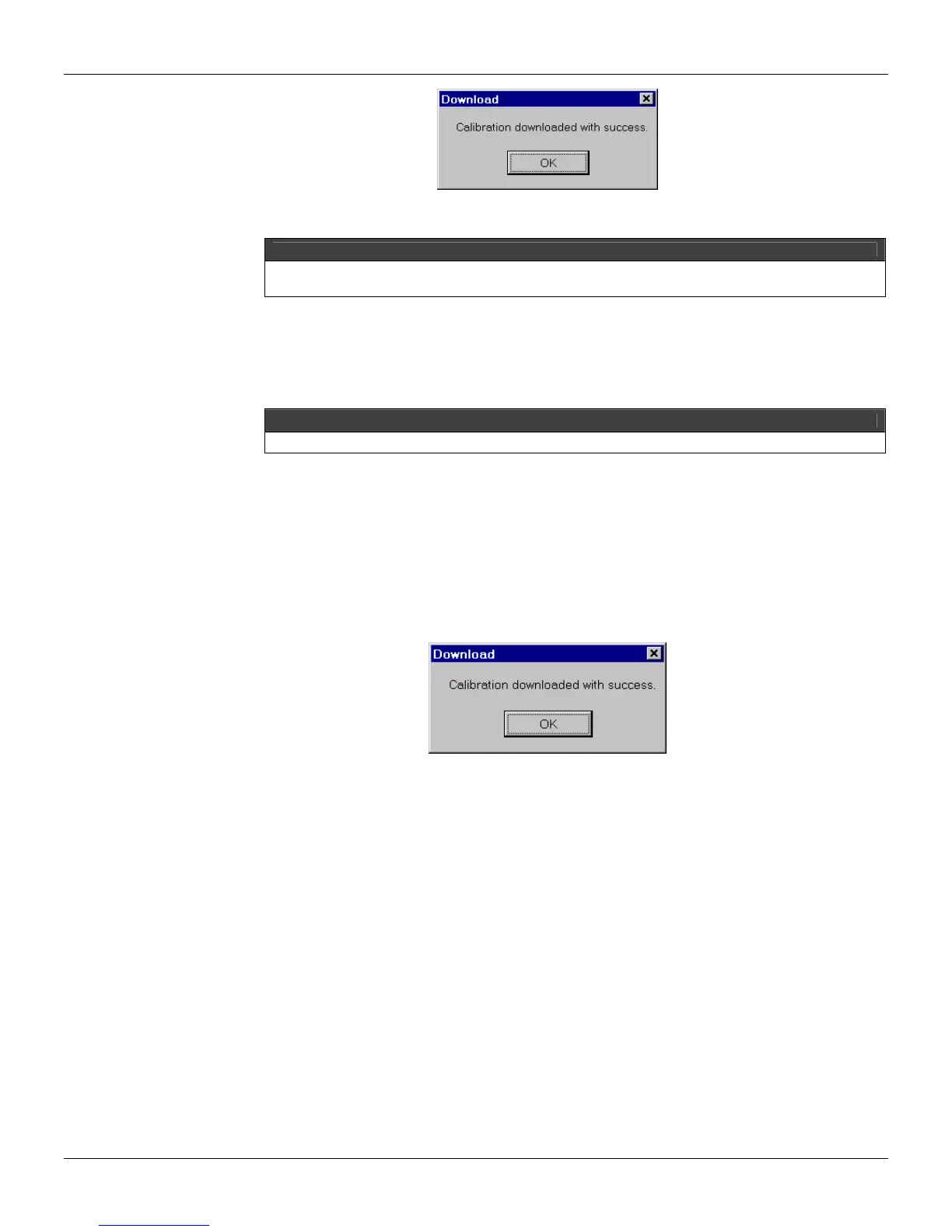
i) After editing the values, click the item Download on the Calibration dialog box, in order to
download new values for the equipment. The following message will appear to indicate that the
calibration was downloaded successfully:
Figure 6.4. Calibrating the equipment
Current Output (CO)
The current output can be 4-20 mA (live zero) or 0-20 mA (dead zero). The selection done on blocks
009 to 012.
Connect the current indicator (mA) to the output that will be calibrated and select the output to be
adjusted in the front panel. The program used in the controller has the current output 1 (BLK009)
guided by the Loop 1 A/M station. It is possible to adjust the current output with the controller in
Loop 1 and in the Manual mode.
a) Select the option Current Output (0-20 mA or 4-20 mA) in the Calibration dialog box.
b) A dialog box will appear asking if the user needs to open the default configuration. Click on Ok to
open this configuration or Cancel to start a new configuration.
c) Click on the output cells to apply the default values.
d) Click the download button.
e) In front of the CD600 Plus, select the outputs using the <LP> key.
f) Adjust the output values to 0% using the <∇> key in the front, and check the ammeter (that
should be connected to the corresponding output of the CD600 Plus). If the value indicated is
not 0 or 4mA, type the new value in the output field in the Calibration dialog box :


 To Next Page