Conf 600 – User’s Manual
18.4
Moving blocks
Follow these steps to move blocks and arrange them on the drawing area:
1. Click the Select tool,
.
2. Click on the Function Block to select it.
3. Click and hold the mouse button pressed while dragging the block node to the desired position.
Linking Function Blocks
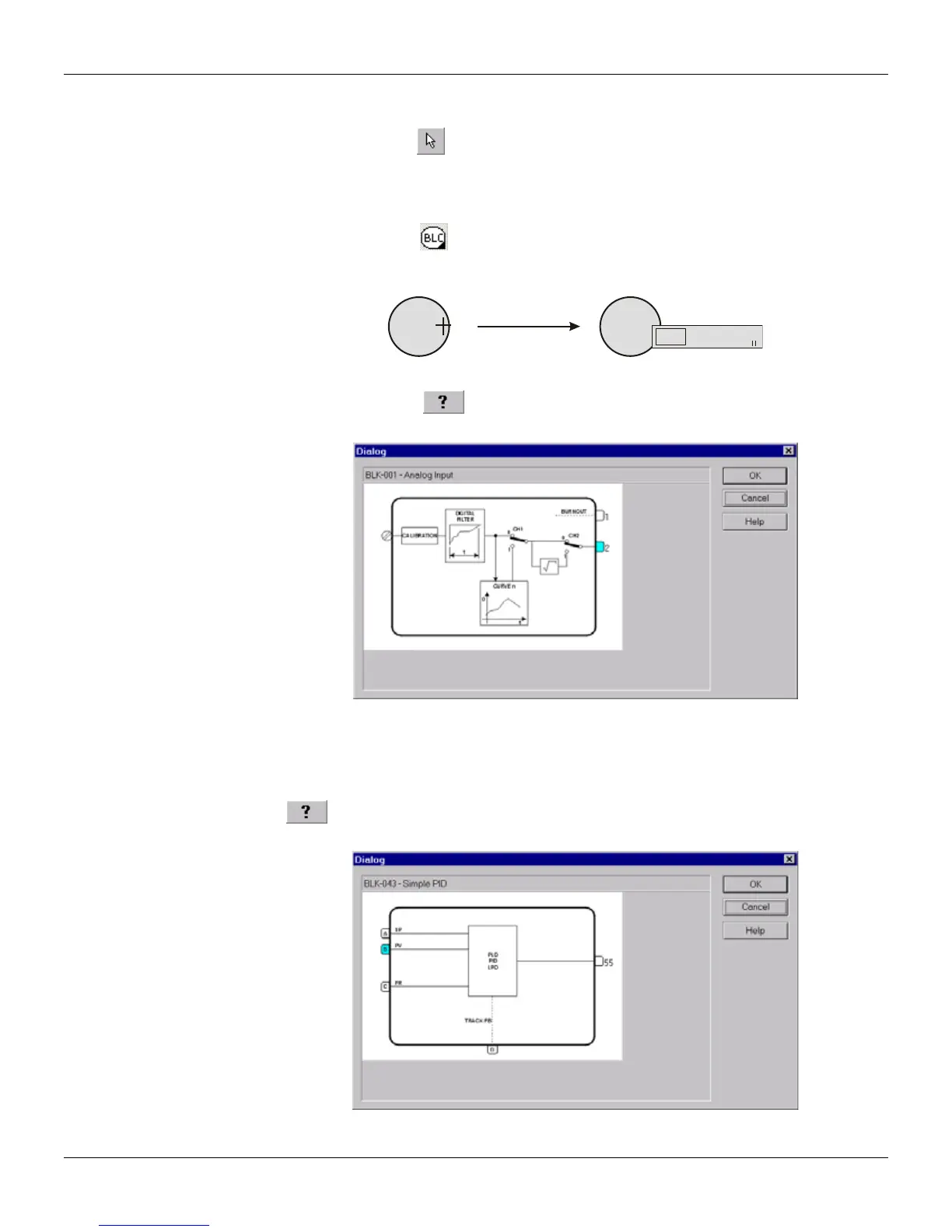
1. Select the Node tool, , on the Drawing toolbar, and place the cursor on the AI (001) function
block. The mouse cursor changes when placed on the block node. Click on the block and the
Link menu will open.
Al
001
Al
001
001 002 ?
x
Figure 18.8 - Link Menu
2. Click the Help button, , to open the Block dialog box.
3. Click the output 2 and its color will change to light blue.
Figure 18.9 - Select Output Parameter
4. Click Ok to return to the working area.
5. A "rubber band" is connected to the cursor. Place the cursor on the PID (043) block, and click
this node.
6. The Link menu will open presenting the input parameters available. Click the Help button,
, to open the Block dialog box.
7. Click the input B and its color will change to light blue.
Figure 18.10 - Select Input Parameter


 To Next Page