Operation
11.3
- Company Name: show the information about the Company.
- Project Name: Show the project name.
- Leader: Show the name of the leader.
- Programmer: Show the name of the programmer.
- Description: Show a brief description about the configuration.
- Creation Information: Show the date when the project was created and the version of the
software used to create the project file.
- Revision Information: Show the date when the project was last saved and the version of the
software used to review the project file.
Importing a project file
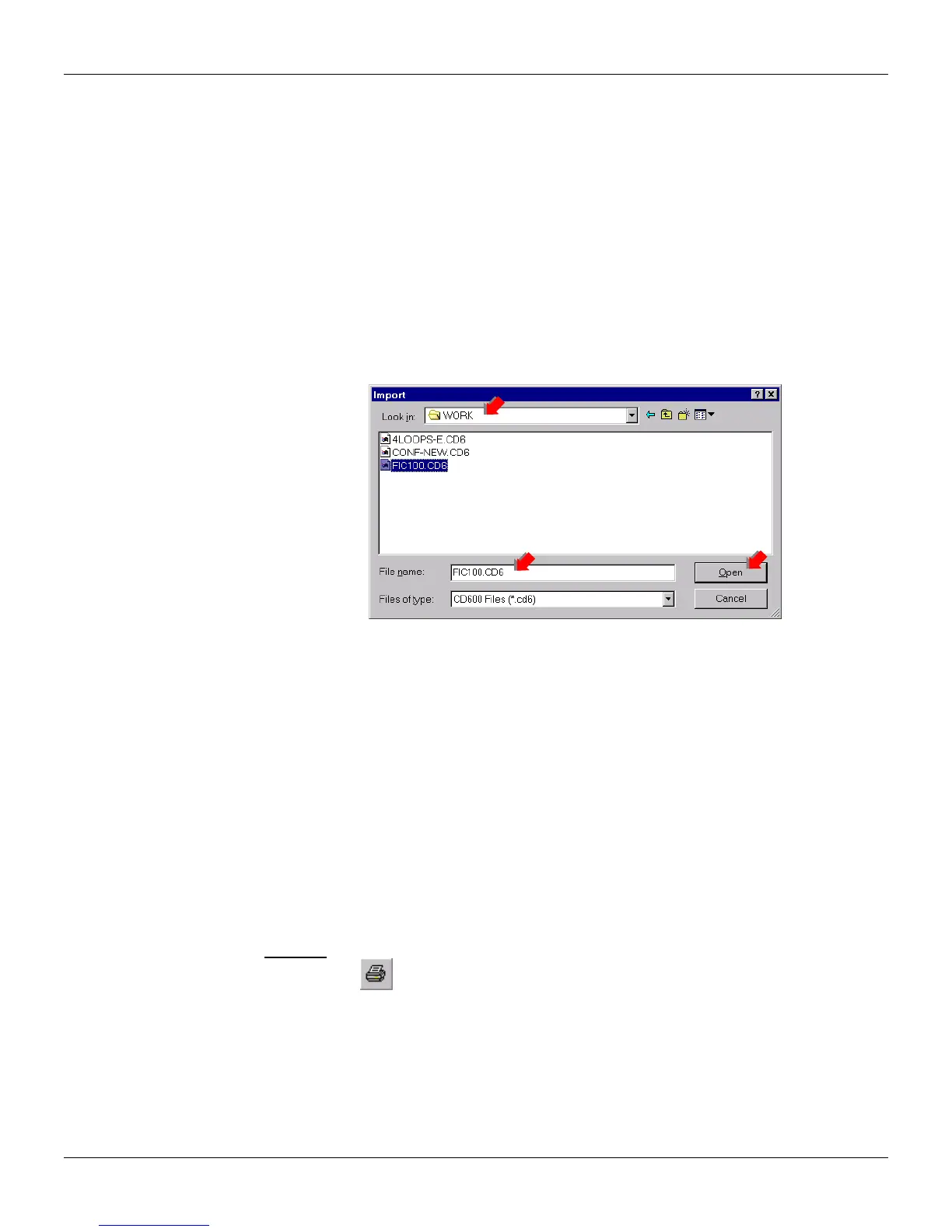
It is possible to import a configuration project from a previous version of CONF600 Plus. Go to the
File menu and click Import. The Import dialog box will open:
1. Select the folder that contains the project file to be opened.
2. Click the project file icon or type its name in the File Name box.
3. Click Open to finish this task.
Figure 11.3 - Importing a Project File
When the user imports a configuration from a previous version of the CONF600 Plus, the blocks
and the parameter values are added to the Block List. The controller does not save the graphical
representation of the configuration. It will be necessary to drag the blocks to the drawing area and
redraw the strategy for each loop of the configuration. See section Dragging blocks to the
drawing area for further details.
Exporting the configuration
To save the configuration for a PDA file format, go to File and click Export to PDA. The configuration
will be saved in two different files: one file contains the block list and the other contains the
parameterization.
Printing documents
To print the report about the configuration project, go to the File menu and click Print.
Shortcut:
The Selection dialog box will open:
Toolbar:
Keyboard: Ctrl + P


 To Next Page