Conf600 Plus Interface
12.3
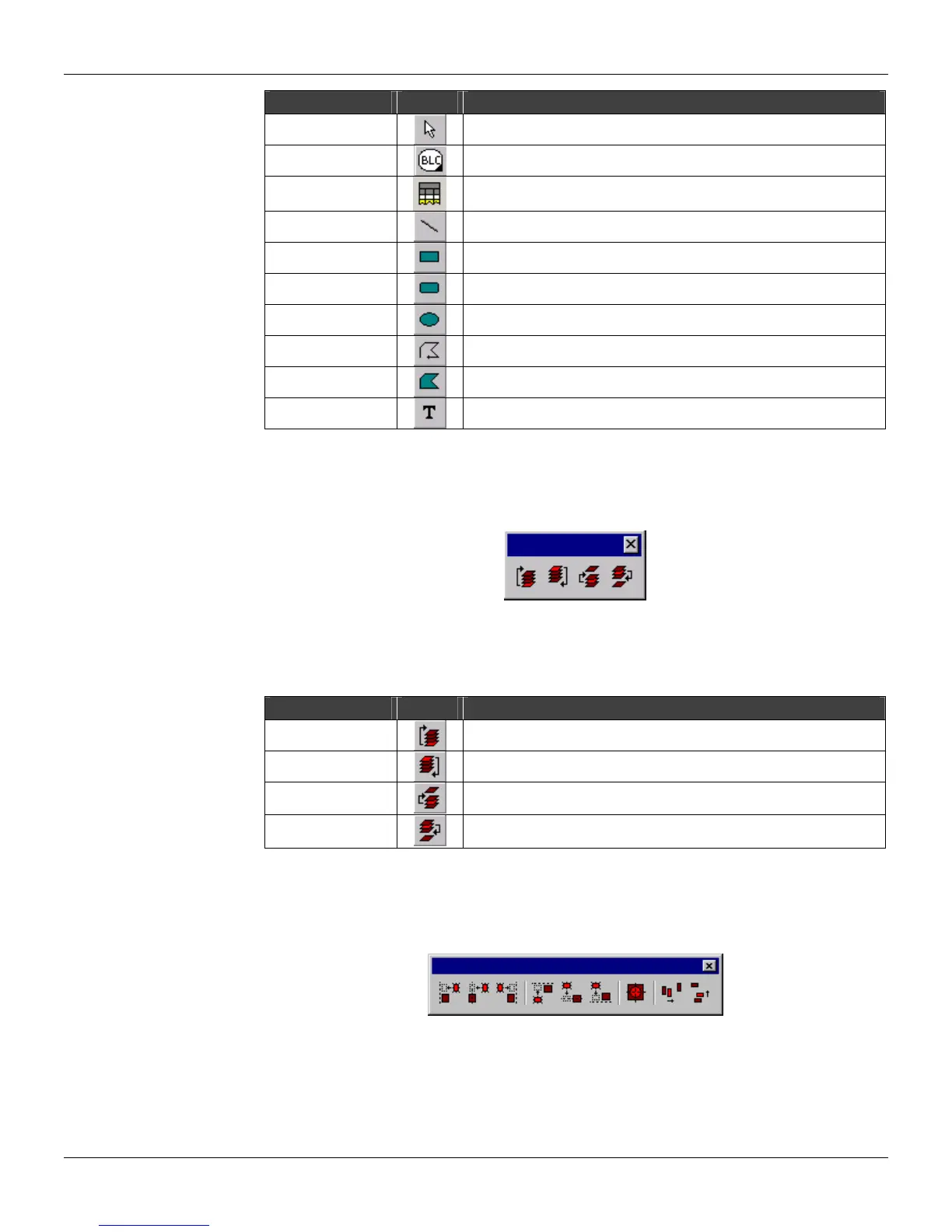
Draw Tool Toolbar Description
Select
Selects an object for further operations.
Node
Draws a node graphic on the drawing area.
Block List
Insert a graphical representation of the Block List in the drawing
area, corresponding to the loop.
Line
Draws straight lines.
Rectangle
Draws straight rectangles.
Round Rectangle
Draws straight rounded rectangles.
Ellipse
Draws ellipses.
Polyline
Draws lines and polylines.
Polygon
Draws polygons.
Text
Inserts text strings.
Ordering toolbar
To activate the Ordering toolbar, go to the View menu, select Tool Boxes and click the option
Ordering.
Figure 12.6 - Ordering Toolbar
These options are also available from the Tool menu > Ordering.
The table below describes the buttons functionality:
Draw Tool Toolbar Description
To Front
Move the selected object to the front of the stacking order.
To Back
Move the selected object to the back of the stacking order.
Forward One
Move the selected object one step forward to the front of the
stacking order.
Backward One
Move the selected object one step toward the back of the stacking
order.
Alignment toolbar
To activate the Alignment toolbar, go to the View menu, select Tool Boxes and click the option
Alignment.
Figure 12.7 - Alignment Toolbar
These options are also available from the Tool menu > Alignment.
The table below describes the buttons functionality:


 To Next Page