Operation
11.5
Print Preview
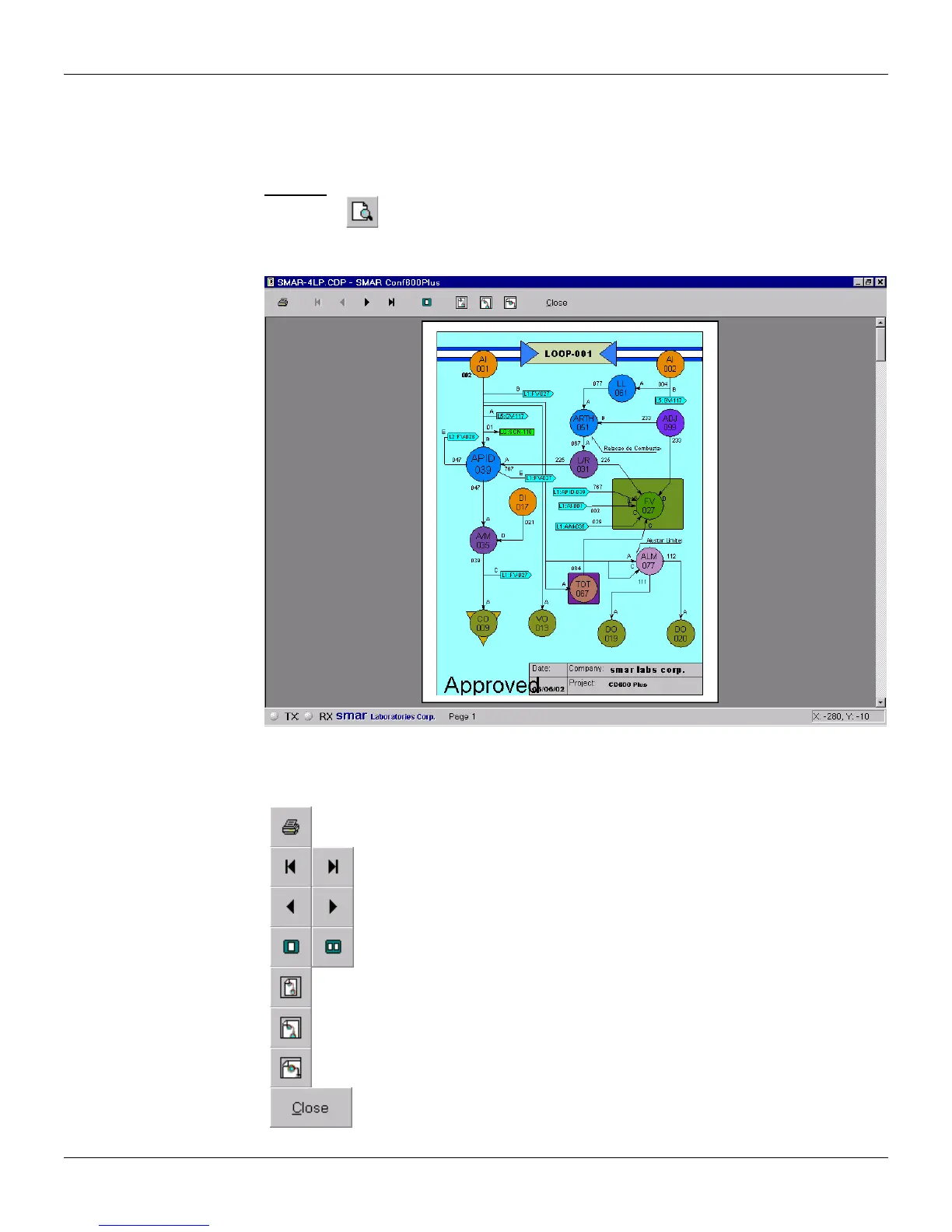
This option allows the user to view the report before printing it. Go to the File menu and click Print
Preview.
Shortcut:
Select the print options, click Ok and the Preview window will open:
Figure 11.6 - Print Preview Window
The Preview window has its own toolbar. The table below briefly describes the buttons:
Toolbar:
Click this button to print the document.
Click the button to view the first/last page.
Click the button to view the previous/next page.
Click the button to view one or two pages at the same time.
Click this button to view the entire page on the screen.
Click this button to increase the zoom and view the page width size.
Click this button to increase the zoom and view half of the loop page on the
screen.
Click this button to close the Print Preview window and return to the configuration
project window.


 To Next Page