14215700-IG, Edition 8.0
April 2018, Original document
119
Assigning Media Resources to Clusters
To make use of the created cluster entities, these must be assigned to the physical media resources
and base stations. The devices can be both local and remote.
1. Click Administration, and then click Media Resource.
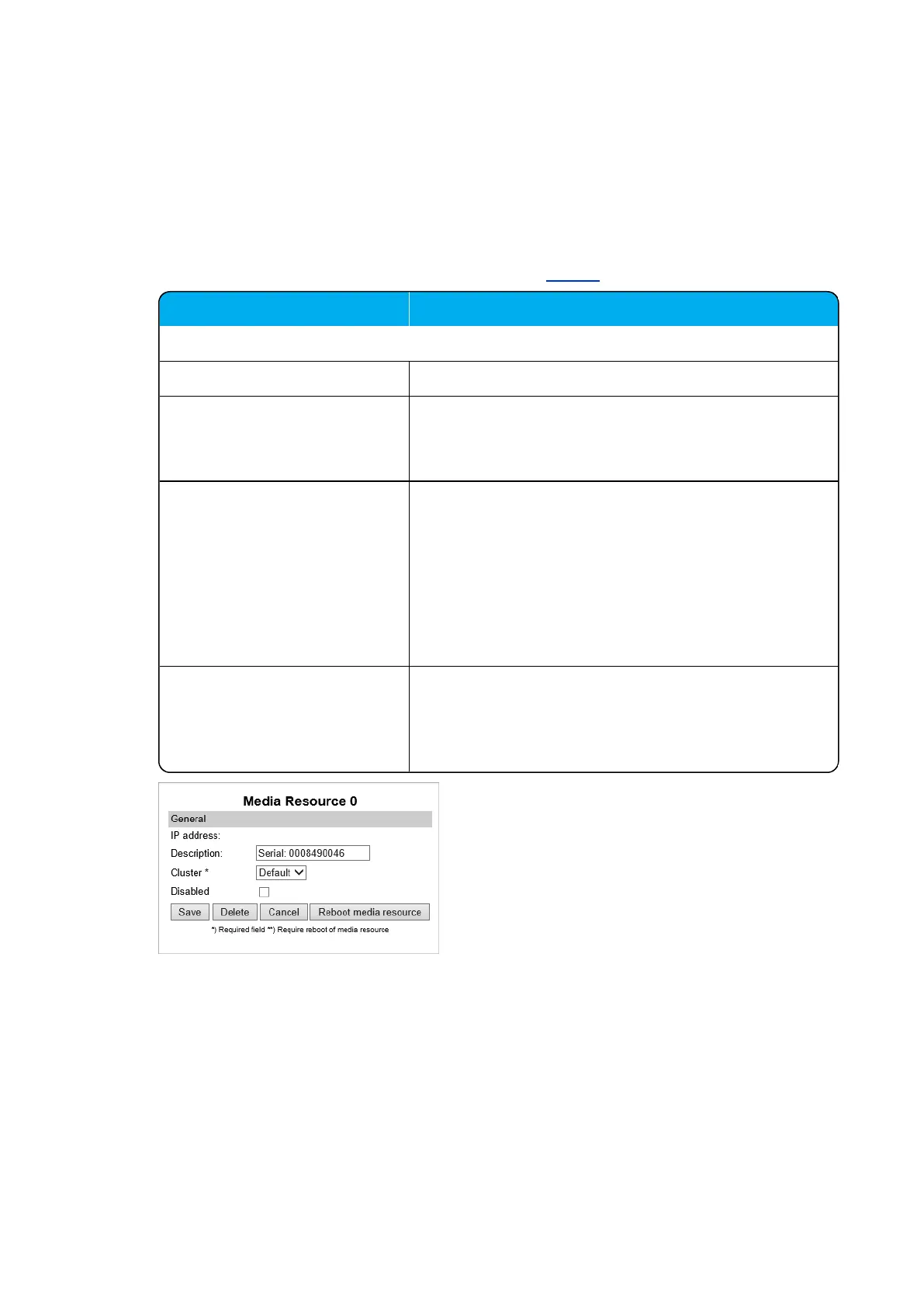
2. On the Media Resources page, click on the relevant media resource.
3. On the Media Resource page, under General in the Cluster field, select the desired cluster:
Field
Media Resource - General
IP address (Read only) Current IP address of the media resource.
Description (Optional) Enter a description.
It is recommended to use a description of the physical loc-
ation.
Cluster Default value: Default
It is possible to cluster devices that are located at the
same location.
To assign a cluster to the media resource, select the rel-
evant cluster from the list.
For information about defining clusters, see "Configuring
Clusters" on the previous page.
Disabled (Optional) If enabled, the media resource will be disabled.
Note: If Add new as active is enabled (Configuration
> Wireless Server > Media resources), then this will
be unset by default when adding a new media resource.
4. Click Save.
5. Click Reboot mediaresource.
Spectralink IP-DECT Server 200/400/6500 Installation and Configuration Guide



 To Next Page