14215700-IG, Edition 8.0
April 2018, Original document
168
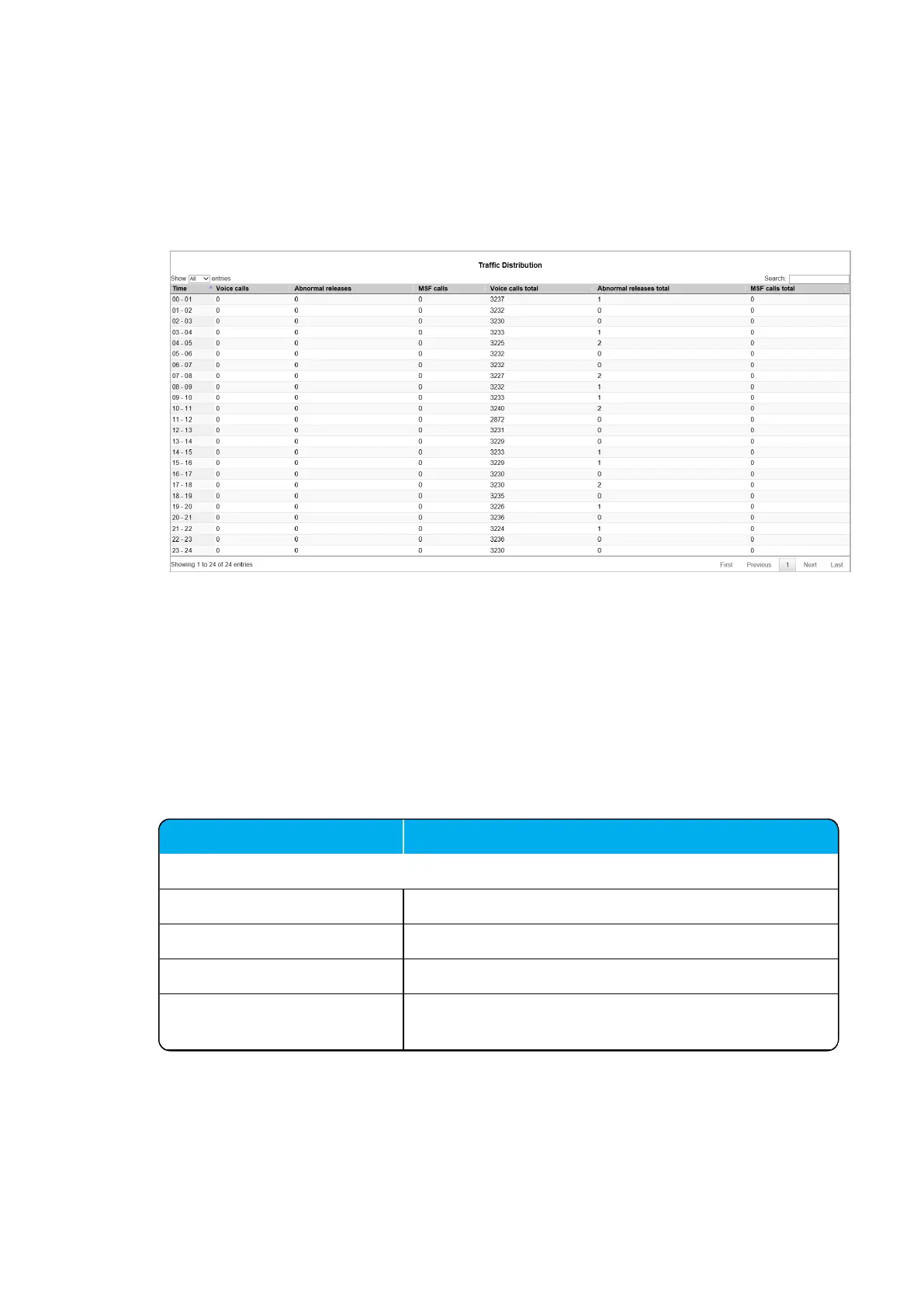
Statistics of Traffic Distribution
This page is useful to get statistic information about traffic distribution during the last 24 hours.
l Click Statistics, and then click Traffic Distribution. The Traffic Distribution page
appears.
Changing Administration Password
From the web based Administration Page of the Spectralink IP-DECT Server it is possible to change
the administration password.
For more information, see "Configuring Security Settings and Changing System Password" on
page99.
1. Click Configuration, and then click Security.
2. On the Security Configuration page, enter the following data:
Field Setting
Security Configuration - Administrator Authentication
Current password Enter the current password.
New username Enter a new username.
New password (Optional) Enter a new password.
New password again
(Optional)
Enter the new password again to confirm.
Spectralink IP-DECT Server 200/400/6500 Installation and Configuration Guide



 To Next Page