14215700-IG, Edition 8.0
April 2018, Original document
87
Using the Powershell, following commands will configure the correct DHCP options for a Spectralink
IP-DECT Server with the IP address 192.168.1.10:
netsh dhcp server add class IP-DECT "Spectralink IP-DECT"
netsh dchp server add optiondef 43 "IP-DECT Server" string 0 vendor-
r=IP- DECT comment="IP address of the IP-DECT Server"
netsh dhcp server set optionvalue 43 string vendor=IP-DECT
"192.168.1.10"
On a ISC DHCP server, the following configuration file fragment will be the correct DHCP options
for a Spectralink IP-DECT Server with the IP address 192.168.1.10:
option space ipdect code width 1 length width 1;
option ipdect.server code 43 = text;
option vendor-ipdect code 43 = encapsulate ipdect;
class "vendor-classes" {
match option vendor-class-identifier;
}
subclass "vendor-classes" "KIRK.IP6000" {
vendor-option-space ipdect;
option ipdect.server "192.168.1.10";
}
Discovering the Spectralink IP-DECT Components via
UPnP
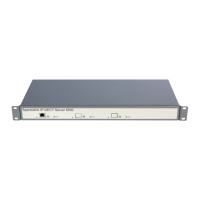
The Spectralink IP-DECT Server is setup with DHCP enabled by default. Therefore, you must use
UPnP to discover the Spectralink IP-DECT Server.
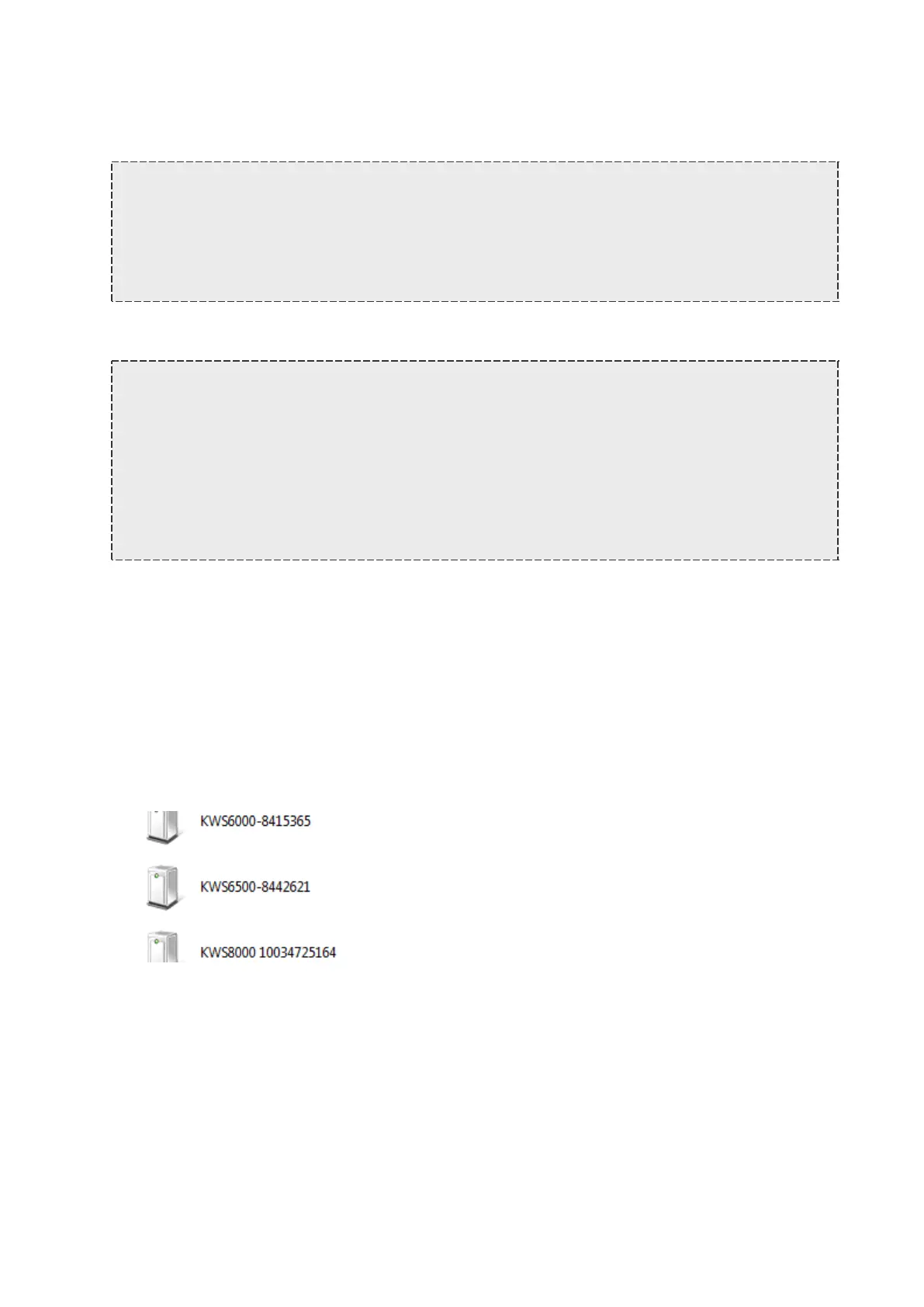
The Spectralink IP-DECT Server will appear under Network and Other Devices (using Windows
Explorer) as "KWS6500 -<Serial number> ", e.g. KWS6500-8442621
Below is an example of using UPnP to discover Spectralink IP-DECT Server 6500.
l Double-click the icon to access the web based Administration Page of the Spectralink IP-
DECT Server 6500.
Spectralink IP-DECT Server 200/400/6500 Installation and Configuration Guide



 To Next Page