Field Setting
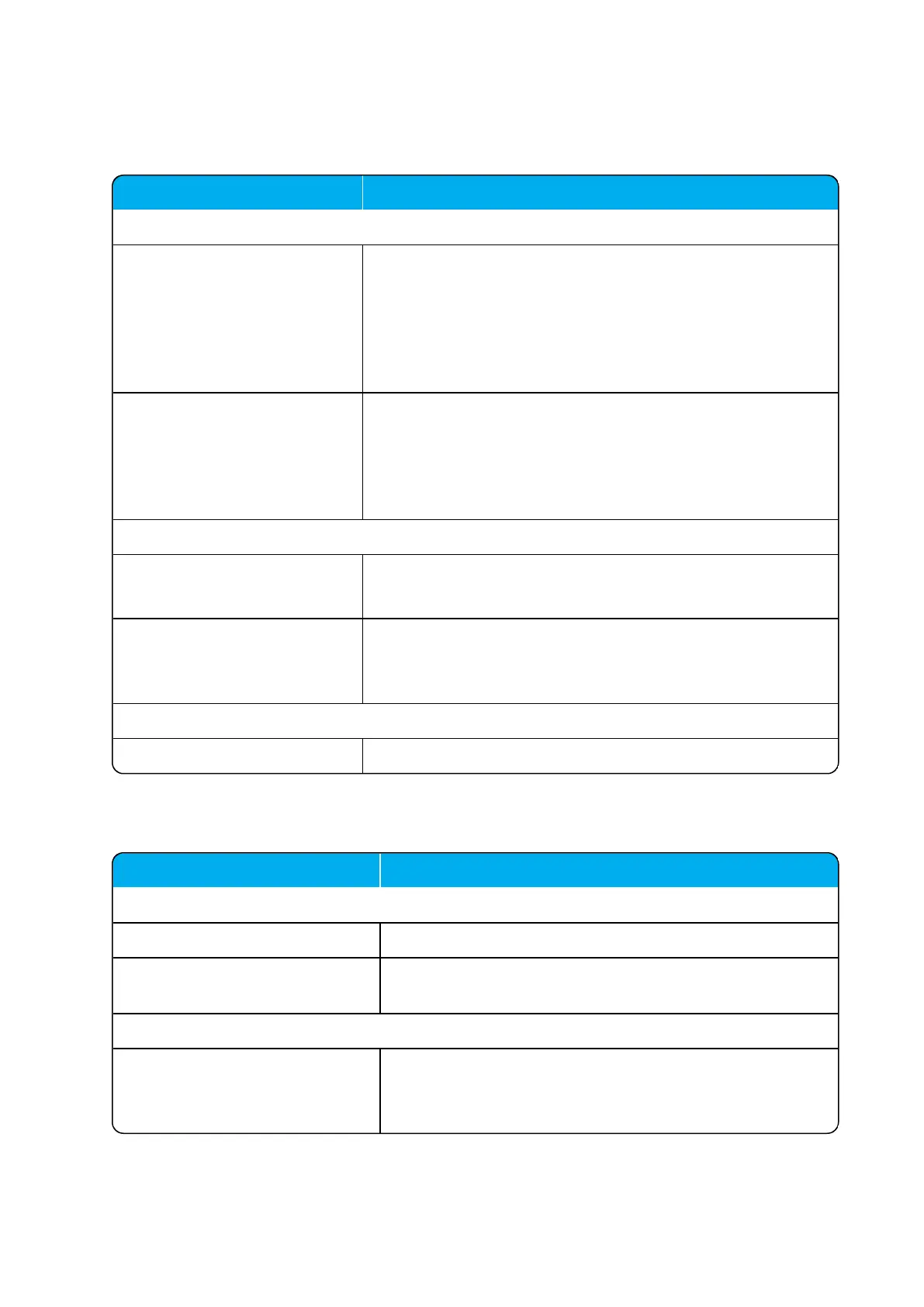
Import/Export Users - Import user data
CSV format If you want to import user data, browse for the CSV file to
import, and click Load.
To be able to import the data correctly, the CSV file must con-
tain certain information and punctuation. For more information,
see "Example of Handset Registration Data - CSV Format" on
page149.
Encoding Select the correct encoding for the CSV file. You can choose
between UTF-8, ISO/IEC 8859-1 or Windows-1252.
Note: The encoding depends on the software that was used to
generate the CSV file. If you use Microsoft Windows, you will
probably select Windows-1252.
Import/Export Users - Export user data
CSV format If you want to save the user data file in CSV format, click Save.
The CSV format can be imported back into the server.
XML format If you want to save the user data file in XML format, click Save.
The XML format is used for provisioning. For more information,
see Provisioning Guide.
Import/Export Users - Delete users
Delete all users If you want to delete all users, click Delete.
Field Setting
Wireless Server - Wireless Server Status
Wireless Server Uptime
Click Reboot now or Reboot when idle (when active calls
have ended), if you want to restart the system.
Wireless Server - Service Status
Call establishment Default set to alllowed.
Click Block, if you want to block for new calls during firm-
ware update.



 To Next Page