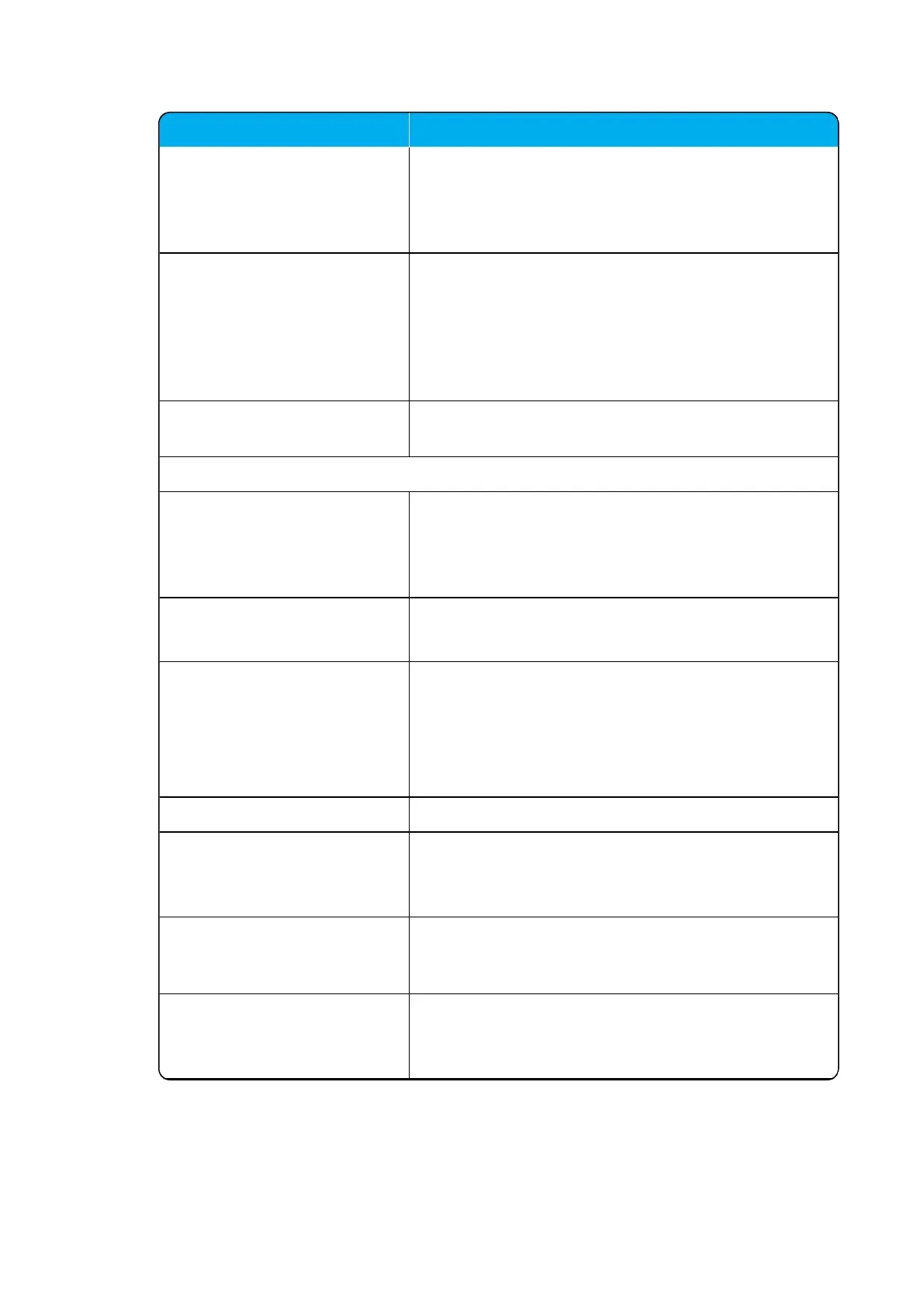
Field Setting
Import Browse for the CSV file to import.
Note: The CSV file must contain correct format. For
more information, see "Example of CSV File Format" on
page196.
Encoding Select the correct encoding for the CSV file. You can
choose between UTF-8, ISO/IEC 8859-1 or Windows-
1252.
Note: The encoding depends on the software that was
used to generate the CSV file. If you use Microsoft Win-
dows, you will probably select Windows-1252.
Number fields Enter the indexes of the columns containing dialable num-
bers.
Phonebook Configuration - LDAP
LDAP Enable this if you want to configure the server to retrieve
phone book data using LDAP server.
For an example of LDAP configuation, see "Example of
LDAP Configuration" on the next page.
URI Enter the URI of the LDAP server.
E.g. ldap://example.com
Bind user (Optional) Enter the username used for authentication against
LDAP.
Note: It might be necessary to specify the path for user-
name (DOMAIN\username).
E.g. CN=Manager, DC=example, DC=com.
Bind password (Optional) Enter the Bind user’s password.
Base (Optional) Enter the base path where the users are located in the
LDAP structure.
E.g. DC=example, DC=com.
Filter (Optional) Enter the filter used for the LDAP query. The
(objectClass=person) filter can be used successfully in
most cases.
Attributes Enter the LDAP attributes you want to query the LDAP
for, separated by a comma.
E.g. displayName,telephoneNumber, mobile.



 To Next Page