X35 Monitor Air Seeder Setup
6.22
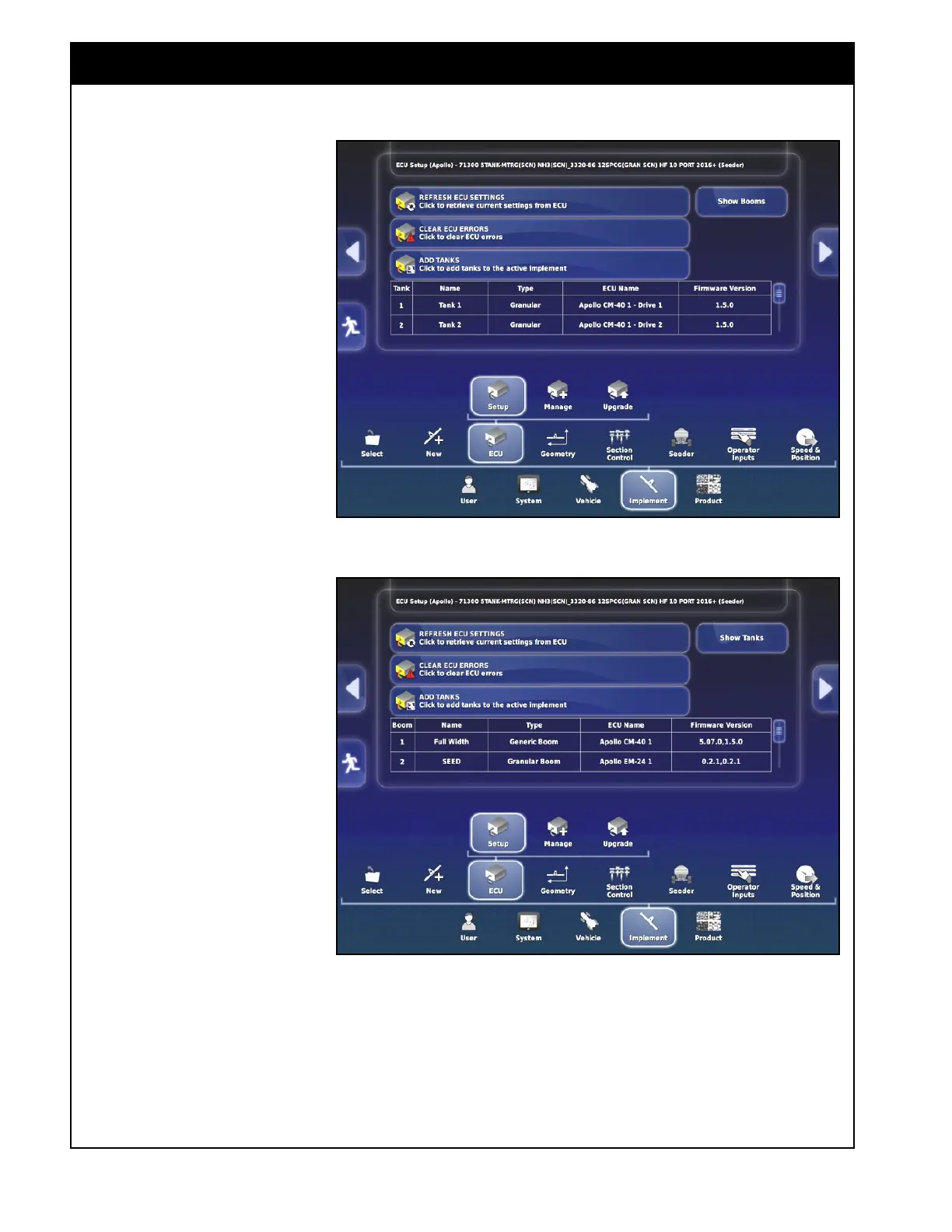
Figure 6.30 - ECU Display - Tank Summary
6.3 ECU
6.3.1 ECU Setup
After creating a new implement
profile or changing implements,
the new implement will be loaded
and the ECU Display window
will be displayed.
This window displays a summary
of all tanks, the type of each tank
(granular, liquid or NH3), ECU
and the drive channel for each
tank, as well as ECU firmware
version. Refer to
Figure 6.30.
Selecting the Show Booms button
will display the boom summary.
Refer to
Figure 6.31.
Most of the air seeder related
settings will be loaded from the
profile.
1. Refresh the ECU Settings
- this will synchronise the
connected ECUs. Note, this
procedure may take a few
minutes.
2. Clear ECU Errors - this will
clear the previous ECU errors.
a. When ECU errors occur,
alarm messages will be
displayed. After the
issues are resolved, select
this button to clear the
memory to avoid the
previous error messages
from returning.
Figure 6.31 - ECU Display - Boom Summary



 To Next Page