X35 Console Monitoring & Managing Files
10.7
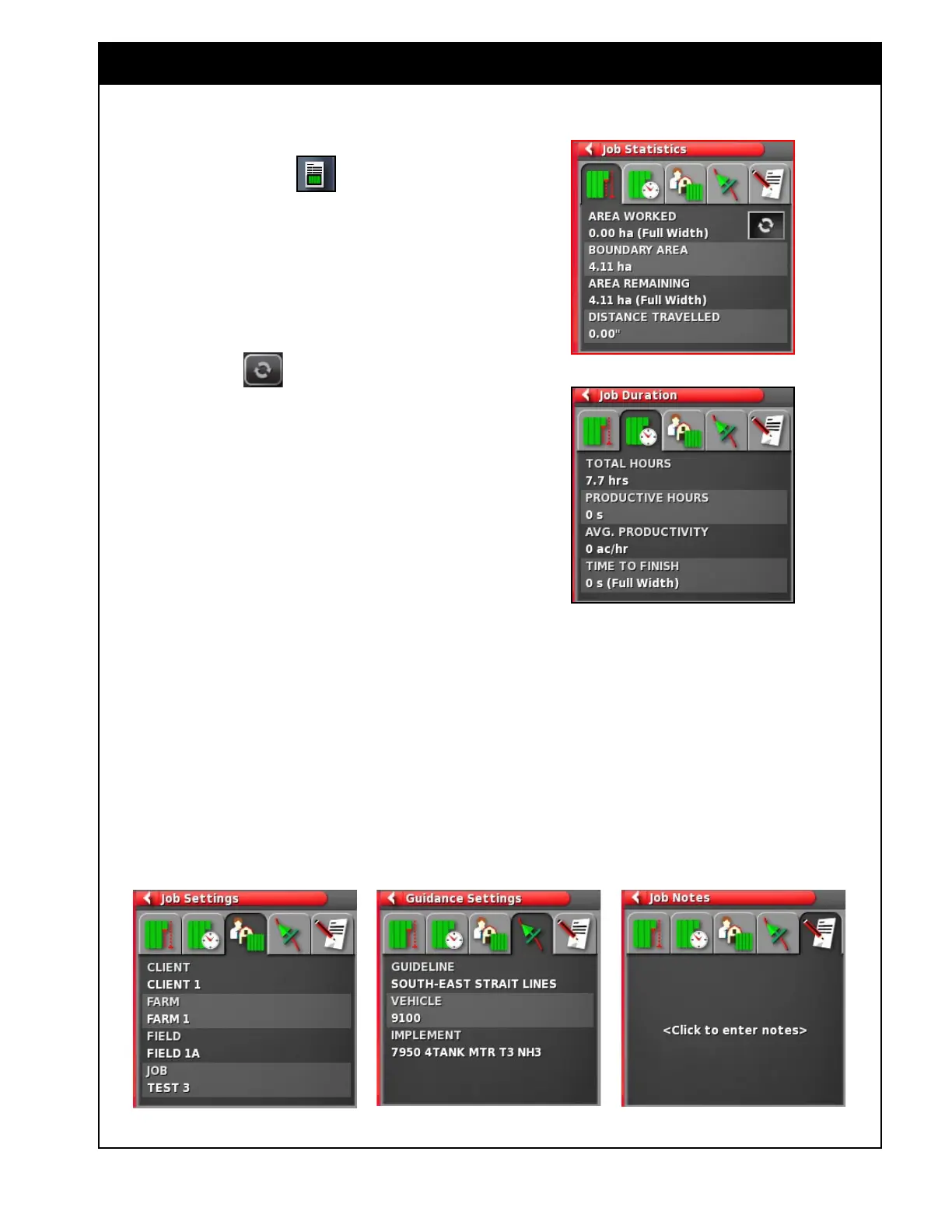
Figure 10.10 - Job Statistics
From the mini-view menu (left side of the
operational screen) select
to open the Job
information mini-view window.
This window has five tabs that will display
information related to the current job.
1. Job Statistics (Figure 10.10) - displays the
area worked, the boundary area, the area
remaining and the distance travelled.
a. Select the
icon to change between
different booms to view these values
corresponding to each boom.
i.
Area Worked - displays the calculated
area that the boom has covered
including any overlapped area and is
based on GPS painted area.
ii. Boundary Area - displays the
calculated area within the boundary
when created and is based on GPS.
iii. Area Remaining - displays the
calculated area remaining unpainted
within the boundary when created
and is based on GPS.
2. Job Duration (Figure 10.11) - displays
the total and productive hours, the average
productivity and the time left to finish the job.
3. Job Settings (Figure 10.12) - displays the
client, farm, field and job names.
Figure 10.11 - Job Duration
Figure 10.12 - Job & Guidance Settings, Job Notes
4. Guidance Settings (Figure 10.12) - displays
the current guideline name, the vehicle and
implement used for the current job
a. Several guidelines can be associated with
one field, for example seeding North-West
and spraying South-East.
5. Job Notes (Figure 10.12) - this screen allows
you to enter notes relating to that particular
job.
10.2 Viewing Job Information



 To Next Page