X35 Console Overview
2.9
2.5 Guidance/Coverage Map
The full Guidance screen opens as default when
the Operations screen is accessed for the first time.
In addition to full screen mode, it can be viewed
in a mini-view.
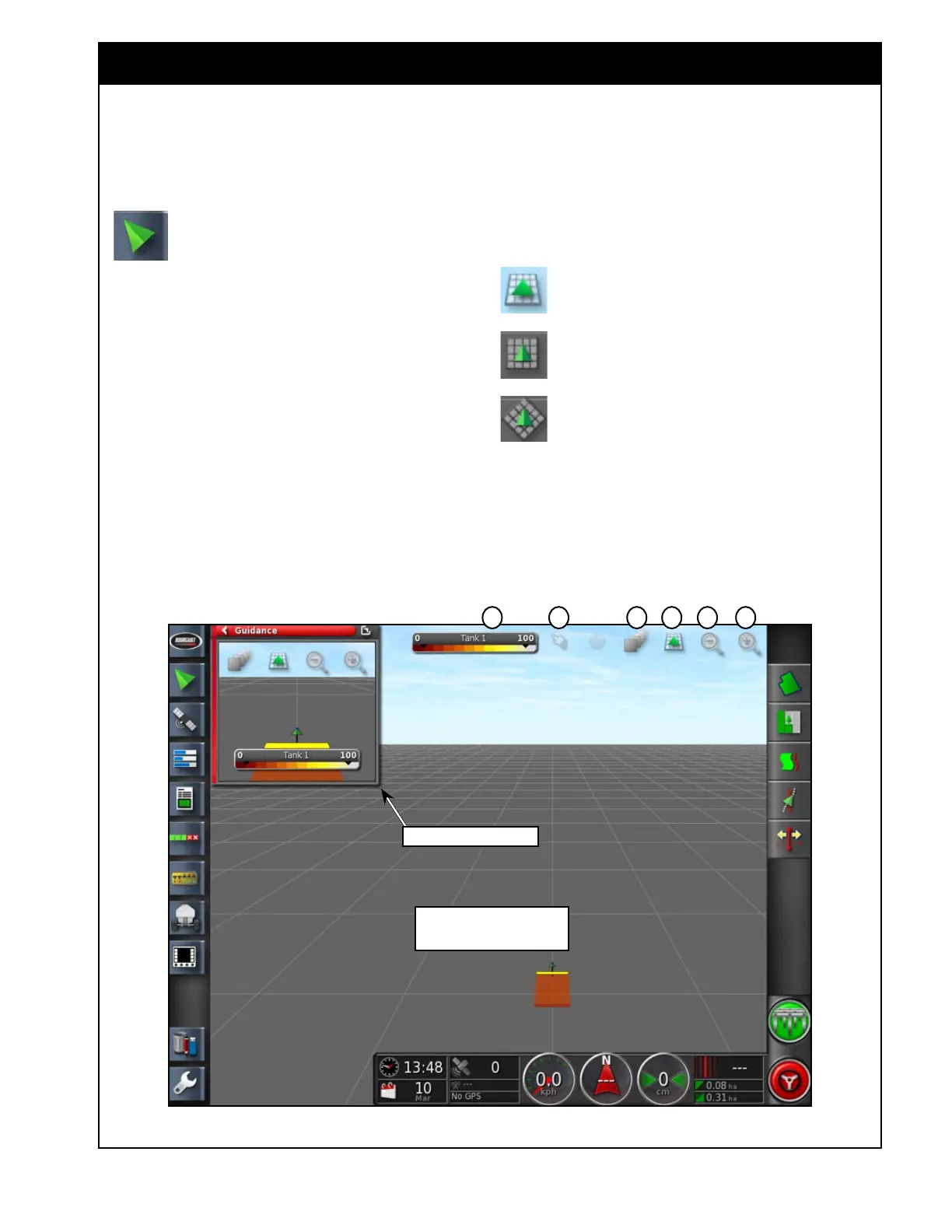
Select this icon to open the secondary
guidance window, refer to
Figure 2.13.
The purpose of this window is to allow you to
have a secondary view of your tractor path, other
than in your main guidance screen (for instance,
you may have an overhead view on your main
guidance screen but have a perspective view on
your secondary guidance window).
Both the main and secondary guidance screens
display following viewing control buttons (refer to
Figure 2.13):
A Zoom In - helps you to get a closer view of
your implement and map on your guidance
screen.
Figure 2.13 - Main Guidance Screen and Secondary Guidance Window
B Zoom Out - helps to get a wider view of your
implement and map on your guidance screen.
C Change viewing perspective - allows you
to change perspective view. The available
viewing perspectives are:
Perspective view - view of your virtual
map as you might see your path from
behind the implement.
Overhead view - top down view of your
implement and map.
North up view - is similar to overhead,
except that your implement is always
facing North relative to the screen.
Secondary Guidance
Main guidance screen is set to
perspective view
B ACDF E



 To Next Page