X35 ConsoleField / Job
9.12
9.2.7 Clear Field Boundary
If required, field boundaries can be erased.
Note
Erasing boundaries is a permanent action. A new
boundary will need to be recorded.
1. From the Guidance Toolbar select the Field
menu, and then select Field icon.
2. Choose the client, farm and field. The
Boundary will appear on the screen.
3. Select the
icon to clear the field
boundaries. A window with a message to
confirm will appear.
4. Confirm or cancel action.
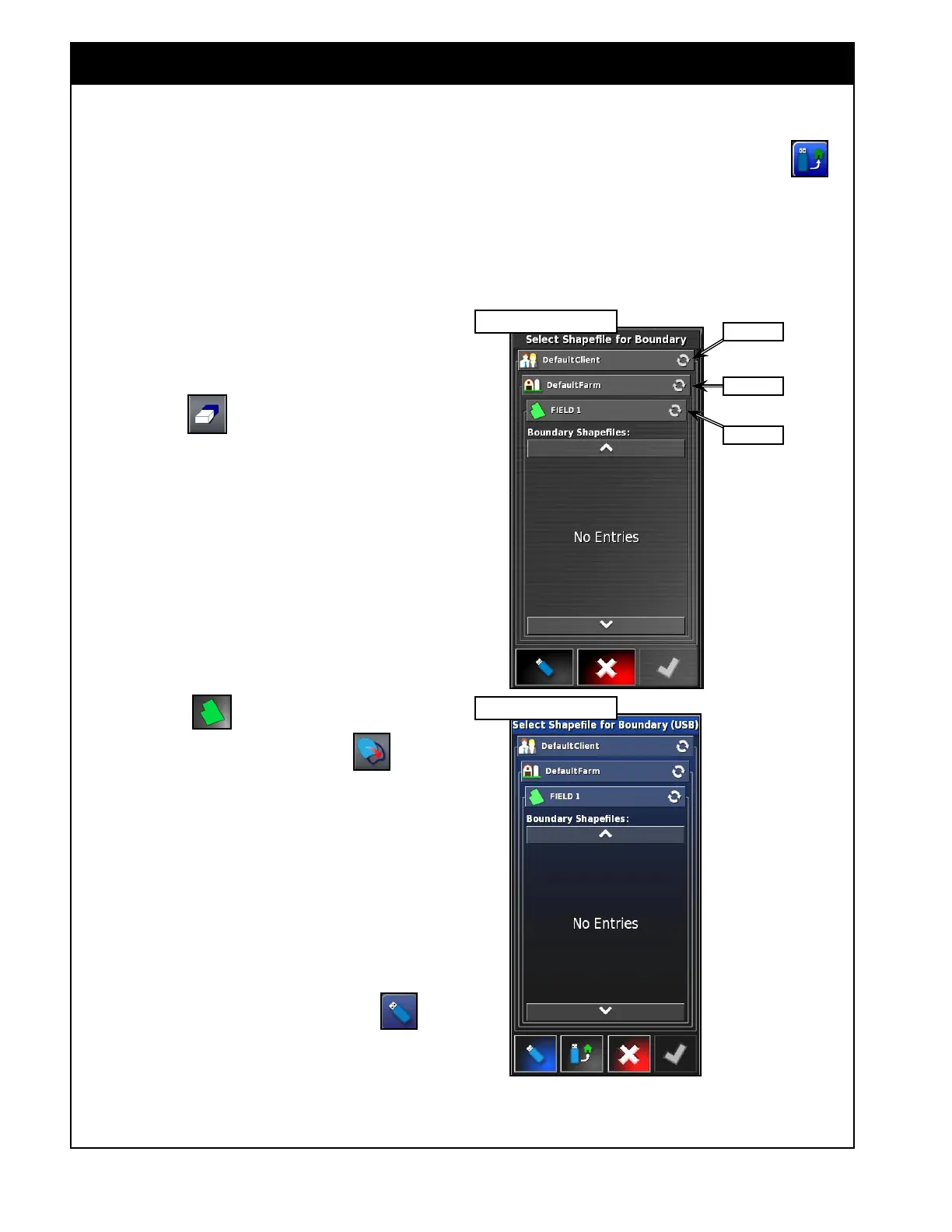
Figure 9.19 - Selecting ShapeFile
X35 internal memory
USB device
Client Tab
Farm Tab
Field Tab
9.2.8 Creating a Field Boundary From
a Shapefile
Refer to Figure 9.19. Follow these steps to import
a field boundary from the shapefile:
1. From the Guidance Toolbar select the Field
menu icon , and then select create
boundary from the shapefile icon
.
2. Choose the Client, Farm and Field. Select
corresponding tab and make selection from the
list, similar way as selecting an existing field
(refer to
Section 9.2.1 - Selecting an existing
Field).
3. The scroll list will display shapefiles from the
X35 internal memory.
a.
If importing from a USB device, make sure
that the USB device is connected to the
X35 console and then select icon
.
b. Information on the USB device can be
displayed in Client/Farm/Field format or
USB Home format (will display folders/
files, same way as Windows explorer).
c. To switch between formats use icon
.
4. Select the shapefile and confirm, then
boundaries will be created.



 To Next Page