X35 ConsoleField / Job
9.2
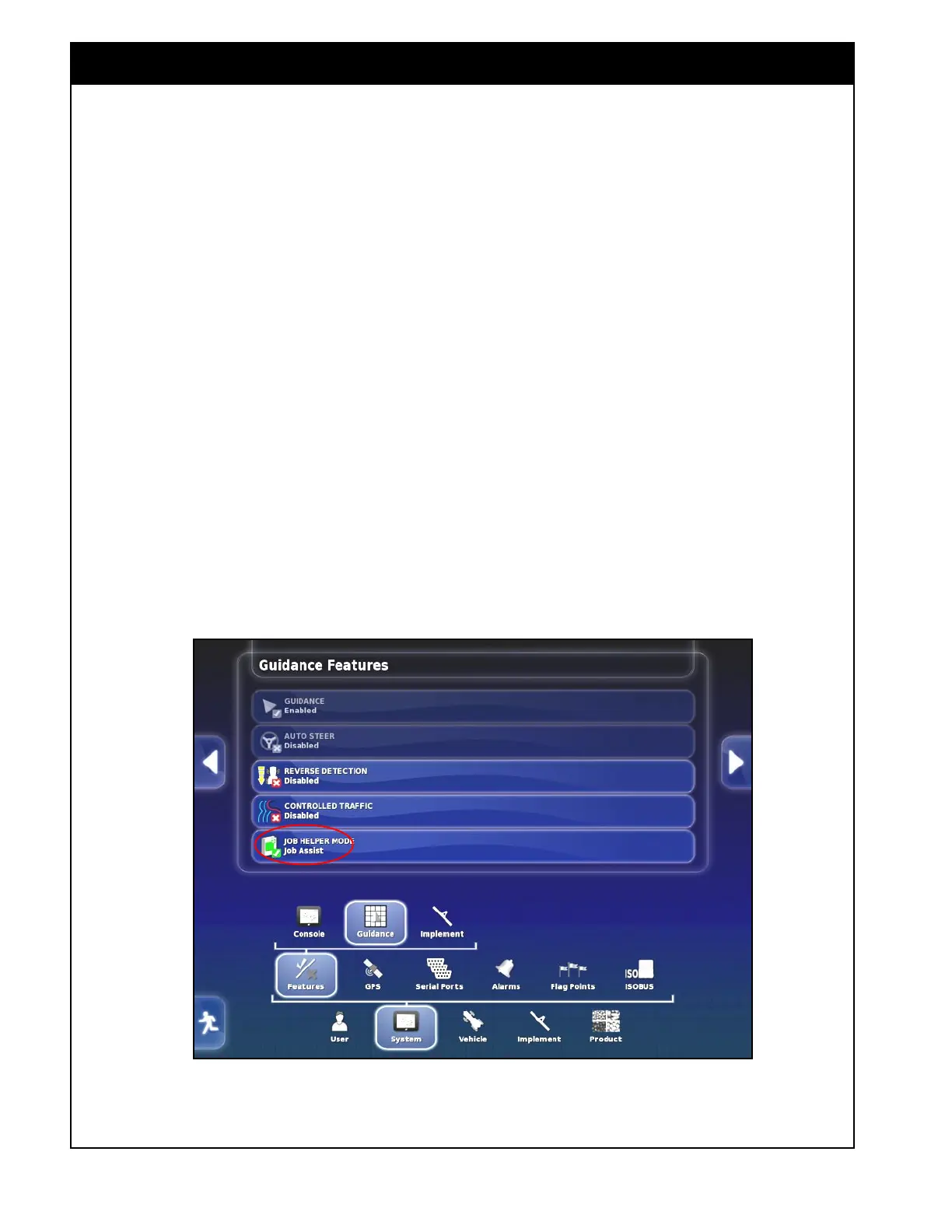
Figure 9.1 - Enabling Job Assist
9.1 Introduction
Before product application begins, the following
steps need to be completed in the specified order:
1. Select an existing field or create a new field,
refer to
Section 9.2 - Field Menu.
2. Select or create a new job, refer to
Section 9.3
- Job Menu.
Important
With a GPS signal detected ,the X35 console will
not allow product application without first loading
a job (master switch will remain red).
Note
It is highly recommended to enable the "Job
Assist" feature or setup "Quick Start" feature.
3. To enable "Job Assist" or "Quick Start"
feature, refer to Figure 9.1:
a. Go to Setup.
b. From the menu, select System/Features/
Guidance
c. For Job Helper Mode, select Job Assist or
Quick Start.
i. If Quick Start is selected, it would
need to be configured, to do that
in the Setup screen select System/
Features/Quick Start, for more details
refer to
Section 4.1.7 - Quick Start.
ii. If configured correctly, Quick Start
will automatically walk you through
the following setup to start/change
fields and jobs.



 To Next Page