X35 Console General Operations
8.37
8.11 Virtual Section Switches
For Virtual Section Switches setup refer to Section
6.5.3 - Sections Switch.
When the virtual section switches are enabled
they can be accessed for each multi-section boom
from the operator's screen in several ways:
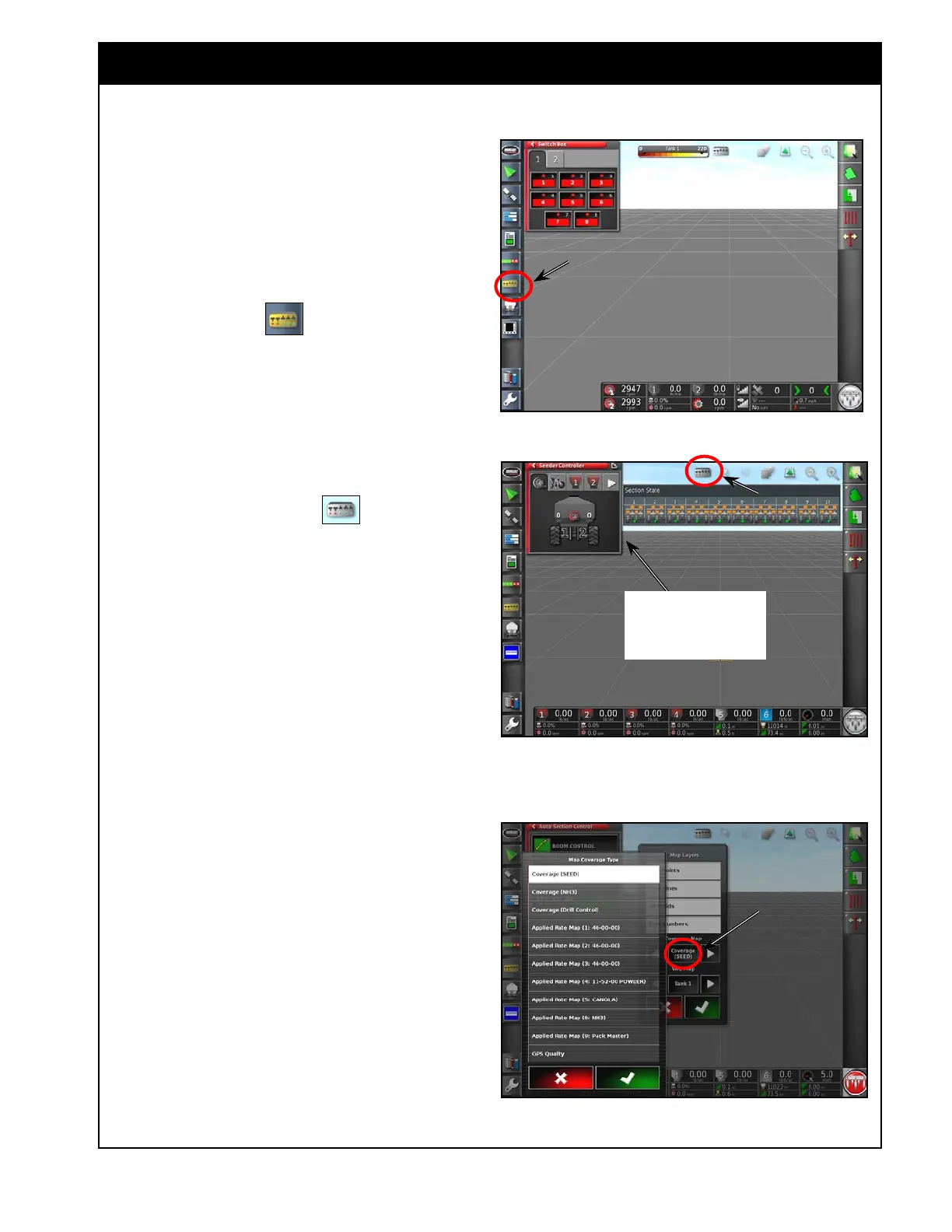
1. From the Mini-View menu. Refer to Figure
8.66.
a. Selecting the
icon, will open up the
Virtual Section Switches mini-view.
b. There are tabs to represent each respective
boom.
2. From the guidance screen. Refer to Figure
8.67.
a. If displaying the layer for a boom with
sectional control, the icon will
appear on the top tool bar.
b. if selected it will open up a panel for that
boom (refer to
Section 2.5 - Guidance/
Coverage Map).
Figure 8.66 - Virtual Section Switches - MiniView
Figure 8.67 - Virtual Section Switches - Guidance
Screen
Figure 8.68 - Map Coverage Type
c. Refer to Figure 8.68.
d. In this example:
i. if the Coverage (SEED) or Applied
Rate Map (1, 2, 3, 4 or 5) is
selected, a multi-sectional boom
panel for Granular will be displayed.
ii. if the Coverage (NH3) or Applied
Rate Map (6:NH3) is selected, the
multi-sectional boom panel for NH3
will be displayed.
This boom can be placed
at the top or bottom of the
screen by dragging it up or
down.


 To Next Page