X35 ConsoleOptional Equipment
13.18
13.5 Xtend Feature
The Xtend feature can be used to connect a
smartphone or tablet to the X35 console to control
certain functions.
Xtend can be used to complete functions like the
Calibration wizard and the Tank Fill wizard out at
the tank through the connected device.
In order to use this feature you will need to:
1. Download the Topcon Xtend app (from your
respective app store) onto the device.
2. The Wi-Fi antenna supplied with the X35
console will need to be plugged into one of
the USB ports.
3. Enable the Wireless Hotspot on the X35
console to generate a local Wireless Hotspot
signal. Refer to
Section 4.1.6 - Wireless to
enable the Wirelss Hotspot.
4. The device will need the Wi-Fi turned on
and will need to be connected to the Wireless
Hotspot signal generated by the X35 console.
Alternatively, if you have a Wi-Fi signal
available in the cab, you can enable the
Wireless Connection on the X35 console to
connect it to this same Wi-Fi signal that your
device is connected to. This would allow your
device to remain connected to the existing Wi-
Fi signal.
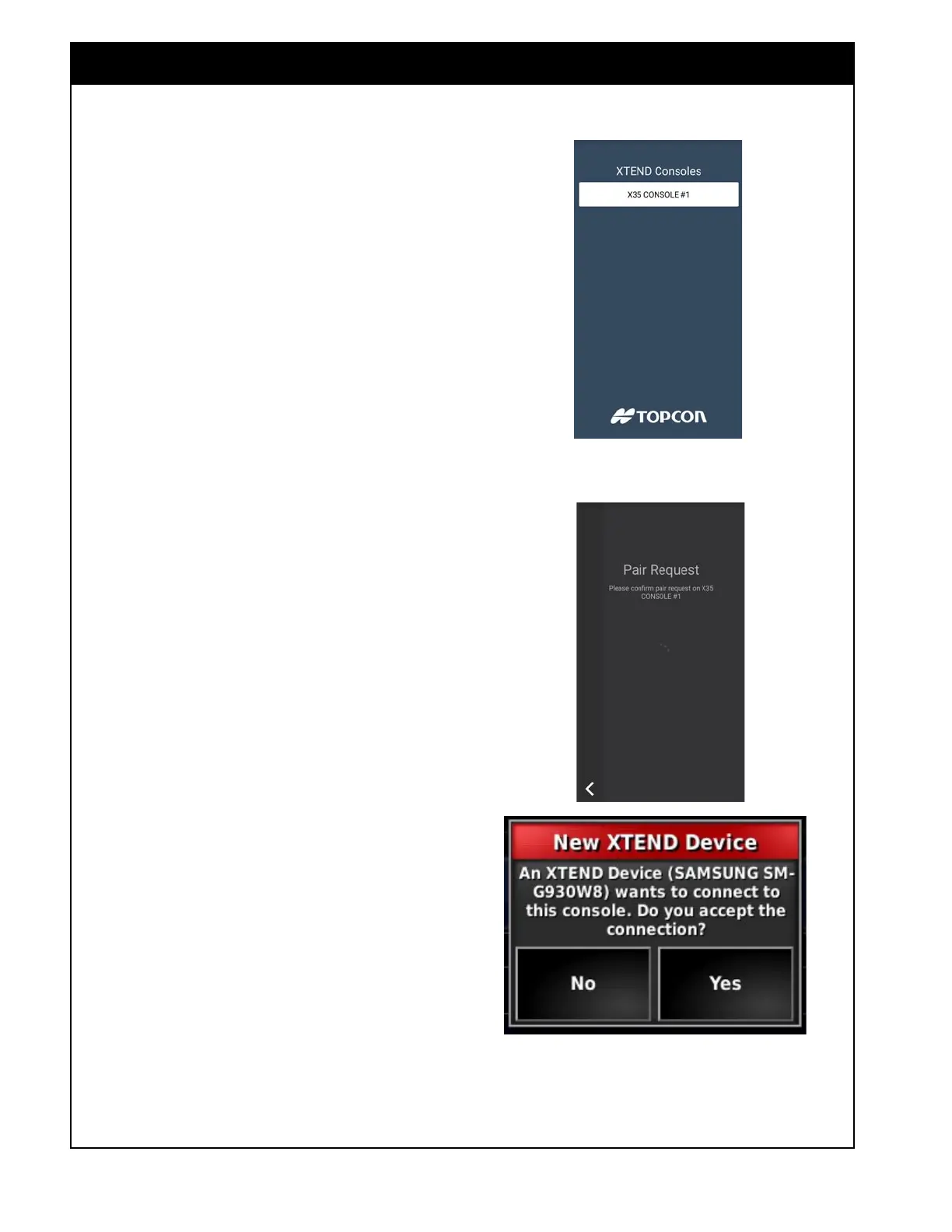
5. Open the Xtend app on the device and select
the console name that comes up for the X35
console you are trying to connect to. Refer
to Section 4.1.35 - Xtend to name consoles
differently if you are typically running multiple
units, refer to Figure 13.21.
6. This will start a Pair Request that will need to
be acknowledged on the X35 console to allow
connection form the device. Select Yes on the
X35 console to accept, Refer to
Figure 13.22.
Figure 13.21 - Xtend Set Up
Figure 13.22 - Paring Device with X35



 To Next Page