X35 ConsoleOverview
2.12
2.6 Seeder Controller
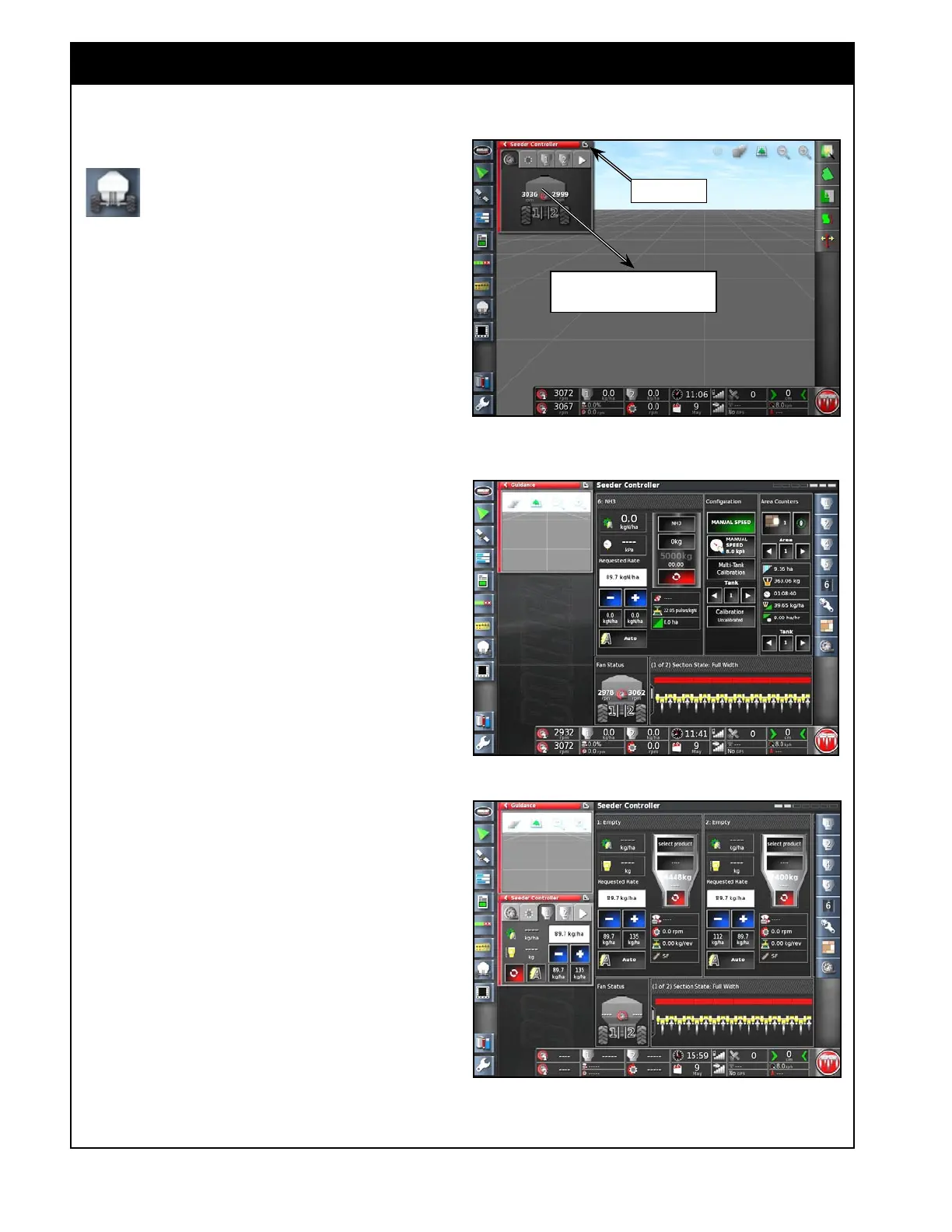
Refer to Figure 2.17.
This is the Seeder Controller Icon, located
in Mini-View menu. Selecting this icon
will open Seeder Controller mini-view
window.
The Seeder Controller mini-view window can be
expanded into a main screen.
a. To expand Seeder Controller select the top
right maximize arrow or touch the mini-view
window and slide towards the main screen,
refer to
Figure 2.18.
The Seeder Controller in full screen mode provides
extra functions like selecting product, filling tank,
calibration and etc., that are not available in mini-
view window.
The Seeder Controller can be viewed in both
modes at the same time.
a. While the Seeder Controller is in the full
screen mode, select the Seeder Controller
icon from the Mini-View menu again, and the
secondary Seeder Controller mini-view window
will open again, refer to
Figure 2.19.
The purpose of this window is to allow an
operator to have a secondary view of the air seeder
functions and controls.
a. For instance, you can set the full screen to
show four granular tanks and on the mini-view
select the NH3 tab for viewing, or;
b. you may want to set the mini-view tank tabs
to display different parameters compared to a
tank panel in full screen mode.
Figure 2.17 - Seeder Controller Mini-View
Expand
Touch the mini-view and slide
towards the main screen to expand
Figure 2.18 - Seeder Controller in Full Screen Mode
Figure 2.19 - Seeder Controller - Full Screen Mode &
Mini-View



 To Next Page