X35 ConsoleOverview
2.6
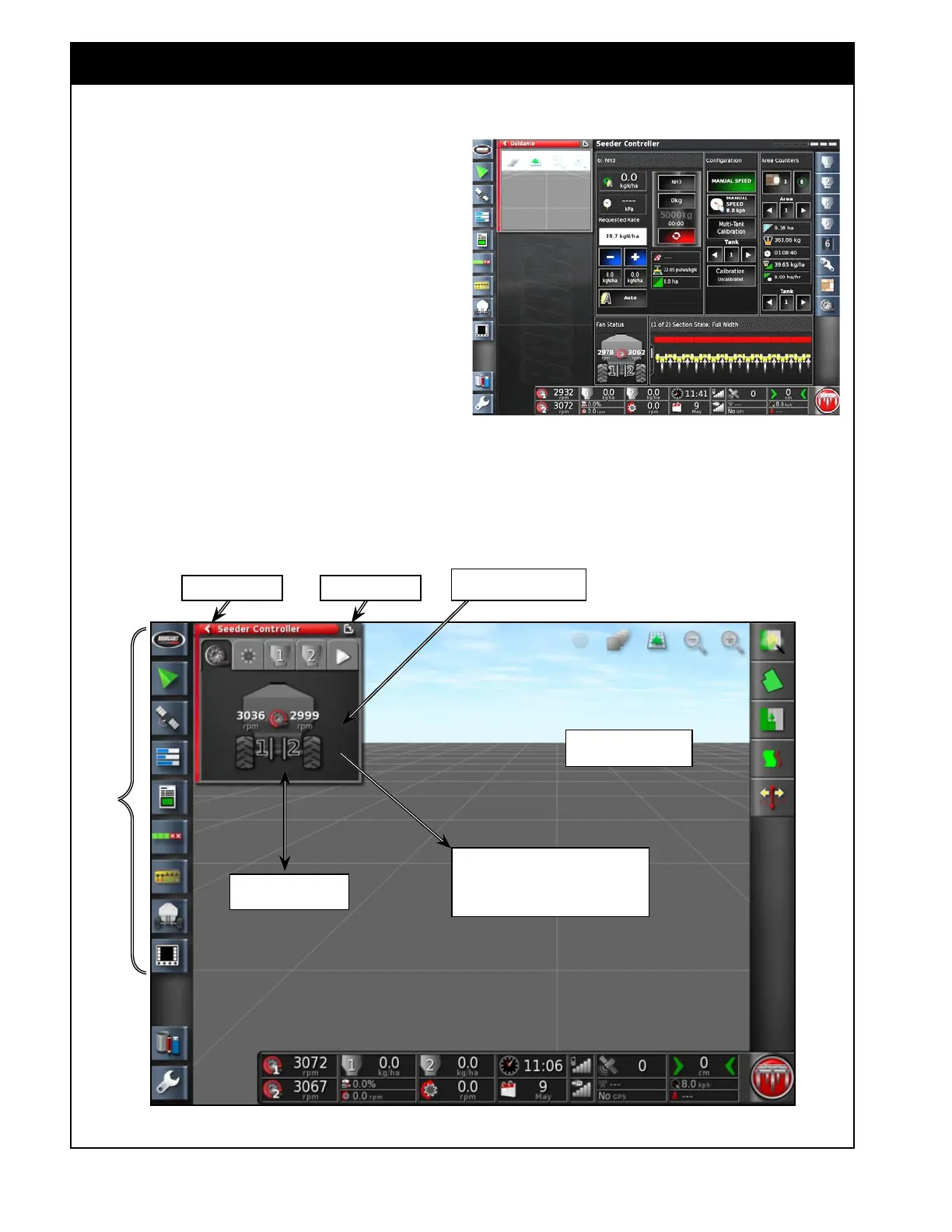
Figure 2.9 - Manipulating Mini-View Windows
Mini-View Menu
Guidance Window
Expanded
Figure 2.8 - Seeder Controller Window Expanded
Touch the mini-view and slide towards
the main screen, see figure 2.7 (Seeder
controller window expanded, guidance
window minimized)
Slide mini-view up or
down for a new position
Seeder controller mini-view
window opened
Maximize ArrowMinimize Arrow
2.3.2 Manipulating Main Viewing Area
Selecting any feature on the Mini-View menu will
open a mini-view window, refer to Figure 2.9.
Some mini-views have a maximize arrow and will
expand to display more information.
1. to view more information select the top right
maximize arrow or touch the mini-view and
slide towards the main screen;
2. to close the mini-view, select the minimize
arrow or touch the mini-view window and
slide towards the mini-view menu bar or also
press the mini-view icon on the menu again;
3. to slide the mini-view window up or down,
select and slide.
Full screen modes cannot be minimized back to a
mini-view. Always expand another mini-view to
replace the information on the main screen.



 To Next Page