X35 Console Overview
2.3
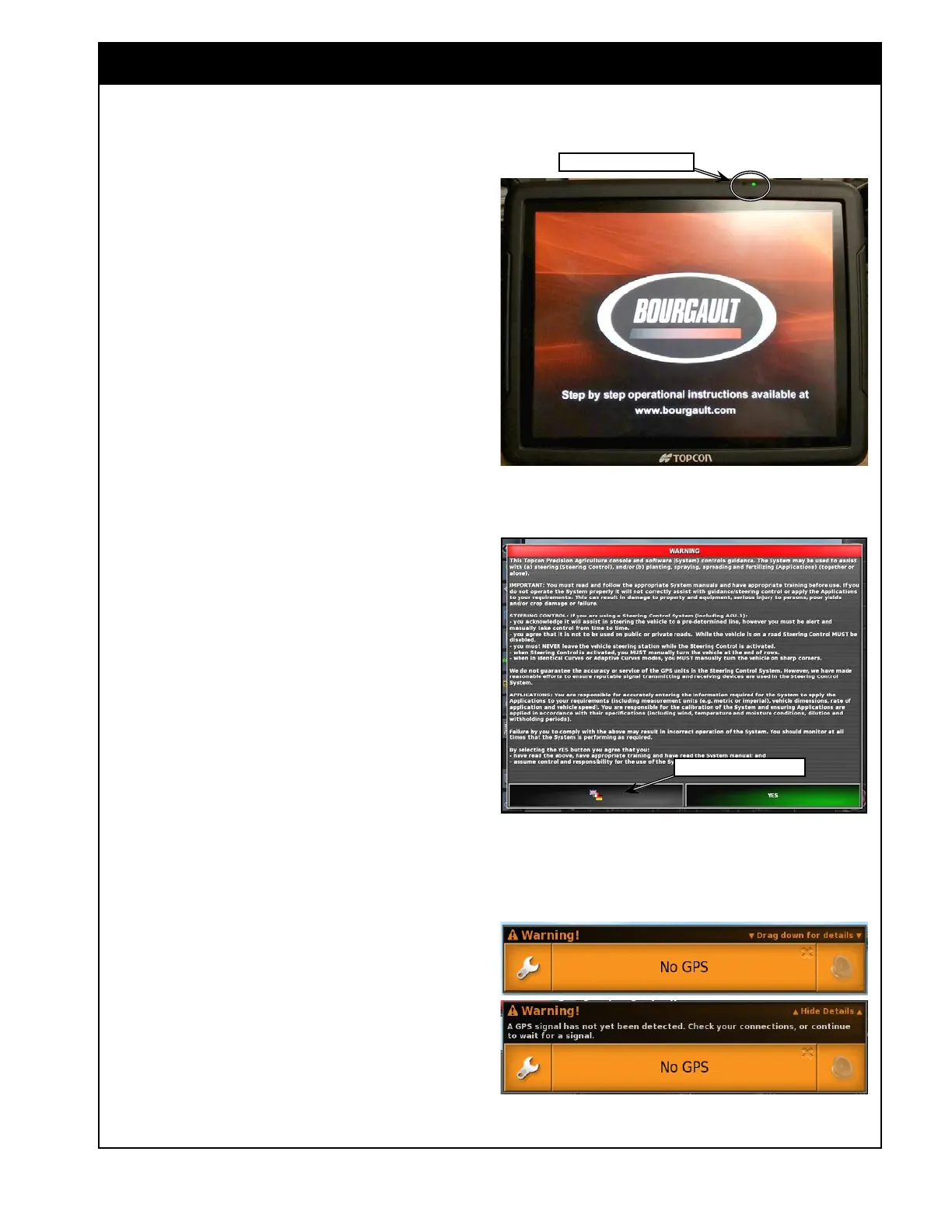
Figure 2.3 - X35 - Bourgault Screen
X35_BourgaultLogo.jpg
Figure 2.4 - Warning Screen
Change Language Button
Through the booting up process several screens
will appear on the console. The Bourgault logo will
appear on the console screen, indicating that the
start up completed successfully, refer to Figure 2.3.
Next screen will be the legal Warning Screen, refer
to Figure 2.4. In the right bottom corner of the
this screen there are two buttons:
- the button with flags will allow you to change
language for the warning screen and the
console. Selecting this button will bring up the
scroll list. Use the up/down arrows or scroll
bar to see more languages. Choose (touch) the
language and confirm by touching green button
with the check mark. Note, that changing
language will require rebooting of the console.
Read the Warning Screen. Select up or down
arrows if necessary to read more.
Select the green Yes button to confirm your
understanding and acceptance of your responsibility
for liabilities described in the Warning Screen.
The console may display a No GPS warning, if a
GPS signal is not detected. Drag down anywhere
on the alarm window to show the information
and drag up to hide the information. Refer to
Figure 2.5.
- by selecting the wrench button you can go to
the alarm configuration screen. To close the
warning window touch anywhere on the main
area.
If the message appears again, this will need to
be remedied during the setup process, refer to
Section 4.2 - GPS. Also ensure that all harnessing
is correct and properly connected. You may also
verify the X35 is receiving GPS signal, refer to
Section 10.1.2 - Dashboard Items & Section 10.3
- GPS Details.
Note
Guidance will not be activated until a GPS signal
has been detected.
Figure 2.5 - No GPS Message
NoGPS.jpg
NoGPS_details.jpg
Power LED & Light Sensor



 To Next Page