Trend AuroraPlus User Guide
4-50 429850
From the service menu choose the SERVICE 3.
If you want to enter the message you want to send, choose
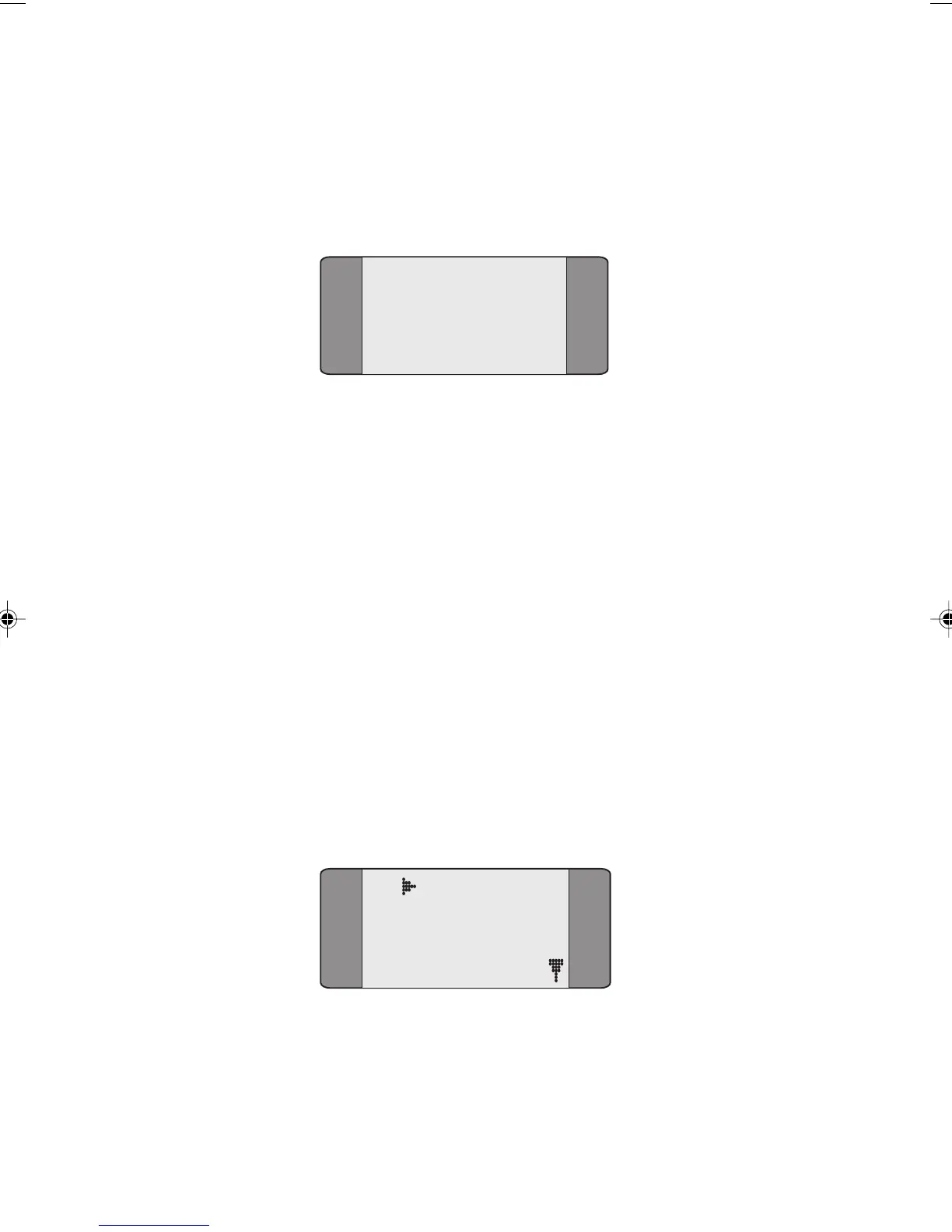
UUI, the following screen is displayed.
UUI:
Enter the UUI you want to send. You can enter up to 32
characters.
You can also enter the message just before you send it.
To save the message and leave the screen, press ENTER.
Sending an INVOKE Request
If AuroraPlus has not sent an INVOKE request in the SETUP
message you must do so manually before you can send the
UUI message. If the INVOKE request has already been sent
you do not need to perform these steps.
When the call is connected:
From the connected screen press the SCROLL button, the
following screen is displayed:
B1 CONNECT
1 BERT
2 LOOP
3 SUPP SVCS
Chap04s2.P65 30/04/01, 16:3950


 To Next Page