Test Functions
Issue 5 - 04/01 5-9
Note
If you restore the factory defaults, the BER test results are
deleted.
To perform a BER Test you first need to establish a call. This
call may be to either the other B Channel on
AuroraPlus (i.e. a
'Self Call') or to another remote tester or loopbox. If the
other B Channel is called and
AuroraPlus is set to loop
automatically, it answers the incoming call on the other
channel and provides a loop, for information on how to set
up a loop see Changing the Loop Options in Chapter 3.
Downloading BERT Results to a PC
You can automatically download results from a BER Test to
a PC or printer.
First connect AuroraPlus to the PC (or printer) using the serial
connector supplied.
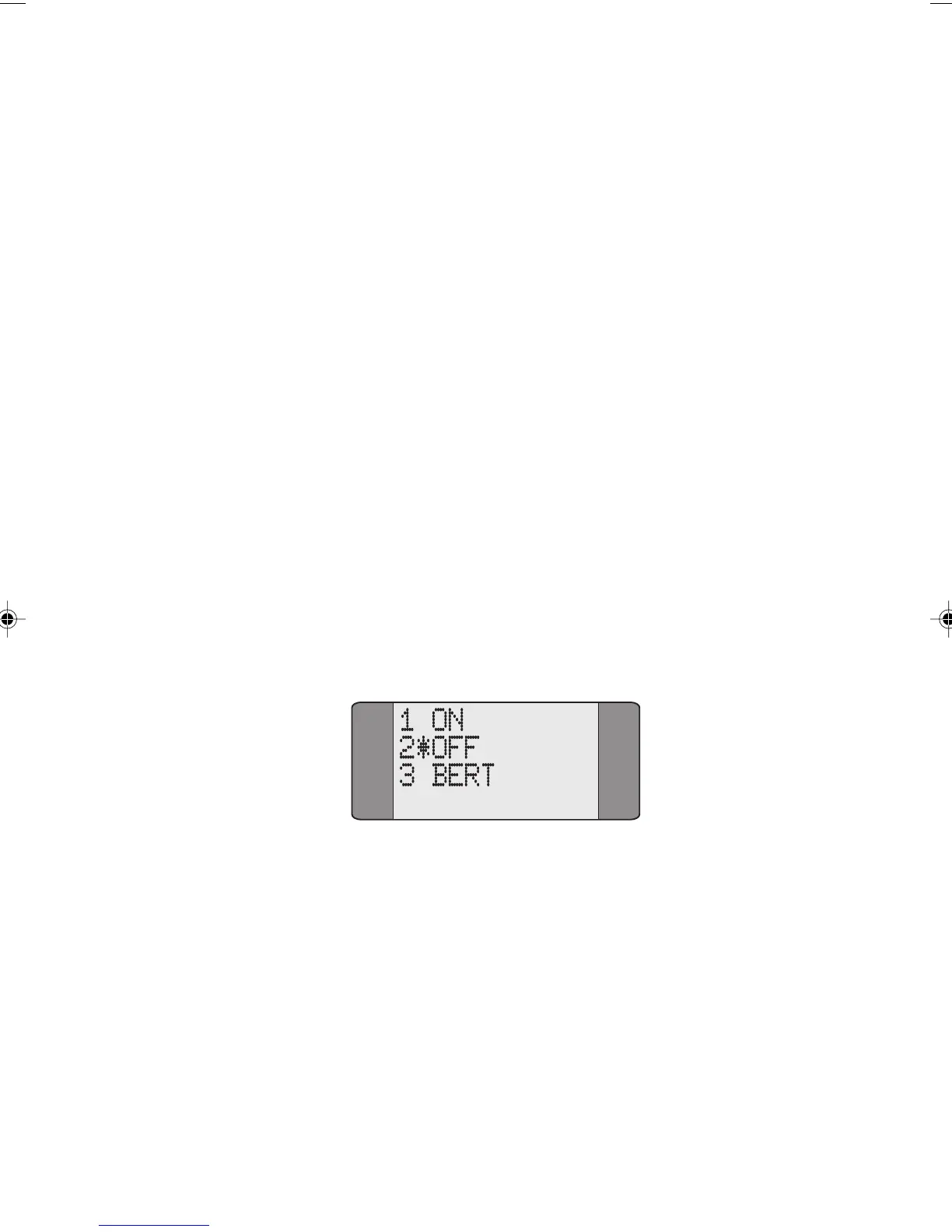
Select TRACER from the Setup Menu.
Choose BERT to enable the automatic download of BER Test
results. Press ENTER to save your selection.
Now perform a BER Test, as described in the next section.
As soon as
AuroraPlus completes the BER Test, the results are
transmitted down the serial port to the connected device.
Chap05.P65 01/05/01, 09:119


 To Next Page