Trend AuroraPlus User Guide
5-6 429850
Performing a Remote Service Check
Choose REMOTE to perform a Remote Service Check.
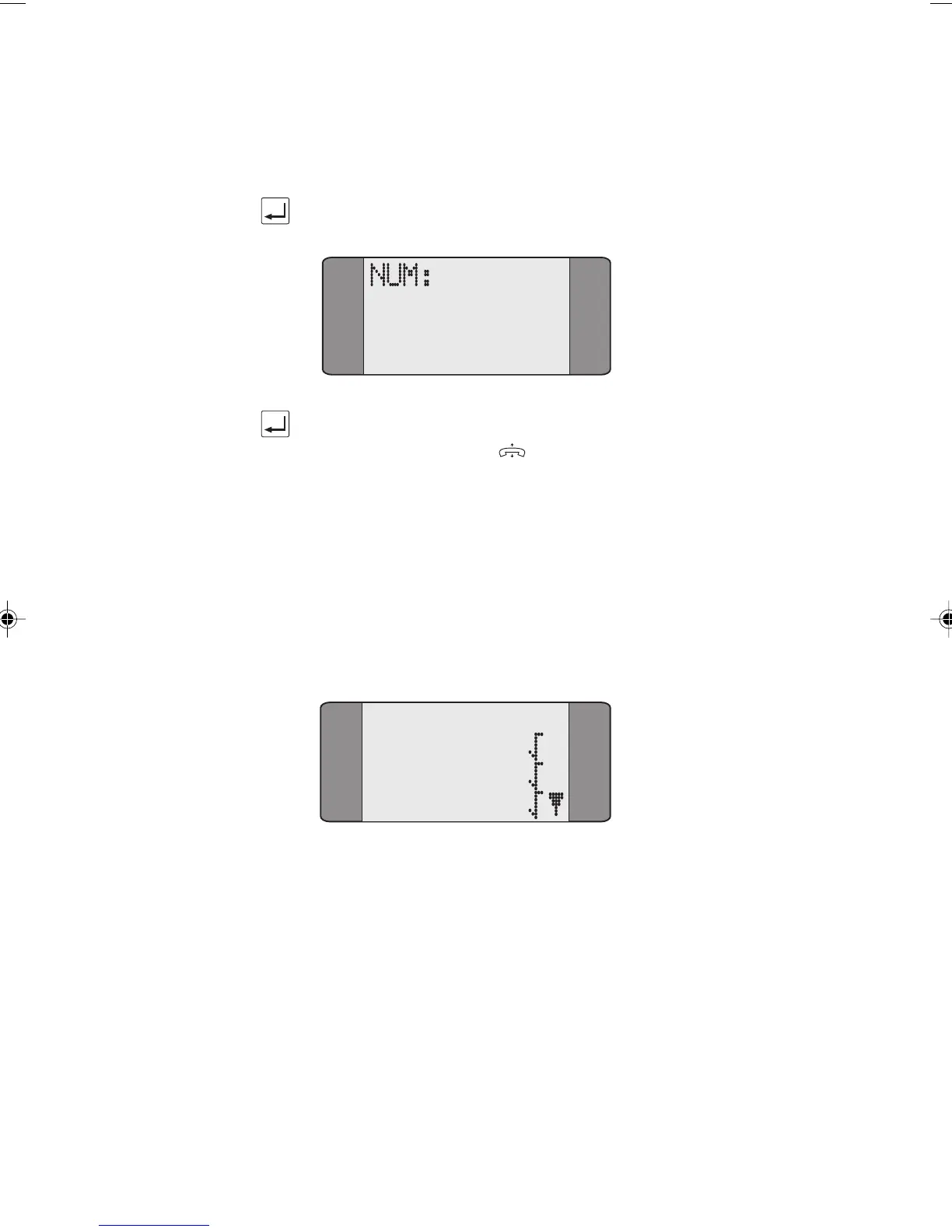
Press ENTER to start the test. A Dial Screen is displayed.
Enter the number you wish to dial (or use Speed Dialling)
and then press ENTER (
) to dial the number.
Understanding Service Check Results
AuroraPlus checks each ISDN service and displays the result of
each test. A tick (
✔) is displayed against available services; a
cross (
✘ ) is displayed against those that are unavailable. Any
service not tested is indicated by a hyphen (
-). When the test
is complete the service test results screen is displayed.
Serv Chk B1
T-ISDN
3.1K
DATA64
To redisplay the results of the test; access the RESULTS menu
option.
Note
To abort the Service Check at any time, press ENTER.
Chap05.P65 01/05/01, 09:116


 To Next Page