Setting up your AuroraPlus
Issue 5 - 04/01 3-7
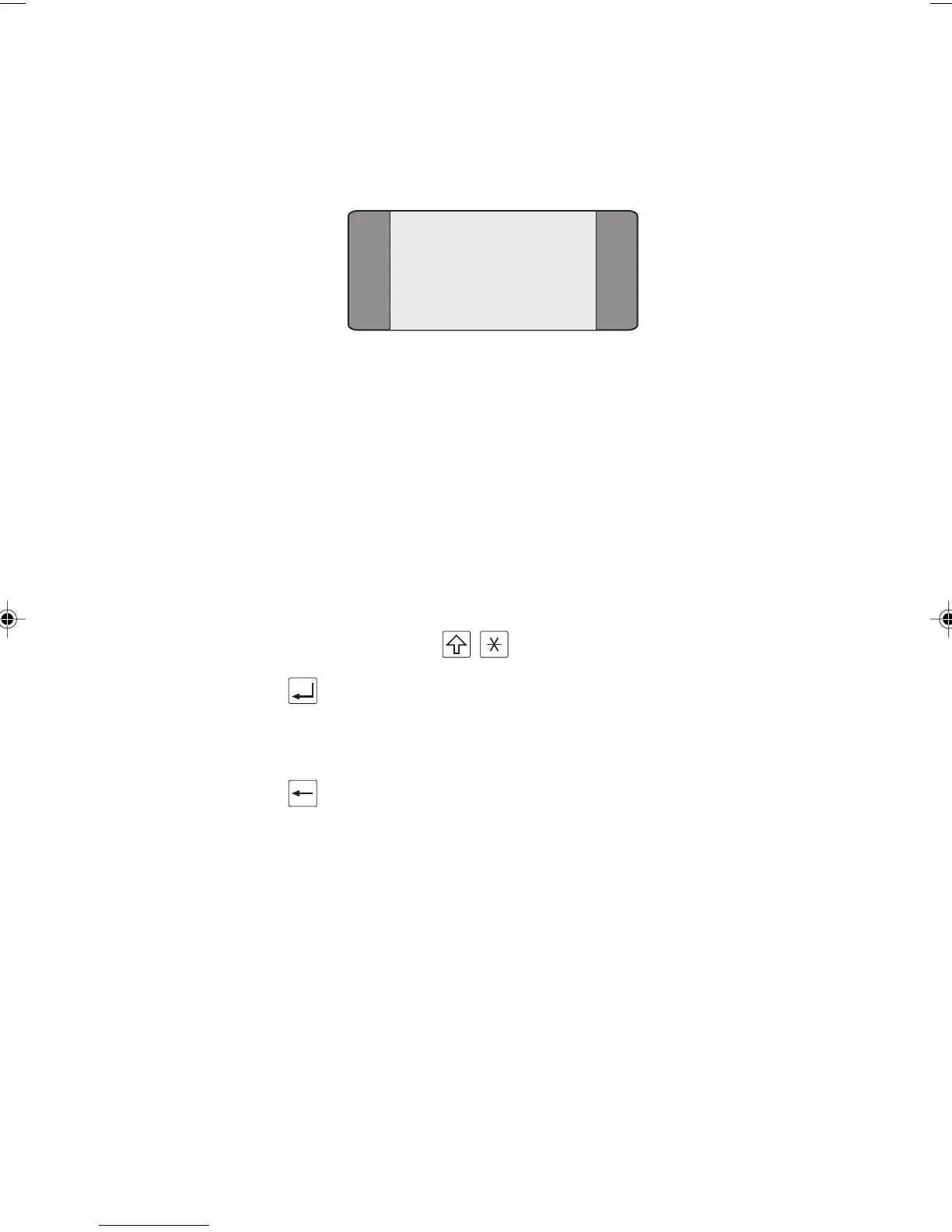
Press SCROLL, then choose ADDRESS to display the
following screen:
1 CPN SUB
2 CLI
3 CUG
Select the appropriate option. An address entry screen is
displayed, depending on your selection.
Inputting a CPN Sub-address or CLI
Enter or overwrite the number you want to store. This
number may be up to 19 digits in length.
You can enter CPN Sub-address and CLI Sub-addresses.
Sub-addresses are separated from the main number by a slash
(
/) symbol. This symbol is produced by pressing SHIFT+
asterisk (
*) - + .
Press the ENTER key. AuroraPlus saves the number and
returns to the previous menu.
Notes
• To clear a previously stored number, press the CLEAR
key to erase one digit at a time.
Address Setup: Setting CLI Presentation/
Restriction
Calling Line ID Presentation (CLIP) enables a subscriber
receiving a call to display the caller's ISDN number. The
service operates even when the subscriber's line is busy.
Calling Line ID Restriction (CLIR) allows a subscriber
making a call to choose whether or not their ISDN number is
presented to the person they are calling.
Chap03.P65 30/04/01, 16:317


 To Next Page