Getting Started
Issue 5 - 04/01 2-11
Connecting to a PC
You would connect AuroraPlus to a PC to send test results or
protocol information to a PC file for analysis using Trend
AuroraExpert for Windows, or to download new software
using the TrendSend File Transfer Utility.
Using the serial cable, connect
AuroraPlus's serial port to the
serial port on the PC.
Switching Power On
If AuroraPlus is connected to a powered interface, it will
power up automatically.
If you are using an AuroraPlus with a built-in battery, slide the
CHARGE/BAT Switch, on the side of the unit, to the BAT
position to obtain power from the internal battery.
Alternatively, slide the switch to the CHARGE position and
connect to the external power supply to charge the battery.
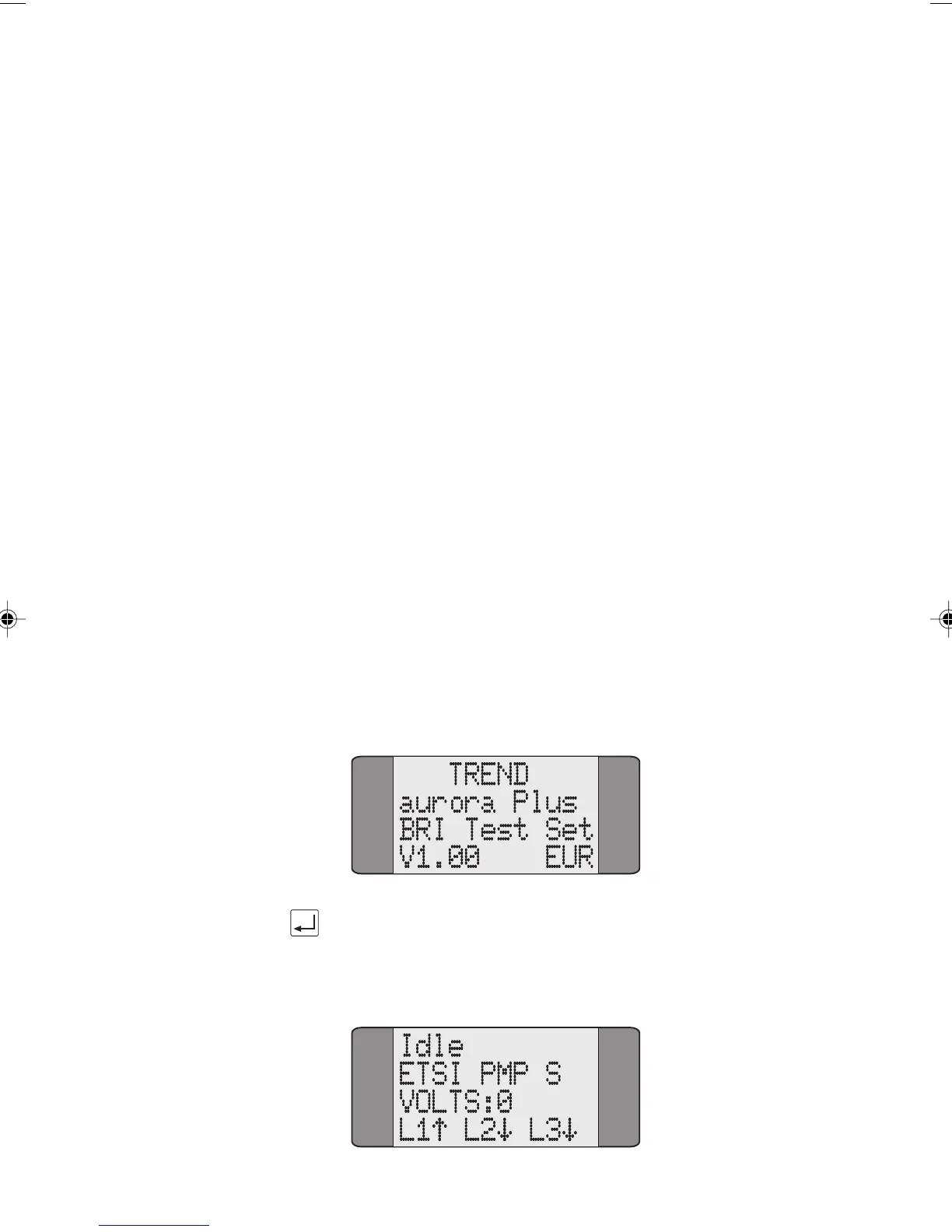
At power-on
AuroraPlus performs a Self Test and displays an
opening screen. This tells you about the model, generation
and software version in use.
Press ENTER to exit the Opening screen and display the Idle
screen (the Idle screen is automatically displayed after 5
seconds have elapsed).
Chap02.P65 30/04/01, 16:3011


 To Next Page